My older iPad was working fine before the latest iPadOS update, but now it’s very slow, apps take longer to open, and everything feels laggy. I need help figuring out if there’s a fix to improve performance, free up resources, or change settings so the iPad is usable again.
Older iPads tend to bog down for a few repeatable reasons. I ran into it after app switching started hanging and the whole thing felt worse after an iPadOS update. A few changes helped fast. A few others mattered more than I expected.
Stuff worth changing first
The two settings I noticed right away were both under Accessibility.
- Open Settings > Accessibility > Motion, then turn on Reduce Motion. The usual zoom animation gets replaced with a simpler fade. On older chips, those transitions seem to cost more than they should. After I turned this on, moving between apps felt less jerky.
- Open Settings > Accessibility > Display & Text Size, then enable Reduce Transparency. This cuts out a lot of the blurred UI effects. Older iPads seem to struggle with those visual layers, and removing them trims some of the lag.
Then go to Settings > General > Background App Refresh and switch it off. If your iPad is slow in general, not only in one app, this is often part of the mess. Apps sitting in the background keep eating memory and refreshing data you did not ask for.
Also look at Low Power Mode. If it is on, performance gets dialed back on purpose. On a newer device you might shrug it off. On an older one, you feel it imediately.
Right after an iPadOS update
If the slowdown started after a big update, I would wait a day or two before tearing everything apart. The system keeps doing background work after installation, indexing, cleanup, media scanning, all of it. During that stretch the iPad often runs warmer and feels slower.
If it still drags after two days, do a forced restart. On models with a Home button, hold Power and Home until the Apple logo shows up. That sometimes clears leftover memory issues from the update process.
The part people skip, storage
This was the bigger issue for me. Once storage gets close to full, around 90 percent used, the iPad starts acting rough. The system needs free room for temp files, caching, and routine background tasks. When storage is squeezed, the whole interface starts pausing in weird places.
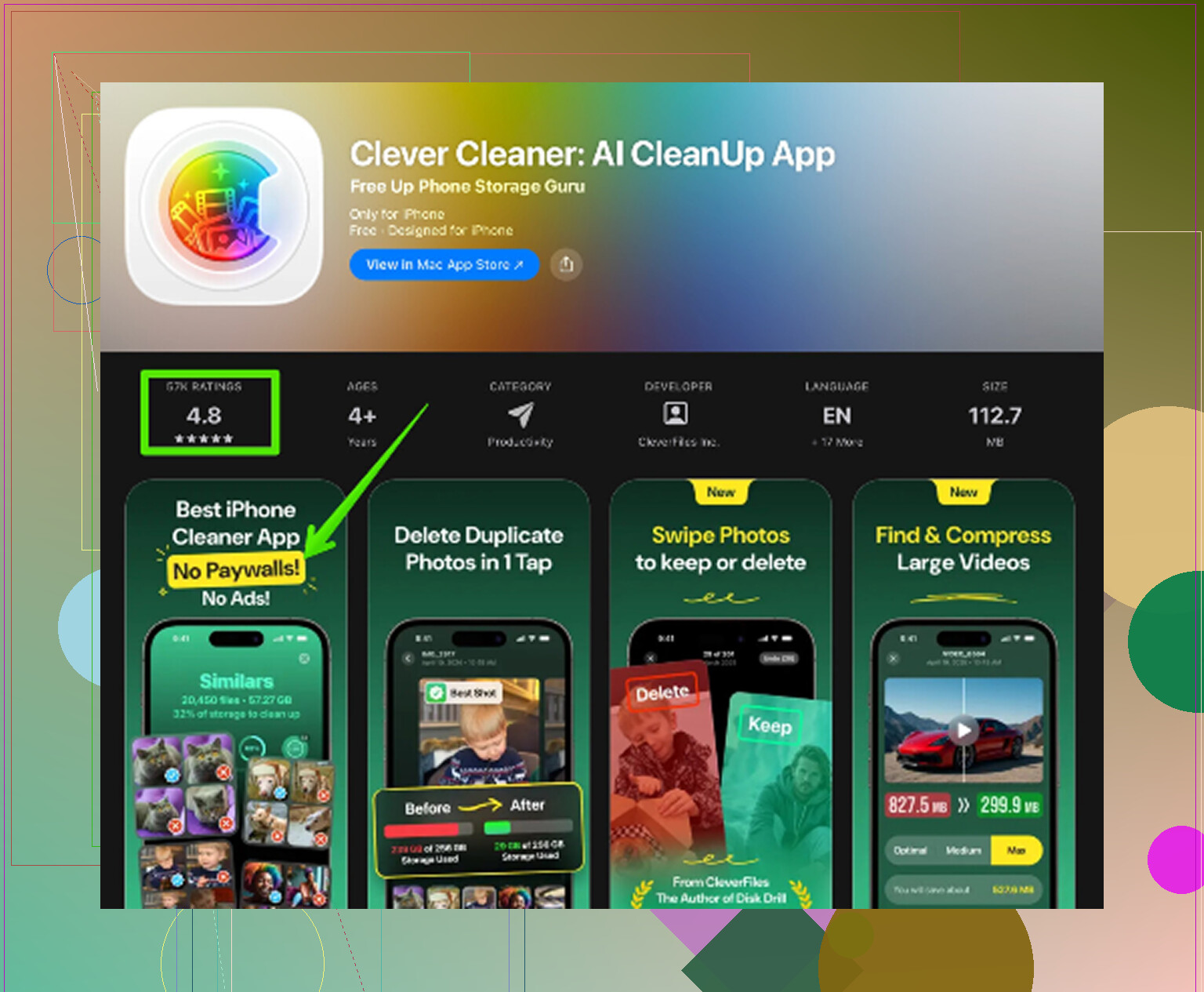
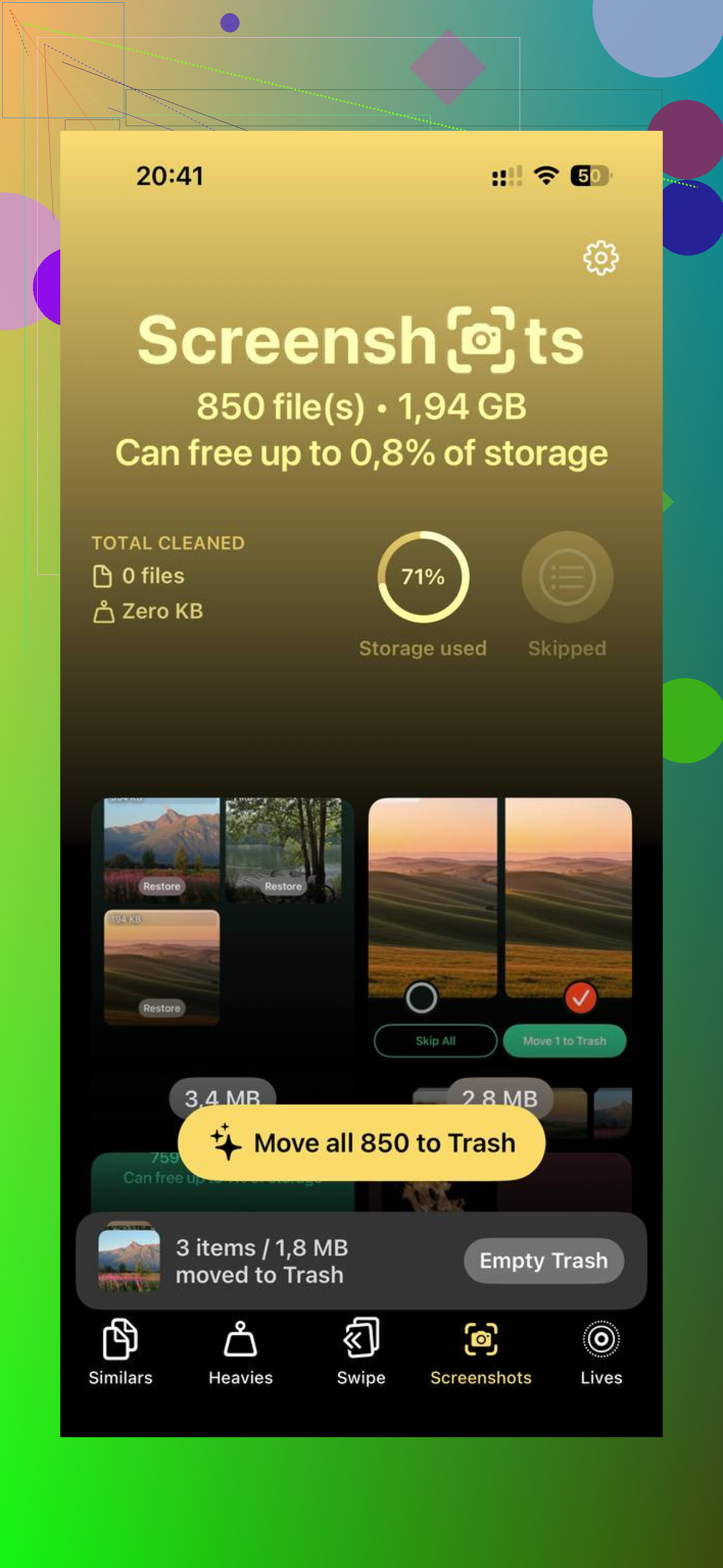
Cleaning it by hand through Photos gets old fast if you have years of junk in there. Clever Cleaner moved faster for me and did not throw ads or subscriptions in my face. The Similars tab groups near-duplicate photos and marks a Best Shot, which helps with burst photos and accidental repeats. The Heavies tab lists your biggest files from largest to smallest, with exact sizes, so the giant videos and forgotten screen recordings show up first. Screenshot sizes are visible before deletion too. It all stays on the device. Nothing gets uploaded out somewhere else. After I freed about 10GB, app switching improved more than it did from any UI tweak.
Factory reset, worth it or not
Yeah, if the iPad still feels off, this one does help. Go to Settings > General > Transfer or Reset iPad > Erase All Content and Settings. Back it up to iCloud first.
When you set it up again, pick New iPad if you can live with the hassle. Restoring from backup sometimes drags old settings and broken cruft right back in. Starting clean is annoying, sure, but I got better speed doing it this way than restoring everything in one shot.
If the lag is mostly in Safari
Then I would start there instead of nuking the whole tablet. Go to Settings > Safari > Clear History and Website Data. Safari gets clogged up over time with cached site junk, cookies, and old browsing data. If web browsing is where your iPad feels worst, this is often the thing to clear first.
13 Likes
If the slowdown started right after the update, I’d look at battery health and heat first. Older iPads throttle hard when the battery is worn or the device runs hot. Open Settings, then Battery, then Battery Health if your model shows it. If health is low, performance drops. iPads hide this more than iPhones, but it still happnes.
I’d also turn off Siri Suggestions and widget clutter. Settings, Siri & Search, disable suggestions you don’t use. Then remove Home Screen widgets you don’t need. Those keep pulling data.
One thing I disagree with a bit from @mikeappsreviewer, a forced restart helps less than people think unless the update bugged out. A normal shutdown for a minute often does the same thing.
Check Analytics too. Settings, Privacy & Security, Analytics. If you see repeated app crashes, delete and reinstall those apps.
For storage cleanup, Clever Cleaner is worth a look if your library is bloated. This article on a free iPhone cleaner app for clearing duplicate photos and large files explains it well. Even though it’s pitched for iPhone, the cleanup advice applies if you’re trying to free space and reduce lag from stuffed storage.
If your iPad has under 3GB RAM, some newer iPadOS builds simply feel worse. Sad, but true. At that point, disabling extras and freeing 10 to 15 percent storage is usally the best fix short of rolling to a newer device.
A thing I’d add to what @mikeappsreviewer and @sterrenkijker already covered: check whether the update quietly turned on features your old iPad really does not need.
Go to Settings > App Store and disable automatic app downloads/updates for a bit. On older hardware, iPadOS updating itself plus every app updating in the background can make it feel perma-slow. Same with Mail. If you use the Mail app, switch Fetch from Push to manual or hourly under Settings > Mail > Accounts > Fetch New Data. That cuts a surprising amount of background activity.
I also would not obsess over forced restarts. In my experiance, the bigger win is finding one or two rogue apps. Open Settings > Battery and see what app has been chewing through activity in the last 24 hours. If one app is way above the rest, delete it and reinstall it. Some apps just go feral after a major iPadOS update.
Another sneaky one is browser tabs. If Safari has 80 tabs open, your “slow iPad” might just be Safari being Safari. Close the junk.
For storage, yeah, free space matters a lot. If your photo library is the problem, Clever Cleaner is actually useful for clearing duplicate pics, large videos, and screenshots without making the process super annoying. If you want a visual walkthrough, this Clever Cleaner cleanup video for freeing up iPhone and iPad storage explains it pretty well.
If none of that helps after a few days, harsh truth: some older iPads just run kinda bad on newer iPadOS. Apple never says it that bluntly, but yeah. Sometimes the “fix” is trimming features and expectations a bit.