I turned on Optimize iPhone Storage to save space, but now I’m not sure if it only changes photos or if it affects videos too. Some of my videos seem lower quality until they reload, and I need help understanding what gets stored on my iPhone versus iCloud.
Apple’s iPhone storage page is a mess. I’ve seen more confusion around “Optimize iPhone Storage” than almost any other Photos setting, mostly because the label is short and the behavior isn’t.
What it does after you switch it on
This setting only works with iCloud Photos. They’re tied together. If iCloud Photos is enabled and you pick Optimize iPhone Storage, your phone starts treating local storage like a cache. The original full-quality photos and videos live in iCloud, while the iPhone keeps smaller device-sized copies for browsing.
Your library still looks complete. Nothing seems missing at first glance. Then you tap an older image, zoom hard, or hit edit, and the phone grabs the original from iCloud. If you’ve noticed a tiny loading spinner on a thumbnail or photo preview, yep, that’s the handoff.
If iCloud Photos is off, this setting has nowhere to send the originals. So it does nothing useful in practice. Your phone keeps the full files on-device until space gets tight, then you’re stuck cleaning up or deleting stuff by hand.
It applies to video too
Yes, and this is where most of the saved space usually comes from. Photos add up slowly. Video punches you in the face. One minute of 4K at 60 fps lands around half a gigabyte, give or take. A few short clips from a trip or your kid’s soccer game, and your storage starts looking cooked.
When optimization kicks in, those large video originals are prime targets. So if you turned it on and saw more free space than expected, video is likely the reason.
It does not clear space all at once
This part trips people up. You enable it, then check storage five minutes later, and it looks like nothing happened. I did the same thing the first time.
The system works over time. Recent items often stay in full resolution on the phone for faster access. Older stuff gets pushed to iCloud first when storage pressure rises. On a small library, this moves fast. On a huge one, it drags. Wi-Fi helps. Plugging the phone in helps too. If you’ve got years of photos and videos, give it hours, not minutes.
Why it seems to switch itself off or stop helping
I’ve run into two usual causes.
First, check your other Apple devices on the same Apple ID. If one of them is set to download originals and hold everything locally, people sometimes read the mixed behavior as optimization failing. The settings don’t always feel consistent across devices.
Second, and this is the big one, your iCloud storage is full. Apple gives 5GB free, which is close to useless once video enters the chat. When iCloud runs out of room, the phone has nowhere to place those original files. So the whole process stalls. If you open Settings, then Apple ID, then iCloud, you’ll often see a warning or a red exclamation mark spelling it out.
What happens if you turn it off
The iPhone starts pulling original files back down to the device. All of them. If your library is big, this takes a while and chews through local storage fast. I wouldn’t disable it unless you already checked how much space you’ve got free, becuse it fills up quicker than people expect.
Where this setting falls short
Optimize iPhone Storage does one job. It moves originals off the phone and keeps lighter copies locally. It does not clean up junk.
So if your library is packed with duplicate screenshots, blurry shots, burst-photo leftovers, ten copies of the same receipt, and giant videos you forgot existed, iCloud keeps all of it. Good files, bad files, accidental files, no difference.
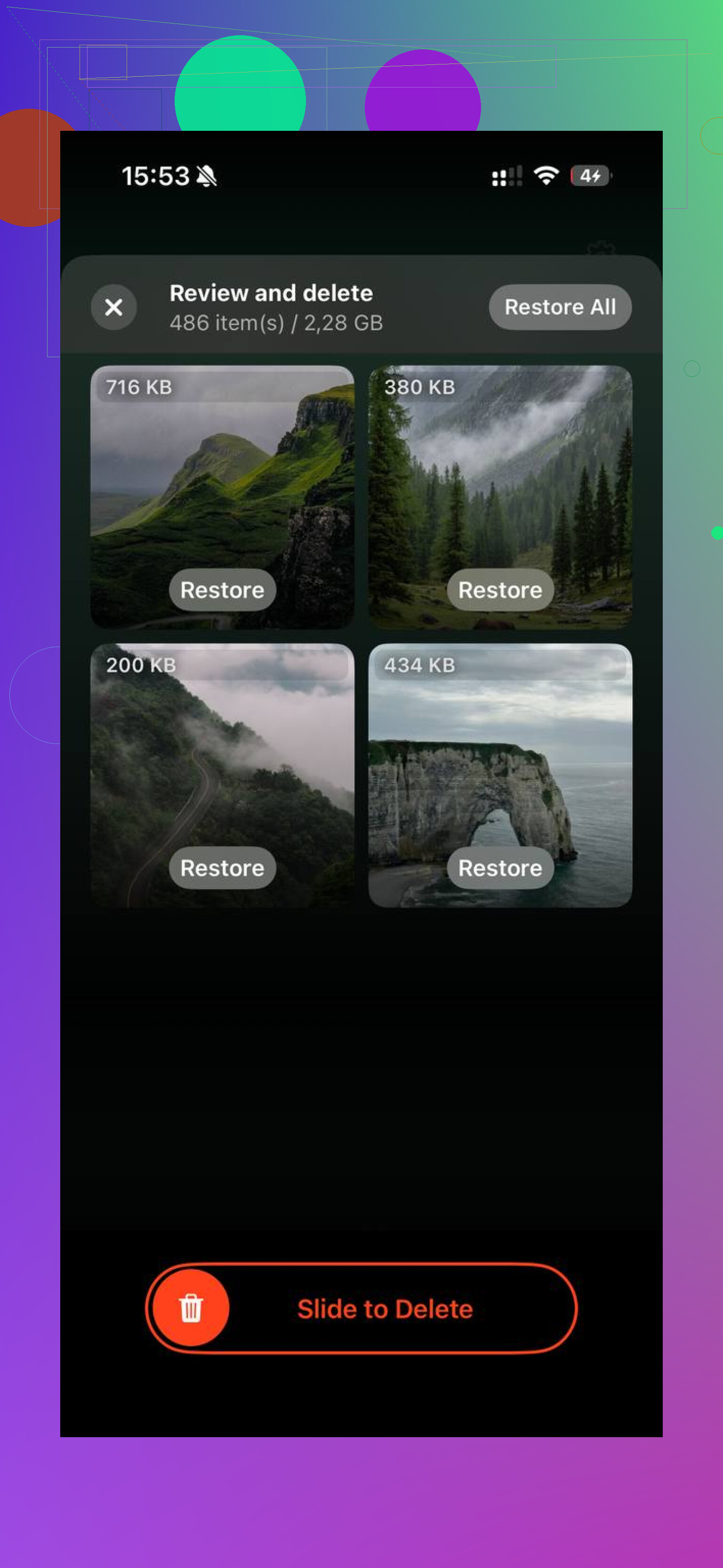
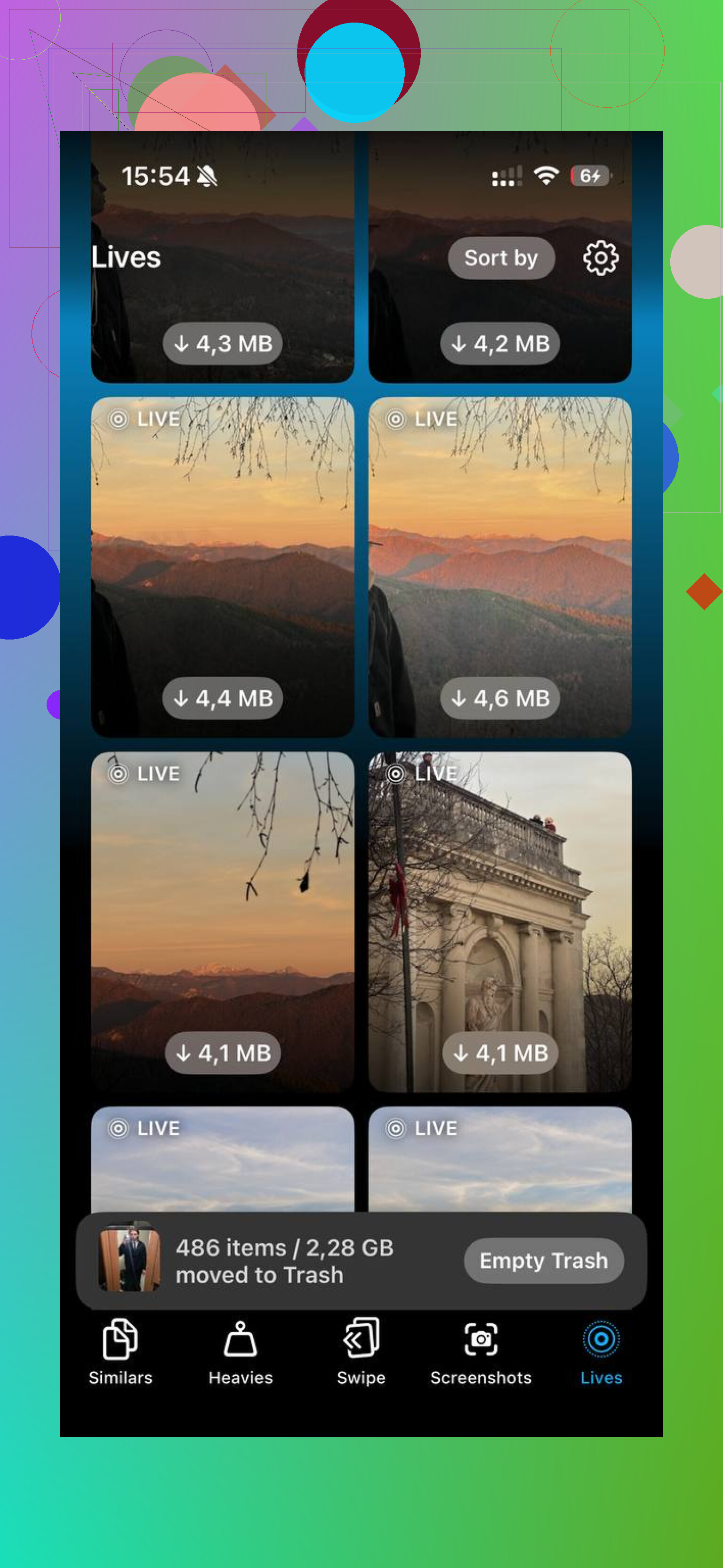
Clever Cleaner fills in that gap. I used it to sort out the stuff Optimize Storage ignored. The Heavies section puts the largest files at the top, so the space hogs show up fast, usually long 4K clips. The Similars section groups near-duplicate photos and picks a best shot from each set, which helped trim burst sequences and those five-tries-of-the-same-angle folders. It runs on the device, and nothing gets uploaded somewhere else.
After I cleared duplicates and the giant video files with Clever Cleaner, Optimize iPhone Storage started behaving the way people expect. My phone had breathing room again, and the slowdowns from low storage eased up a lot.
1 Like
Yes. It affects videos too.
What you’re seeing is normal. When Optimize iPhone Storage is on, your iPhone keeps smaller local versions of both photos and videos. The full-resolution originals stay in iCloud Photos. When you open an older video, it might look soft for a few secconds, then sharpen after the original downloads.
A small correction to @mikeappsreviewer, I would not think of it as only “smaller copies for browsing.” On video, iPhone often keeps enough local data for previews and quick playback, then pulls more when needed. So the blurry start is expected, not a bug.
A few practical checks:
- Settings, Photos, confirm iCloud Photos is on.
- Check iCloud storage. If it’s full, optimization stops helping.
- Use Wi-Fi and power for faster syncing.
- If you edit or export videos often, expect delays because the original has to reload.
If your goal is free space, video is usuallly the biggest target. A 1 minute 4K60 clip is huge compared to a photo. That’s where most savings come from.
Optimize Storage does not remove junk from your library. It keeps all your duplicates, screenshots, failed clips, and giant old recordings. If your phone is still packed, Clever Cleaner is worth a look for iPhone photo and video cleanup. It’s easier to sort large videos and duplicate shots than most iPhone cleaner apps. If you want a quick explainer, this video is decent, see how iPhone storage optimization works.
Short version, yes, videos are included. The low quality at first is part of how it works.
Yep, it affects videos too, not just photos.
What you’re seeing with videos looking fuzzy for a moment is basically the giveaway. With Optimize iPhone Storage on, iPhone may keep a lighter local version or just enough for preview, then fetch the full-quality video from iCloud when you actually open it. So soft playback at first is normal-ish, even if it’s kinda annoying.
I mostly agree with @mikeappsreviewer and @mike34, but I’d push back on one thing: people sometimes expect every single old video to instantly vanish from local storage once this is enabled. It doesn’t work that neatly. iOS is weirdly selective about what stays cached, especially stuff you watched recently or edited.
Also, optimization is not compression in the permanent sense. Your originals are still the originals in iCloud. Your phone is just being stingy with local space.
If your storage is still a mess after enabling it, that usually means the problem is not only iCloud optimization, it’s also clutter. Huge clips, duplicate photos, screen recordings, junk screenshots, all that fun stuff. That’s where something like Clever Cleaner actually helps more, since it can surface the biggest files faster than digging through Photos by hand. If you want a quick outside take, this article calls it a truly free iPhone cleaner app worth checking out.
Short version: yes, videos are included. The temporary low quality is expected. If it stays low quality forever, then I’d start suspecting iCloud space, bad connection, or syncing being stuck.
Yes, videos too.
One thing I’d add to what @mike34, @sonhadordobosque, and @mikeappsreviewer said: the setting is less like “convert my library to low quality” and more like “let iOS decide what stays local.” That distinction matters, because some videos will still sit on your phone in near-full form for a while, especially recent ones.
So the fuzzy playback is usually just the local placeholder or partial file. The original is still in iCloud Photos if syncing is healthy.
Where I slightly disagree with the usual explanation: it is not always only about storage pressure. iPhone also seems to favor convenience. Stuff you recently shot, edited, shared, or rewatched may hang around longer than expected.
If you want the practical takeaway:
- Photos and videos are both affected
- Originals are not lost, they live in iCloud
- Older videos may look soft until they finish loading
- Editing/exporting a cloud-only video can take longer
If your storage still feels bloated after enabling it, that means optimization is doing its job but your library itself is messy. That is where Clever Cleaner can help.
Pros of Clever Cleaner:
- finds large videos fast
- useful for duplicates and similar shots
- easier than manual cleanup in Photos
Cons:
- it is a cleanup tool, not a replacement for iCloud Photos
- you still need to review before deleting
- if your issue is bad syncing, it will not fix that
So, yes, Optimize iPhone Storage absolutely affects videos, not just photos.