My laptop crashed unexpectedly, and now I can’t access my Outlook PST file with years of emails, contacts, and folders. I’m trying to recover the PST file from the laptop hard drive, but Outlook won’t open it and I’m worried the file may be damaged. What’s the best way to recover an Outlook PST file and restore my email data safely?
I hit this exact Outlook error after cleaning up old folders, and the bad part was simple. Outlook was still pointing to a PST I had removed. If you deleted one from Downloads, Documents, or the Outlook Files folder, this is where I’d start.
First thing, stop using the PC unless you need it for recovery. Windows often leaves deleted files sitting on disk until new data takes their place. Every random download, browser tab, or install gives you worse odds.
Work through it in this order
1. Check the obvious stuff first
Open the Recycle Bin. A normal delete often leaves the PST there. If you used Shift+Delete, then yeah, it skipped the bin.
After tha,t check any sync or backup service tied to your user folders. If Documents goes through OneDrive or Dropbox, sign into the web version and look in deleted files, version history, or restore options. I’ve seen OneDrive keep stuff longer than people expect.
2. Look for older folder snapshots in Windows
If File History, System Restore, or shadow copies were on, Windows might still have an earlier copy of the folder.
Usual location:
C:\Users\YourName\Documents\Outlook Files
Right-click the folder, pick “Restore previous versions,” then open any snapshot dated before the PST vanished. If you see the file, copy it somewhere safe first. Don’t restore over random things without checking.
3. If it’s gone, run recovery software
If the bin is empty and Windows has no older version, I’d move to file recovery next.
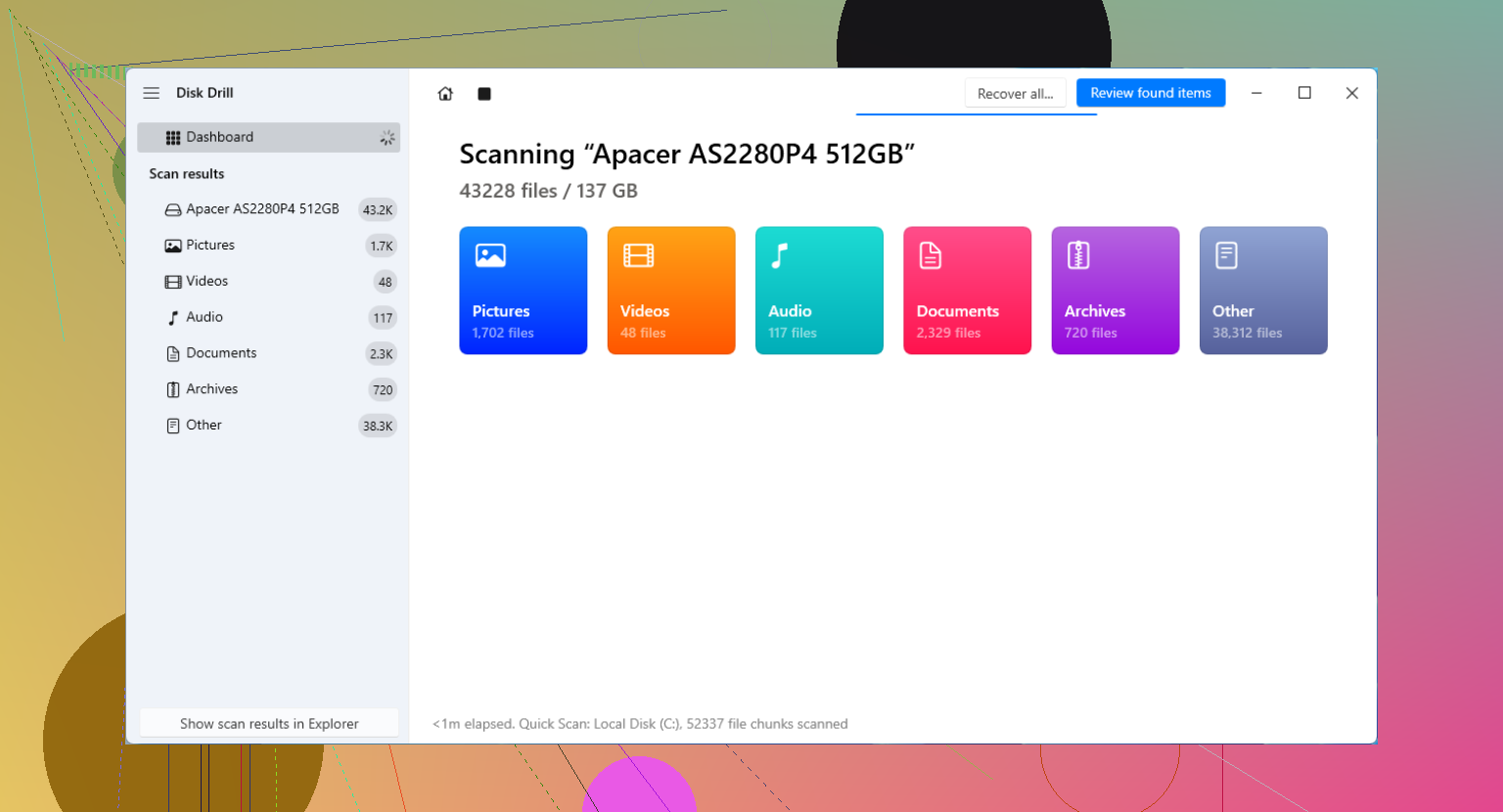
Disk Drill gets mentioned a lot for deleted files because it scans for items Windows no longer shows.
The main rule is simple. Don’t install recovery software onto the same drive where the PST got deleted if you have another option. Use another internal drive, an external disk, or even a USB stick.
What I’d do
Install the recovery app somewhere other than the affected drive.
Scan your Windows drive, usually C:.
Filter results for PST files.
Check file sizes. A fresh blank Outlook data file is often tiny, maybe a few hundred KB. The one you care about is often much larger, from hundreds of MB up into GB territory.
Recover the large PST to a different location, like an external drive or the Desktop.
4. Watch for Outlook making a new empty file
This part throws people off. Outlook often reacts to a missing PST by making a new blank one. So Outlook opens, but your folders and mail are gone. It looks broken, but it’s usually pointing at the wrong file.
After you recover the old PST, load it by hand:
File > Open & Export > Open Outlook Data File
Pick the recovered PST. If your old folders show up in the left pane, you’re on the right track. Once you confirm the mail is there, go into Account Settings and switch the default data file back to the recovered one.
5. If the account used IMAP, your server mail is often fine
This is the one decent bit of news. If the account was IMAP, your inbox and synced folders were likely still on the mail server. Adding the account again usually rebuilds an OST and pulls mail back down.
The stuff I’d worry about is local-only data. Old archives, imported mail, folders you kept outside server sync, and anything stored only in the PST. That’s where the recovery scan matters most.
After you get it back
Make a backup copy right away. Put the PST on an external drive, include it in cloud backup, or export on a schedule you’ll rememebr to follow. PST files are easy to forget until one disappears and takes years of mail with it.
If the recovery results show a big PST, start with that one. Small ones are often the blank replacements Outlook made after the original went missing.
7 Likes
If Outlook sees the file but refuses to open it, I’d stop thinking “deleted file recovery” first and treat it like “damaged Outlook data” first. That’s the part I’d push a bit harder than @mikeappsreviewer did.
Try Inbox Repair Tool, scanpst.exe. It ships with Outlook. Common paths are under Program Files\Microsoft Office\root\OfficeXX. Run it against the recovered Outlook email archive file. If the PST is large, the scan takes a while. I’ve had 8 GB files fail in Outlook, then open after 2 repair passes.
Next, copy the PST off the laptop drive before testing. Put it on an external drive or another PC. Bad sectors on a dying laptop disk will keep corrupting reads. If Windows Event Viewer shows disk errors, do not keep opening the file over and over. That makes things messier.
One more thing people miss. Make a new Outlook profile in Control Panel, Mail, Show Profiles. Then attach the recovered file there. Old profiles get stuck pointing at broken paths and dead OST/PST refs. New profile, clean test. Less drama.
If scanpst fails or the file is missing from the drive, then Disk Drill makes sense for Outlook PST recovery. Recover to a different disk, not back to C:. Search by extension and sort by size. Big file = better odds, usualy.
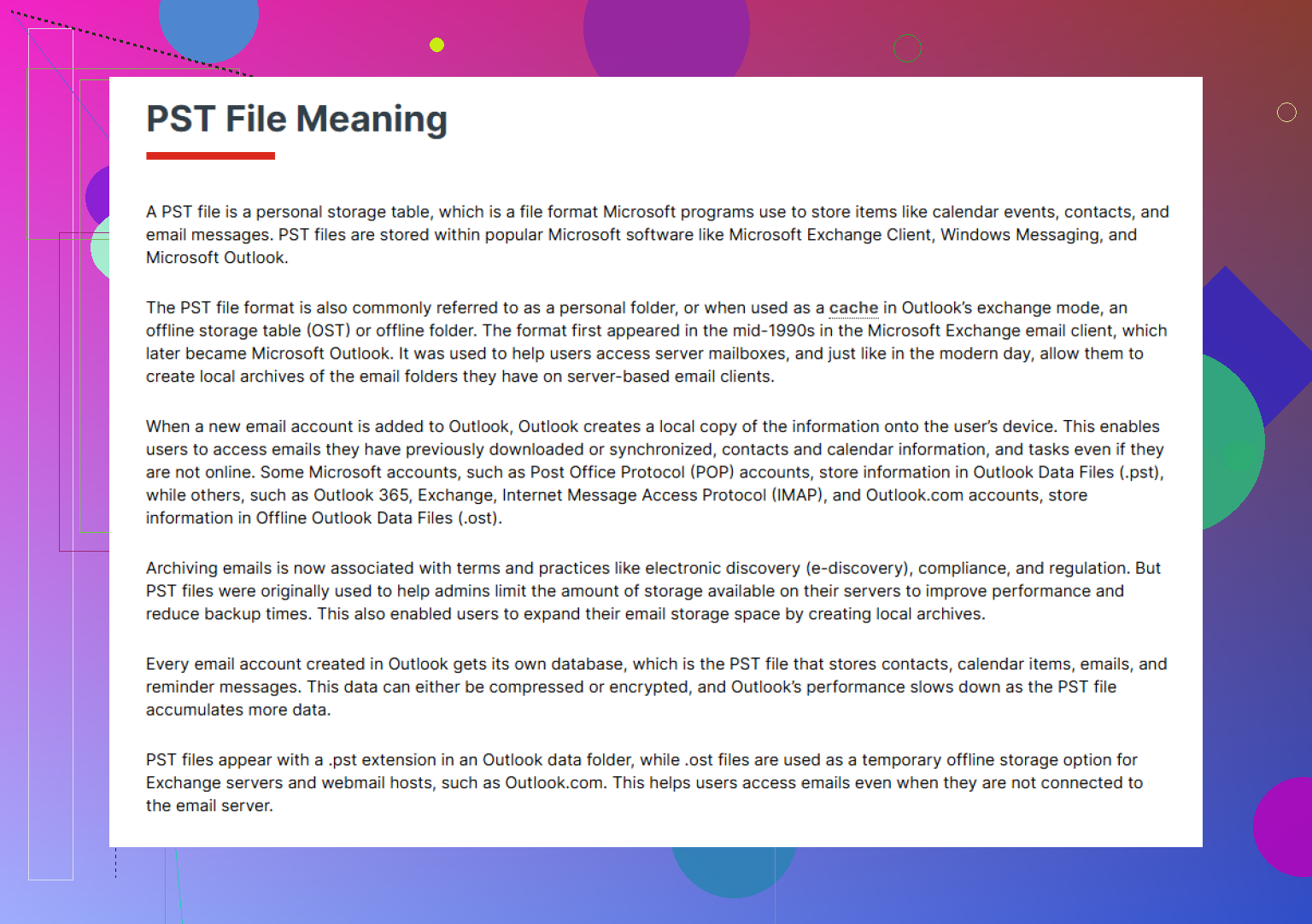
Also, this page gives a plain explainer on what an Outlook PST file stores and why it matters.
If you know the laptop crashed from hardware failure, pull the drive and read it from another machine with a USB adapter. That step saves time.
If Outlook won’t open the PST at all, I’d also verify whether the file is actually complete before spending too much time in Outlook itself. A crash can leave you with a truncated PST that still has the right name but the wrong size. Right-click it, check Properties, and compare that size to any old backup, attachment, or even Windows Search index hints if you remember roughly how big it used to be. A 200 KB or 1 MB PST after “years of emails” is usually not your real file.
I slightly disagree with @mikeappsreviewer on one part: not every “found” PST is worth restoring first. Outlook leaves behind old archives, auto-archives, and half-dead copies all over the place, so don’t just grab the first .pst you see. Sort by date modified and size. That saves a lot of faffing around.
A couple other things I’d do:
- Run
chkdsk /ronly if the drive is still physically readable and you’ve already copied the PST off first. On a failing disk, chkdsk can be a bit too “helpful.” - If the laptop itself is dead but the drive works, mount it on another PC and search the whole drive for
*.pstand*.ost - If the PST opens partway, try exporting mailbox folders out in chunks instead of trusting the file long-term
- If Outlook freezes when attaching it, test the PST in safe mode:
outlook.exe /safe
Also, if this was a POP account, the PST may have been the only copy of everything. That’s the ugly part people forget. IMAP gives you more room for error, POP does not.
If the file is missing or corrupted beyond what Outlook can handle, Disk Drill is still a practical move for Outlook PST file recovery, especially if you scan the removed laptop drive from another machine. And if you want a sanity check before using it, read real Disk Drill user reviews and recovery experiences.
Main thing: don’t keep opening the original file over and over. Work from a copy. That one mistake burns people all the time, tbh.