I accidentally deleted photos from my Canon camera SD card, then kept using the card and took more pictures before realizing it. Some of those missing photos are really important, and I need help figuring out if recovery is still possible after the card was reused. Looking for the best way to recover deleted Canon SD card photos without making things worse.
I’ve pulled deleted shots off Canon SD cards more than once, so I wouldn’t write them off yet. First thing I did each time was stop shooting right away. Once you keep using the camera, new files start landing on the same card space, and your old photos get overwritten.
Take the SD card out of the camera. Use a card reader and plug it into your computer. If the card has the little lock tab, switch it to locked before you do anything else. And if Windows or macOS pops up a format prompt, ignore it. I’ve seen people click that by mistake and make the mess worse. It usually means the system is having trouble reading the card, not that every photo is gone.
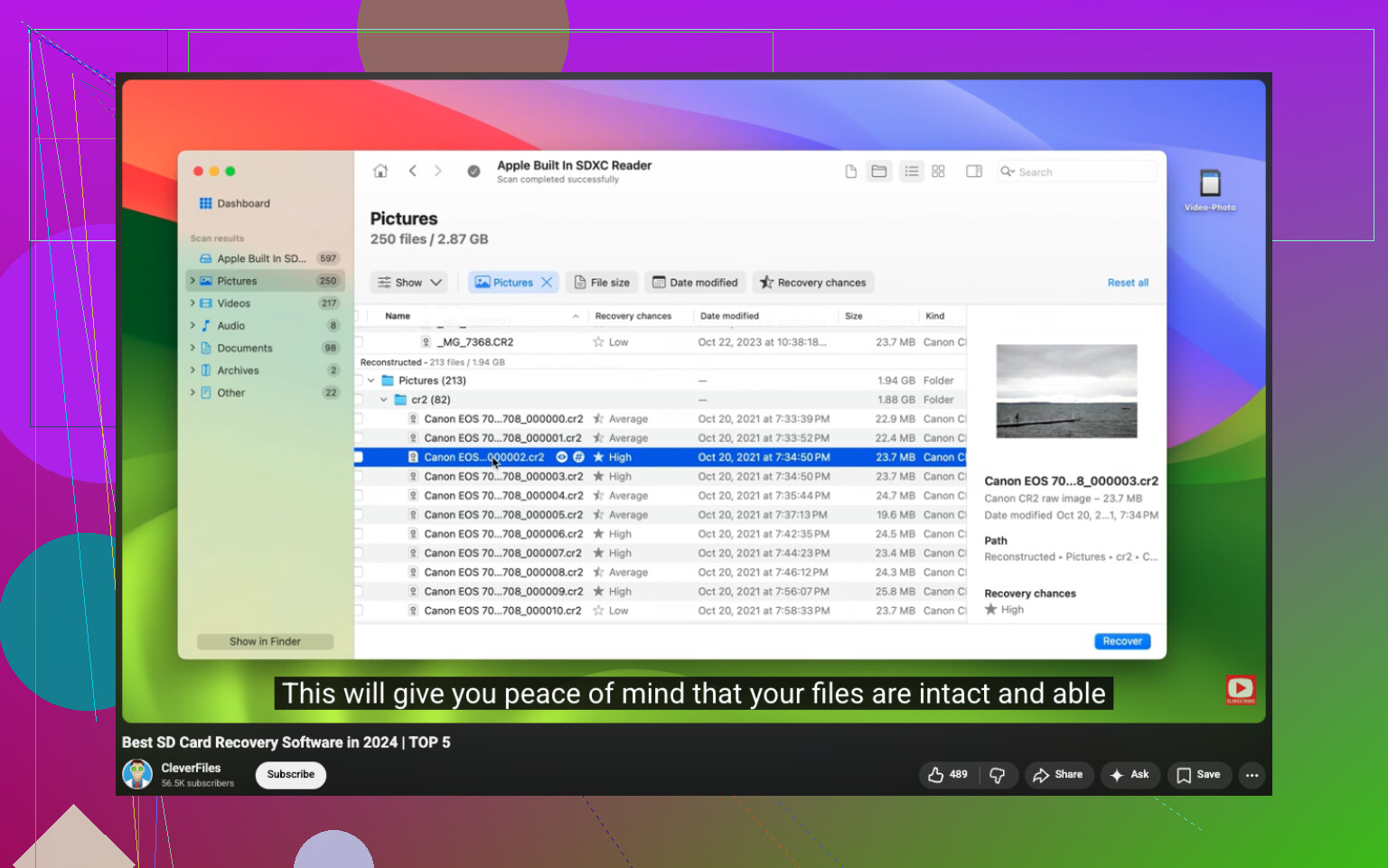
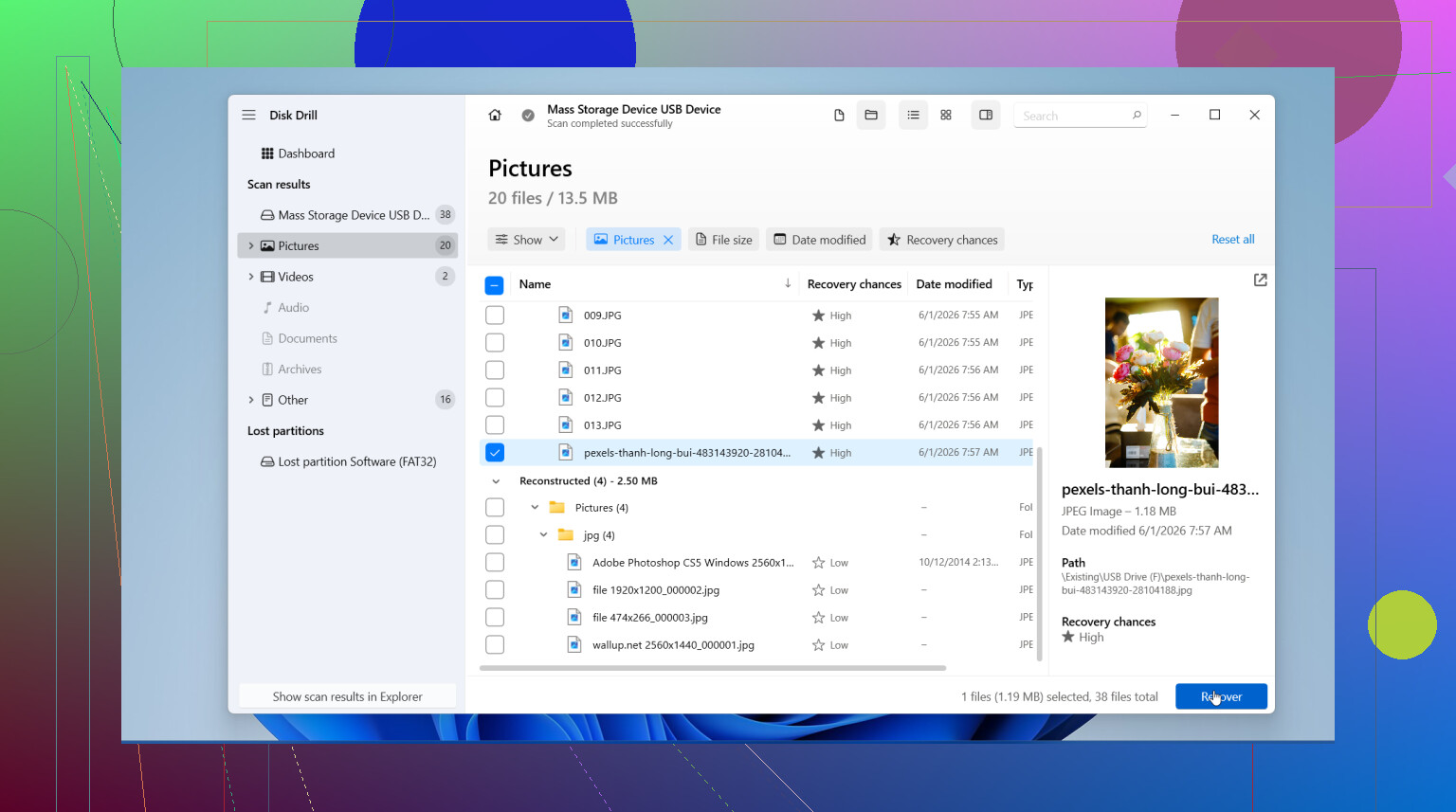
For recovery, I’d start with Disk Drill. I used it because the layout was easy to follow and it picked up common Canon formats, including RAW files. The preview part matters. You don’t want to recover a pile of broken files and sort out the damage later.
Here’s the rough flow I followed:
- Install Disk Drill on your computer.
- Insert the Canon SD card with a card reader.
- Pick the SD card inside Disk Drill.
- Run a Universal Scan.
- Open the Deleted or Lost area.
- Filter results by Pictures.
- Preview what it found.
- Save recovered files to your computer, not back onto the same SD card.
One more thing people skip. Check your other backup spots before spending too much time on recovery. I’ve found “lost” photos sitting in Recycle Bin, Trash, Time Machine, File History, Google Drive, OneDrive, and Canon’s image.canon sync. Sometimes the file wasn’t gone, it was dumped into some dumb folder you forgot existed.
Your odds are best if the card hasn’t been used since the deletion. If you already shot more photos or video on it, recovery gets a lot less clean, fast.
6 Likes
If you kept shooting after deletion, the missing files fall into two groups. Some are untouched. Some got overwritten. Overwritten data is gone. No app fixes that.
I slightly disagree with @mikeappsreviewer on one point. A format prompt is bad, but one accidental quick format does not always kill recovery. It often wipes the file table, not the photo data. Reuse is the bigger problem.
What I’d do now:
- Stop using the SD card.
- Make a byte-for-byte image of the card first, with something like USB Image Tool or ddrescue.
- Run recovery on the image, not the card.
- Try file carving tools, not only file-system recovery. PhotoRec is strong for JPEG and CR3.
- Sort results by date and file size. Reused cards often return partial files and renamed junk.
Disk Drill is still worth trying if you want an easier UI and previews. It’s a solid choice for Canon SD card photo recovery software, esp if you need to check thumbnails fast before exporting. I’d pair it with PhotoRec, since one tool misses stuff another finds.
Also check if your Canon wrote dual slots, RAW+JPEG, or sent copies to image.canon. That saves people more often than they think.
This video covers card recovery options pretty well:
see how SD card photo recovery tools compare
If the old photos matter a ton, skip DIY after imaging and send the card to a pro lab. Every extra write hurts your odds.
If you kept shooting after deleting them, the answer is basically: maybe, but only the parts that were not overwritten. That’s the ugly part nobody can sugarcoat. Once new Canon photos reused the same sectors, those old files are toast.
I mostly agree with @mikeappsreviewer and @yozora, but I’m a little less optimistic about “full” recovery after reuse. People hear “recoverable” and assume all missing pics come back perfect. Nah. Realistically you may get:
- some fully intact photos
- some half-broken JPEGs
- some RAW files that preview but won’t open right
- some files with weird names and no folder structure
One thing I would add that they didn’t really stress enough: check the card in the camera itself one more time with playback and also connect the camera directly by USB if you haven’t already. Sometimes the PC reader acts flaky, while the camera can still expose DCIM folders normally. Doesn’t happen a ton, but I’ve seen it.
Also, if these are CR3/RAW shots, test recovered files in Canon Digital Photo Professional, not just Windows Photos or Preview. I’ve had files look “corrupt” in basic viewers but open in Canon software just fine. Kinda annoyng, but true.
If you want the easier route, Disk Drill is fine for Canon SD card photo recovery because previews save time. But after scanning, export only the files that actually preview correctly first. Don’t just dump 8,000 mystery files and hope for magic.
And if the photos are truly once-in-a-lifetime stuff, stop DIY after the first pass. Cloning the card and sending it out is smarter than poking at it for hours.
Also saw this discussion that’s pretty relevant:
Canon photo recovery tips from real users on Facebook
I’m with @yozora and @techchizkid on the big point: reuse matters more than the delete itself. But I slightly disagree with the “check it in-camera/USB first” angle from @mikeappsreviewer. If the card is still mounting anywhere, I’d avoid extra browsing and go straight to a read-only clone. Less handling, less risk.
What I’d add that hasn’t been stressed enough: compare the numbering gap. Canon filenames often tell you roughly how many shots were taken after deletion. If only a handful were shot later, odds are better. If you filled half the card, expect mostly fragments.
Also, Canon cards can hold sidecar and database files the recovery apps ignore on preview. Those can help you identify missing sessions even if the original folder tree is gone. So do not judge success only by thumbnails.
On software, Disk Drill is fine as a first-pass scanner.
Pros:
- easy preview workflow
- good support for common photo formats
- less tedious than command-line tools
Cons:
- can return lots of duplicate or renamed results
- not the deepest option for damaged file systems
- previewable does not always mean fully intact after export
I’d still use Disk Drill first for triage, then verify recovered CR3/JPEGs in Canon DPP or Lightroom, not just Finder/Photos. A file that “opens” is not always complete.
Short version: stop using the card, clone it, scan the clone, expect partial recovery, and prioritize irreplaceable shots first.