I accidentally deleted several important videos from my digital camera’s SD card before backing them up, and I’m trying to find the best way to recover deleted videos from an SD card without making things worse. The card was used only briefly after the deletion, and I really need help figuring out safe SD card video recovery options for camera footage.
Lost a video off your camera card? Do this first
The first thing I wanted to know after I nuked a clip was simple. Is it gone for good?
A lot of the time, no.
When a video gets deleted, the camera usually removes the file entry, not the video data right away. The data often sits on the card until new stuff lands on top of it. So the first few minutes matter more than people think. I learned this the hard way.
1. Stop using the card
If the video vanished, quit shooting right there.
Do not record more footage. Do not snap photos. Do not format the card. Even a couple of new files might write over parts of the deleted video. Once pieces get overwritten, recovery drops fast.
Pull the memory card out and set it aside until you’re ready to work on recovery.
2. Figure out if software is enough
I wouldn’t treat every card problem the same way. Some cases are fine for DIY recovery. Others are not worth poking at.
Software recovery makes sense when:
- You deleted the files by mistake.
- The card got formatted.
- The card shows up as RAW.
- Your camera or computer reports a file system problem.
- The videos disappeared, but the card still seems readable.
I would stop and look at a recovery service instead when:
- The card is cracked, bent, or looks physically damaged.
- Your computer does not detect the card at all.
- The card keeps disconnecting.
- The device reports hardware failure.
- The footage matters too much to risk with trial and error.
If the card is damaged, repeated scan attempts sometimes make things worse. I have seen people turn a bad situation into a dead card by insisting on ‘one more try.’
3. Make a full copy of the card before scanning
This part gets skipped a lot. I skipped it once. Bad idea.
Create a disk image of the memory card first. That gives you a full copy of the card in its current state. If recovery goes sideways, you still have the original preserved.
There is a reason data recovery people do this. They work from the copy so they are not hammering the same card over and over.
If your software offers imaging, use it. If not, use another tool first and save the image somewhere with enough free space.
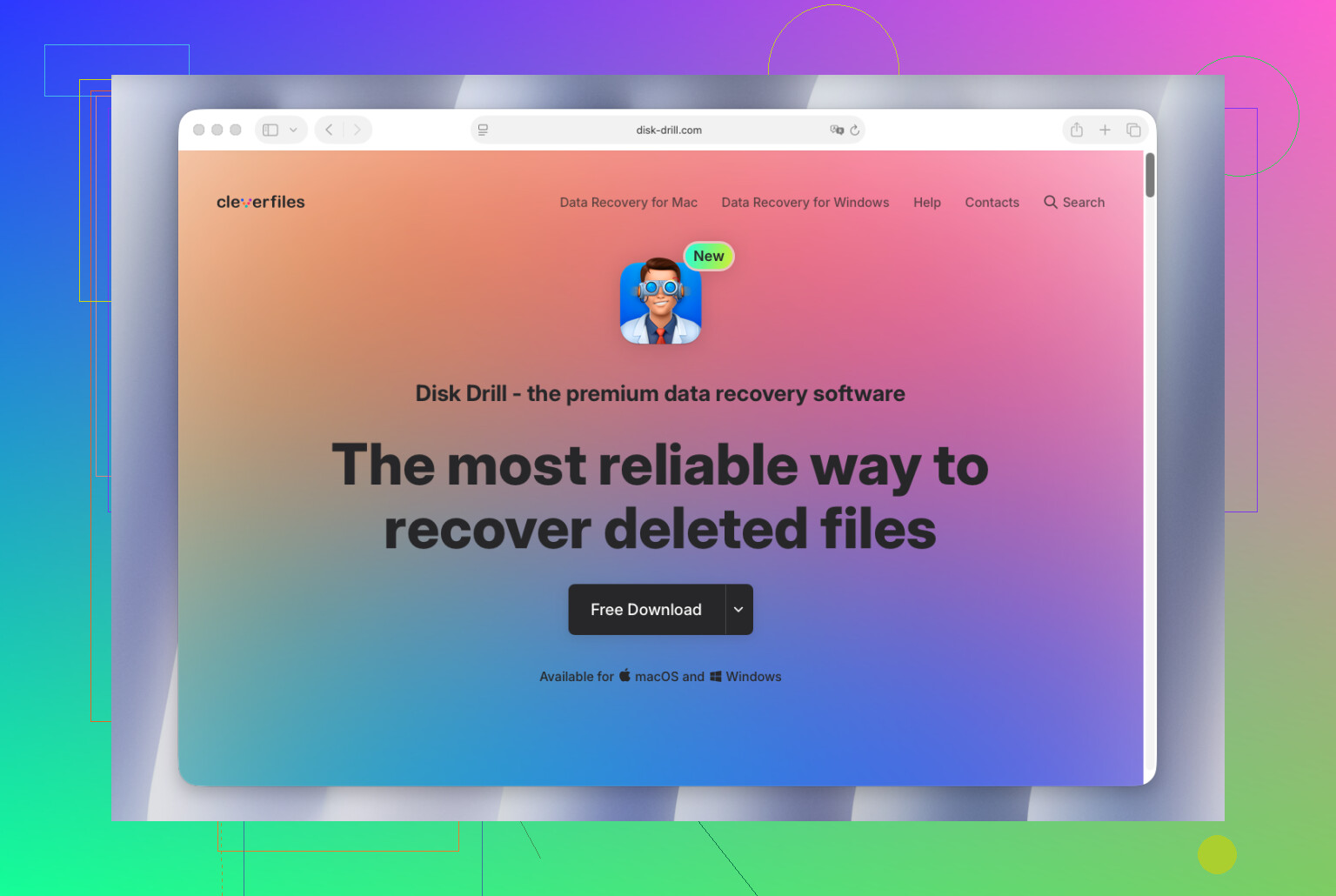
4. Recover the video with Disk Drill
Photos are one thing. Video is messier.
A lot of cameras, drones, dashcams, and action cams scatter video data in fragments across the card. Some recovery apps find chunks of the file, then spit out a broken clip you can’t open. I ran into this with action cam footage and it was annoyng as hell.
What helped in this case was Disk Drill, mostly because its Advanced Camera Recovery mode is built for fragmented video from supported cameras and memory cards. Instead of treating the video like one clean block, it looks at the fragments and tries to rebuild the original structure.
This tends to matter with footage from devices like GoPro, DJI, Sony, Canon, Nikon, Fujifilm, Insta360, and similar gear.
Steps
- Connect the original memory card with a card reader.
- Open Disk Drill.
- Pick the memory card from the device list.
- Choose Advanced Camera Recovery.
- Start the scan.
- Let the scan finish.
- Preview what it found.
- Recover the videos to a different drive.
Do not save recovered files back to the same memory card. I’ve seen people do this and wreck the rest of their chances.
5. Test the recovered videos before you relax
A file showing up in the results list does not mean it is good.
Open a few recovered videos. Scrub through them. Check the middle, not only the first second. Some recovered files look normal at first, then freeze, stutter, or fail halfway through.
If a recovered video will not play, try VLC Media Player first. In some cases, a separate video repair tool helps too.
That is the short version. Stop using the card, make an image first, recover onto another drive, then test the files. If the card looks physically damaged, I would not keep pushing it.
5 Likes
If the card still mounts on your PC or Mac, your odds are decent. Deleted camera videos often stay on the SD card until new data overwrites them. So the main thing is to keep the card idle.
I agree with @mikeappsreviewer on stopping use right away. Where I differ a bit is on urgency around trying lots of tools. Don’t bounce between 5 apps. Each scan puts more stress on a flaky card, esp if the reader or card is already acting weird.
What I’d do:
- Check the card’s write-protect switch and slide it to Lock.
- Use a quality USB card reader, not the camera cable. Cameras sometiems hide low-level access.
- If the card shows the wrong size, throws I/O errors, or disconnects, skip home recovery and go to a pro lab.
- If it reads fine, run one solid scan tool and save results to your computer, never back to the SD card.
For video files, Disk Drill is a good pick because camera video recovery is harder than photo recovery. Large MOV and MP4 files get fragmented more often, so generic undelete tools miss pieces. If your clips came from Canon, Sony, Nikon, GoPro, DJI, or similar gear, Disk Drill tends to do better than old-school file recovery apps.
Also, don’t trust file names after recovery. Many recovered videos come back as generic chunks. Sort by file size and preview length. A 2 KB MP4 is junk. A 1.8 GB MOV with the right timestamp range is worth checking.
If you want another resource, this is a decent explainer on best SD card recovery software for deleted photos and videos.
One more thing people miss. If you deleted videos in-camera, some brands leave sidecar files or database entries behind. Recover those too if listed. They sometmes help with repair or proper playback.

I’d add one thing that @mikeappsreviewer and @reveurdenuit only touched on lightly: check whether the videos are actually deleted vs just hidden in the camera database mess. Some cameras lose the index but the files are still sitting in the DCIM or PRIVATE folders. Pop the SD into a computer and browse manually before doing recovery scans. I’ve seen “deleted” clips turn out to be perfectly intact, just not visible on-camera. Kinda dumb, but it happens.
If the files really are gone, I would not start with whatever free undelete app pops up first. For camera video, that can be hit or miss because MP4/MOV files are often fragmented. That’s where Disk Drill makes more sense than generic recycle-bin style tools, esp for digital camera SD card video recovery. Recover to your computer, not back to the card. Obvious, but people still do it lol.
One place I sorta disagree with the usual advice: if the card is stable and recognized normally, one careful scan is usually fine. People act like even looking at the card will destroy it. Not quite. The real danger is writing to it or repeatedly messing with a failing card.
Also, if the recovered clip won’t open, don’t assume it’s dead. Sometimes remuxing it with VLC or ffmpeg fixes it.
For a similar case involving lost footage from a bad card, this thread is worth a look: real-world corrupted SD card video recovery case.
Tiny checklist:
- stop using card
- check folders manually
- use a reader, not camera USB
- scan with Disk Drill
- save elsewhere
- test the whole video, not just first 5 secnds