I cleared the Twitter/X cache on my iPhone hoping it would speed things up, but the phone is still lagging and apps feel slow. I’m trying to figure out if Twitter cache, iPhone storage, iOS settings, or something else is causing the slowdown. What should I check next?
When Twitter is taking up multiple gigabytes on an iPhone, it usually looks worse than it is. A lot of that space is local cache: images, GIFs, video previews, link data, and other temporary stuff the app saves while you scroll. You can clear it without deleting your account data.
Your Twitter data is not stored only on your phone
Your tweets, followers, bookmarks, and DMs are stored on Twitter’s servers. Clearing cache only removes temporary files from the iPhone. It does not delete your account, posts, messages, or saved items.
Clear Twitter cache inside the app first
The setting is a little buried, but it is there:
- Open Twitter and tap your profile icon in the top-left corner
- Go to Settings and Support, then Settings and Privacy
- Tap Accessibility Display and Languages
- Open Data Usage
- Scroll down to the Storage section
You should see two storage options there.
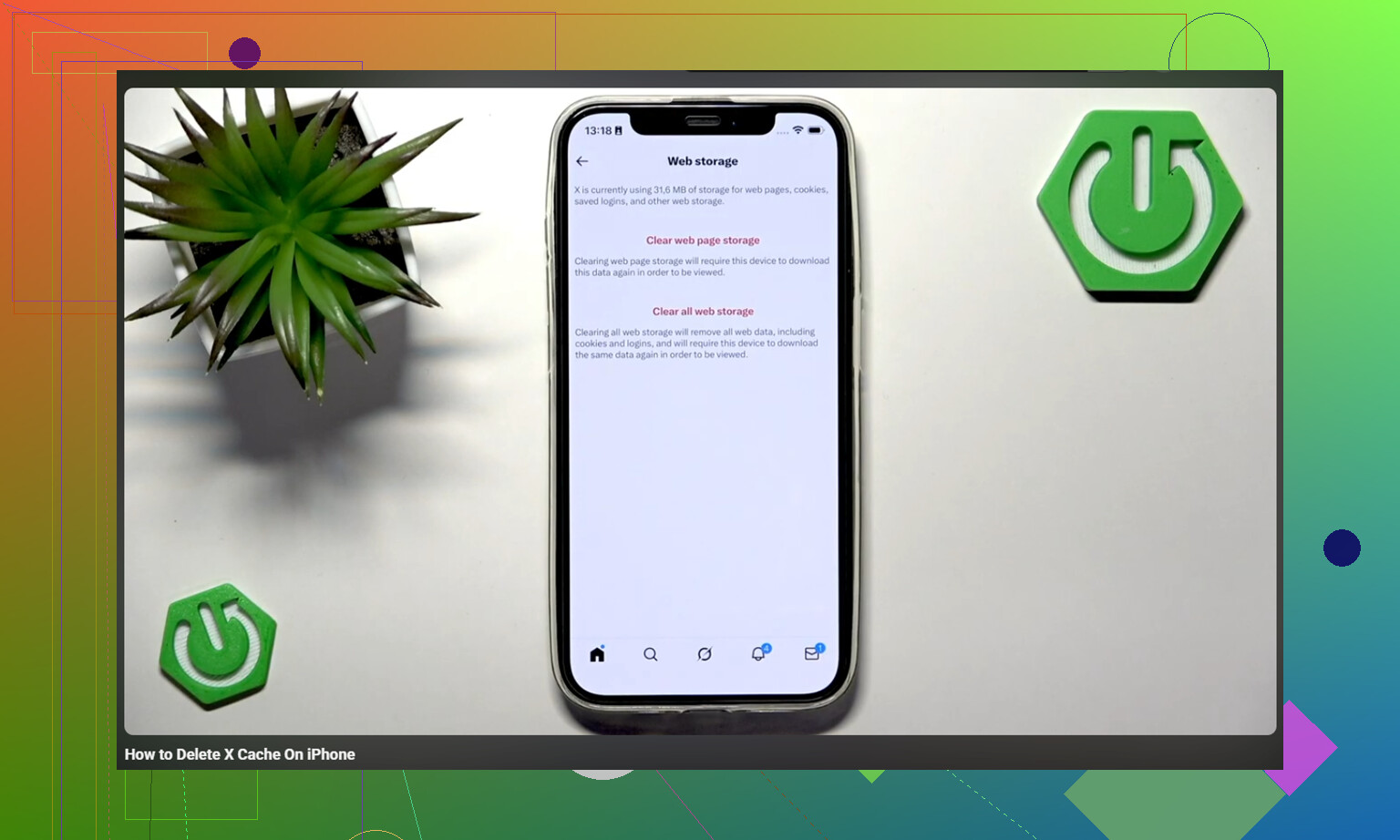
Media storage is the safe one to clear first. That removes cached images, GIFs, and video thumbnails the app has saved while you were using it. You stay logged in, and your account data is untouched.
Web storage is for pages and cookies from links opened inside Twitter. Clearing web page storage usually just removes cached site data. Clearing all web storage also removes cookies, so it can log you out. Make sure you know your password before using that option.
If that does not free enough space, offload the app
For a more complete cleanup, use the iPhone storage settings:
iPhone Settings > General > iPhone Storage > Twitter > Offload App
Offloading removes the app but keeps its documents and login info. After that, tap Reinstall App. This can clear stored video preloads and other cached data that Twitter’s own settings do not always remove. In most cases, the app comes back with the account still signed in.
The bigger storage problem is often not Twitter
Clearing Twitter cache may get back 1 to 3GB, which helps. But if the iPhone still feels slow, or the storage warning comes back a few days later, Twitter probably was not the main issue.
iOS needs free space to work properly. When storage is almost full, the whole phone can start dragging. Apps open slowly, the camera takes longer to launch, and switching between apps gets choppy. Twitter cache can add to the problem, but the photo library is usually where the bigger mess builds up.
Old screenshots, giant videos, burst shots, and repeated photos can quietly eat way more space than an app cache.
What helped with the actual storage cleanup
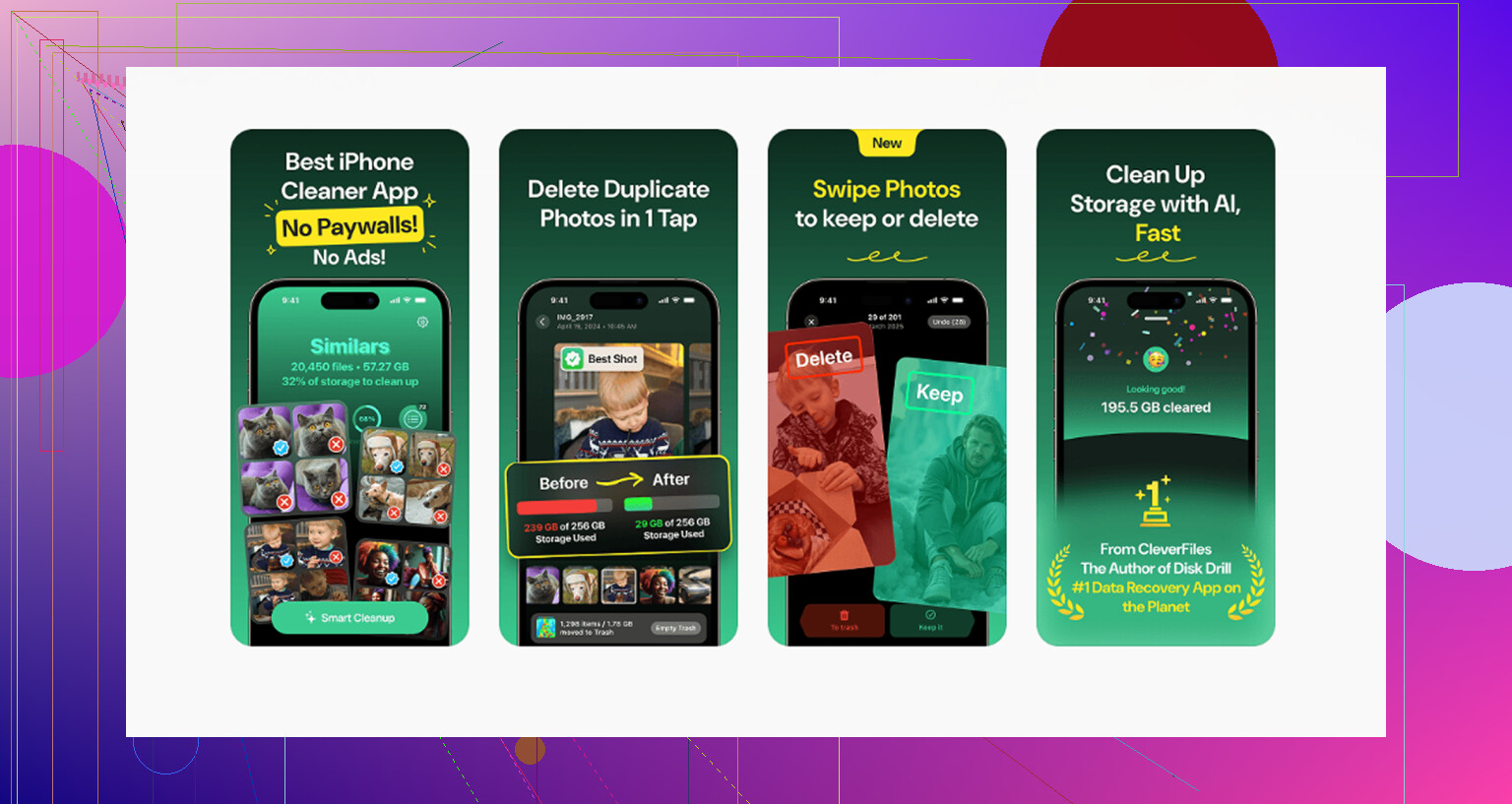
After clearing Twitter cache, the real space was still buried in the Photos library. That is where Clever Cleaner was useful. It does not clear Twitter cache, so you still need the manual steps above for that. But it makes the photo cleanup much easier.
It is free, with no ads and no subscription. It also processes everything on the device, so the photos are not uploaded to some external server.
The Heavies tab sorts your library by file size, largest first, with exact sizes shown. That makes it easy to spot one forgotten video that is taking up more space than weeks or months of Twitter cache.
The Similars tab groups near-duplicate photos and chooses a Best Shot from each set. That is especially useful for burst photos or several attempts at the same picture, since you do not have to inspect every single one manually.
It also shows file sizes on screenshots before deleting them. If screenshots have built up for months, seeing the total size makes the cleanup decision pretty easy.
Best order to try
Start by clearing Twitter media cache. It is quick and safe.
If the phone still feels full or slow, check the photo library next. Use Clever Cleaner for the large videos, duplicates, and screenshots that are harder to sort manually.
After deleting photos or videos, open Photos and empty Recently Deleted too. Otherwise, those files can sit there for 30 days and still count against your iPhone storage.
10 Likes
Clearing X cache will not fix general iPhone lag if the phone is slow everywhere. Cache mostly affects storage and how much the app has to reload, not the whole system’s speed. I’d check Settings > Battery > Battery Health first, because an old battery can make iOS throttle performance, and then restart the phone after clearing storage. If you deleted a bunch of photos or apps, give it a little time too, since iOS may be reindexing in the background. If storage has at least 10 to 15 GB free, battery health is decent, and it still lags after a restart, Twitter probably was never the main problem.
Twitter cache is probably a symptom here, not the cause. Before deleting more stuff, separate “phone lag” from “internet/app loading lag”: open Settings, swipe around Photos, type in Notes, and switch apps. If those are smooth but X, Safari, Instagram, etc. crawl, look at Wi-Fi, VPN, iCloud Private Relay, DNS/ad blocker apps, or a weak cellular connection. If even Settings and the keyboard stutter, then @boswandelaar’s battery/storage angle is more likely. I’d also turn off Low Power Mode if it’s on, close any VPN temporarily, restart once, and test again before doing a full app purge.
Clearing cache can make the next day feel slower, because apps have to rebuild thumbnails, feeds, previews, and other local data they used to keep handy. If storage and battery check out, leave the phone plugged in on Wi-Fi for a while, then judge it after a restart instead of right after the cleanup.
Offloading X and reinstalling it can backfire in the short term. You lose all the cached feed data, so the next few sessions feel slower while it re-downloads everything, and if you do that on cellular you’re burning data for the privilege. @codecrafter already hinted at this, but it’s worth being blunt: don’t offload right before you actually need the app to feel snappy.
The thing nobody’s flagged yet is that the X app itself has bloated up a lot over the last couple of years. On older hardware it just runs heavy, cache or no cache. So if your feed crawls but the rest of the phone is fine, like @waldgeist said, that’s an app problem, not a storage problem, and clearing cache buys you almost nothing. Check Settings > General > Background App Refresh too. If a pile of apps are all refreshing in the background, that alone makes switching between them feel sticky.
I’d also point at System Data (it used to be called Other) in the storage screen. That’s the category that quietly swells and it’s the one thing manual cache clearing and photo cleanups don’t touch. A restart shrinks it sometimes, a full iOS update usually helps more. If that number is huge, no amount of deleting tweets or screenshots will move the needle.
On the tool mentioned above, Clever Cleaner is fine for the photo side of this, and the free no-subscription part is a genuine plus over the cleaners that nag you for money. Just keep it in its lane. It clears out big videos and duplicate shots, it does nothing for app bloat or System Data, so treat it as one step and not the fix.
Honestly, the realistic order is: restart first, check battery health and free storage like @boswandelaar said, then decide. Half the ‘slow phone’ posts get solved by a reboot and 15GB of breathing room, and people skip straight to nuking apps instead.