I’ve recently switched to using my Mac for most of my work and I’m realizing my current setup is slowing me down. I’d love recommendations for the best Mac productivity apps for tasks like note-taking, project management, time tracking, and focus. What tools are you using that actually make a noticeable difference in your daily workflow and help you get more done?
I’ve rebuilt my Mac setup more times than I want to admit, and every single time I end up at the same conclusion: productivity on macOS is less about hoarding apps and more about a small toolkit that quietly removes friction from everything you do.
These are the ones that survived all my purges and reinstalls.
Speed & Automation
This is the stuff that makes the Mac feel like it’s actually listening to you instead of getting in your way.
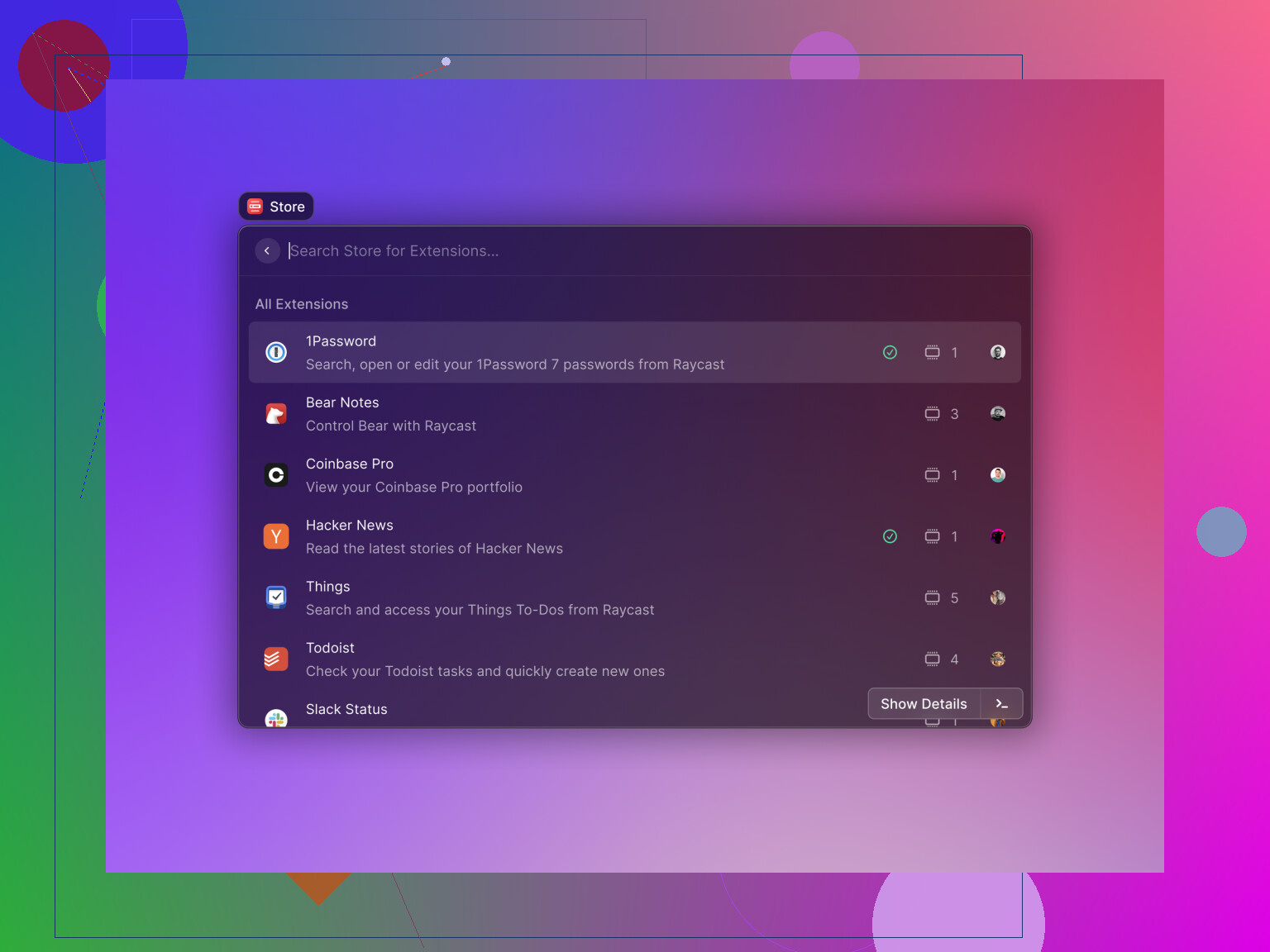
Raycast / Alfred
Spotlight is fine until you try one of these, and then it feels like using dial‑up in a fiber world.
I’m on Raycast right now, but Alfred still absolutely holds up. They both let you:
- Launch apps instantly via keyboard
- Control apps like Spotify without ever seeing the UI
- Run scripts and workflows (shell scripts, automation, whatever madness you dream up)
- Search clipboard history like a time machine for stuff you forgot you copied
- Trigger system actions (sleep, restart, open folders, etc.) in a fraction of the time
The mouse becomes optional. That sounds like a meme, but when you realize you can open apps, search files, paste old clipboard items, control music, and run scripts all from a single hotkey, it changes how you use the Mac.
CleanShot X
macOS screenshots are “good enough” in the same way a motel bed is “good enough.” You can sleep there, but you’re not bragging about it.
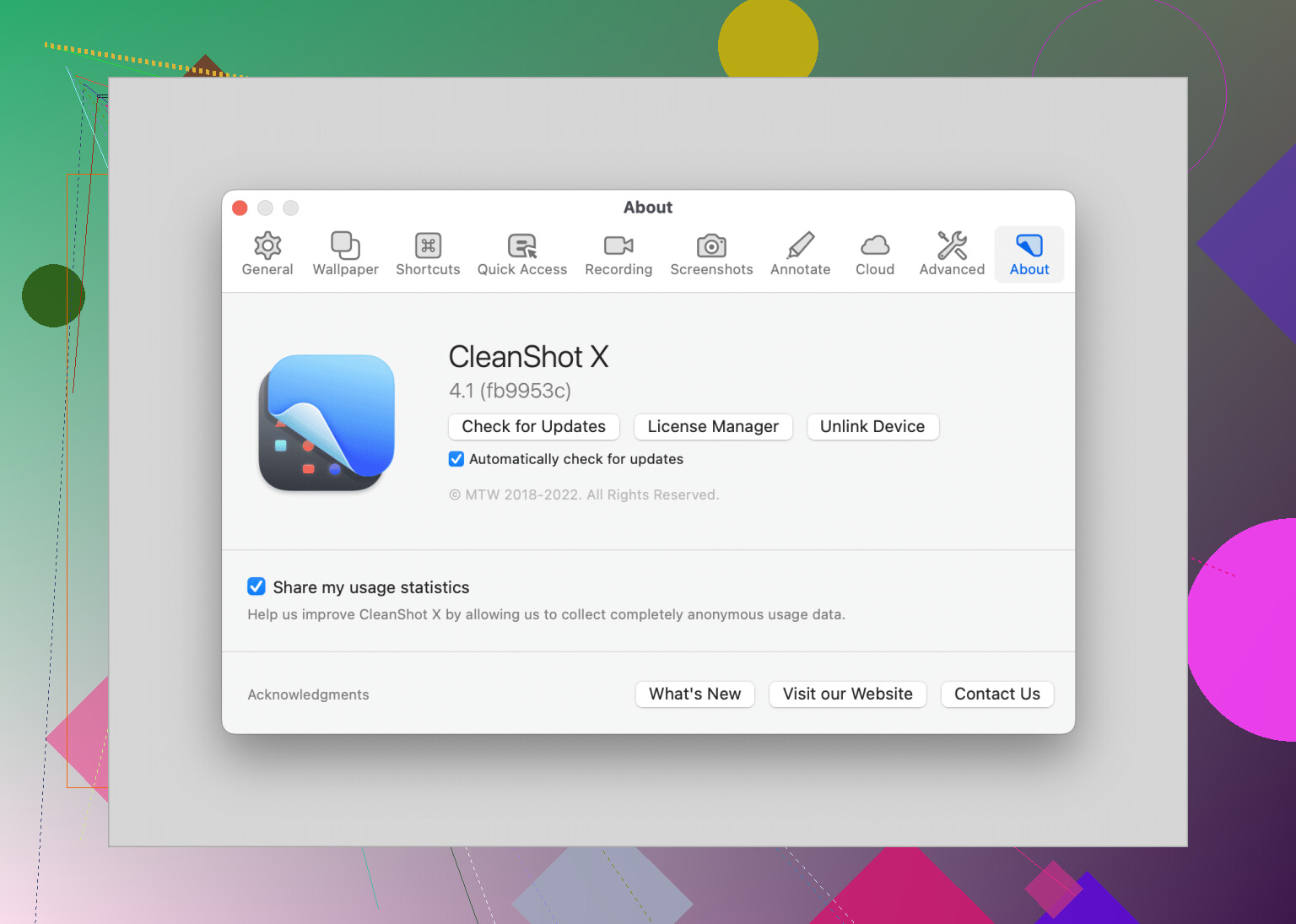
CleanShot X is the upgrade I didn’t know I needed until I tried it:
- Scrolling screenshots for long chats, docs, or code
- Screen recording that doesn’t look like it was filmed with a potato
- GIF recording for quick demos or bug reports
- One‑click upload to the cloud with share links
- Option to hide desktop icons so your chaotic desktop doesn’t leak into screenshots
If you ever have to explain things visually to clients, coworkers, or friends, this saves an absurd amount of time.
Magnet / Rectangle
macOS window management still feels like Apple expects everyone to use one app at a time on a 13‑inch screen.
Tools like Magnet or Rectangle fix this instantly:
- Snap windows to the left/right half with a shortcut
- Split your screen into thirds or quarters for bigger monitors
- Move windows between displays without playing pixel‑perfect drag‑and‑drop
- Do all of it via keyboard shortcuts
If you run multiple apps side by side (browser + editor, docs + Zoom, etc.), this is a sanity tool, not a luxury.
File Management & Organization
Most of my wasted time used to be here: hunting for files, wrestling with cloud drives, and babysitting the Downloads folder like it was a digital landfill.
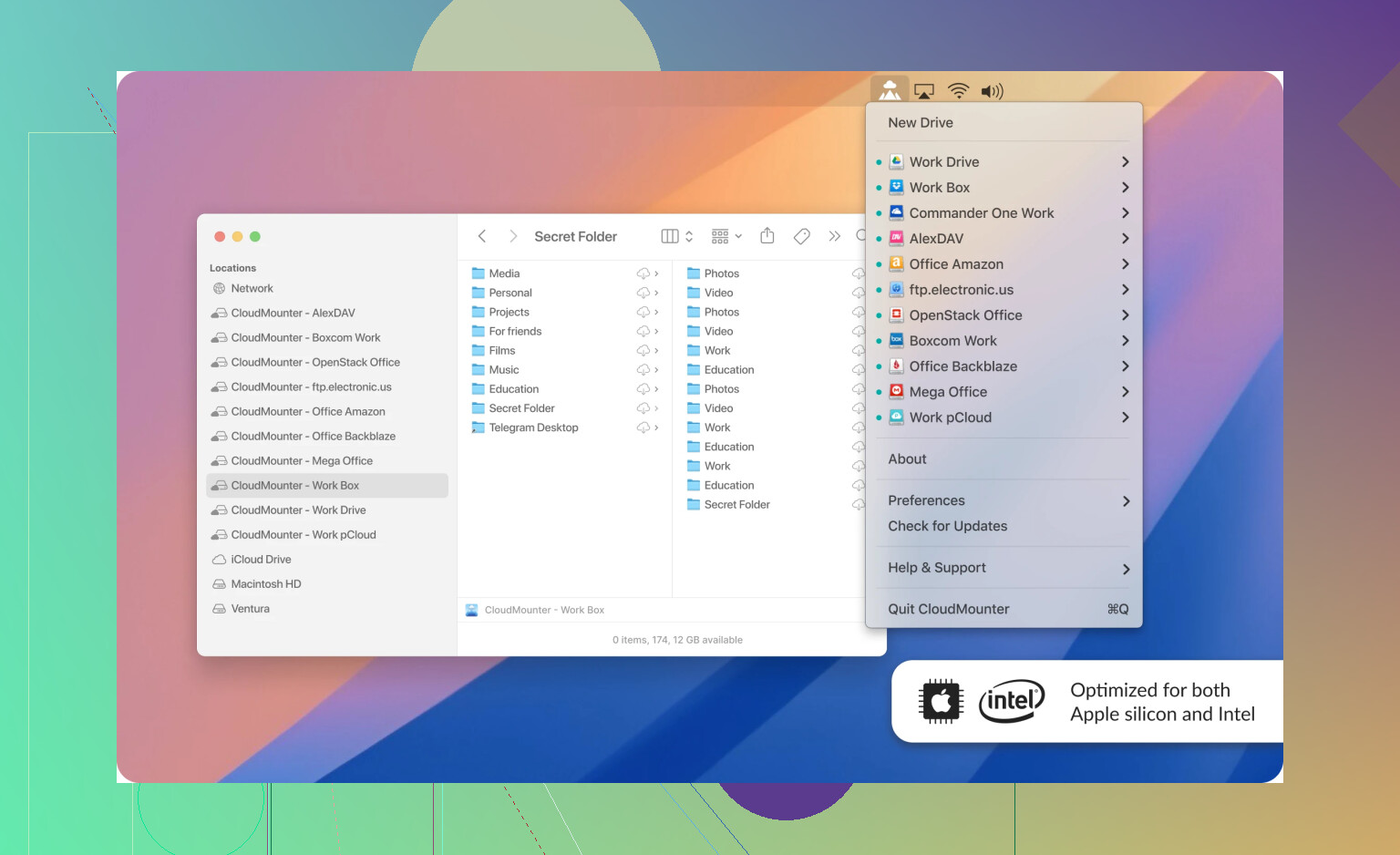
CloudMounter
If you juggle multiple cloud services or servers, this is almost required.
What it does is simple but huge: it takes things like:
- Dropbox
- Google Drive
- OneDrive
- Backblaze B2
- SFTP / WebDAV servers
and mounts them as if they were regular drives in Finder.
So if I want to move a file from an SFTP server straight into Dropbox, I:
- Open Finder
- Drag from “Server” to “Dropbox”
- Done
No separate apps, no random sync folders, no downloading then reuploading. It turns all your remote stuff into “just another folder” on your Mac. If you’ve ever had to manage multiple accounts or clients in different clouds, CloudMounter is like finding the last piece of a puzzle under the couch.
Hazel
Hazel is what I use when I want to avoid becoming the kind of person whose Downloads folder is a digital archaeological site.
You set rules like:
- “If a file in Downloads is older than 30 days and larger than 10 MB, move it to Archives.”
- “If a PDF contains ‘Invoice’ in the name, move it to the Invoices folder.”
- “If a screenshot is on the Desktop and older than 3 days, move it to Screenshots.”
Then you forget about it. Hazel keeps doing its thing in the background.
The end result: folders quietly organize themselves. You open Finder and it doesn’t feel like a mess you need to clean before you can think.
Commander One
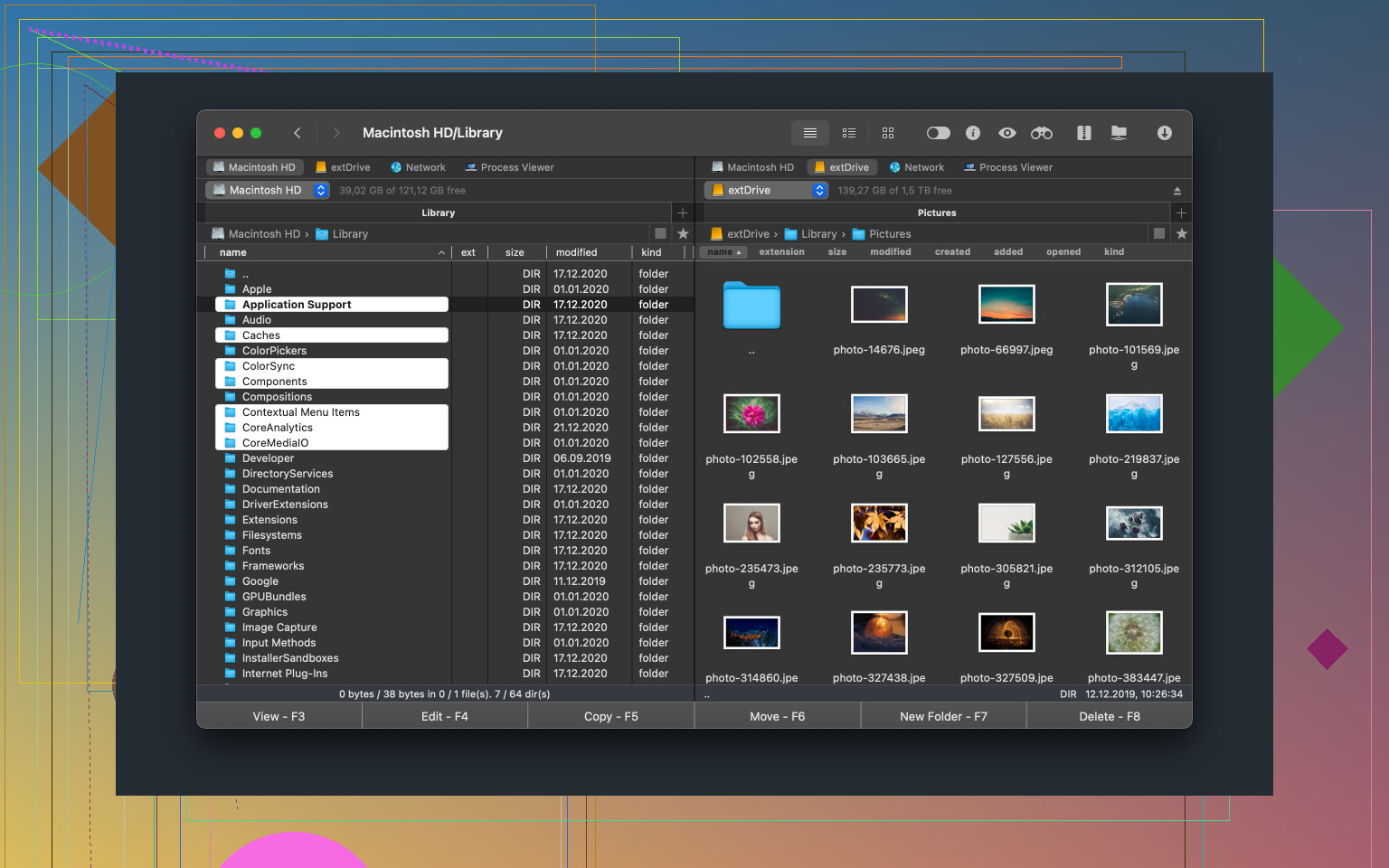
Finder is fine for simple stuff, but the second you need to do “real work” with files, it feels like trying to sort a deck of cards while wearing oven mitts. Commander One is the dual-pane file manager for people who want to move fast.
Two-panel layout: Source on the left, destination on the right. You can move or copy files between folders without constantly opening new Finder windows or playing “hidden window” tag.
Built for the keyboard: It’s heavily inspired by the classic “Commander” style managers—select, move, copy, and delete everything via hotkeys so you never have to reach for your mouse.
Hidden Files Toggle: It has a dedicated button to show dotfiles, which is a lifesaver for dev work. It basically turns file management from a chore into a workflow. If you’re shuffling project folders, cleaning up archives, or managing local sites, this is the proper tool for it.
Focus & Knowledge
This is the “brain” layer: where tasks, notes, and time all live so they’re not clogging up your head.
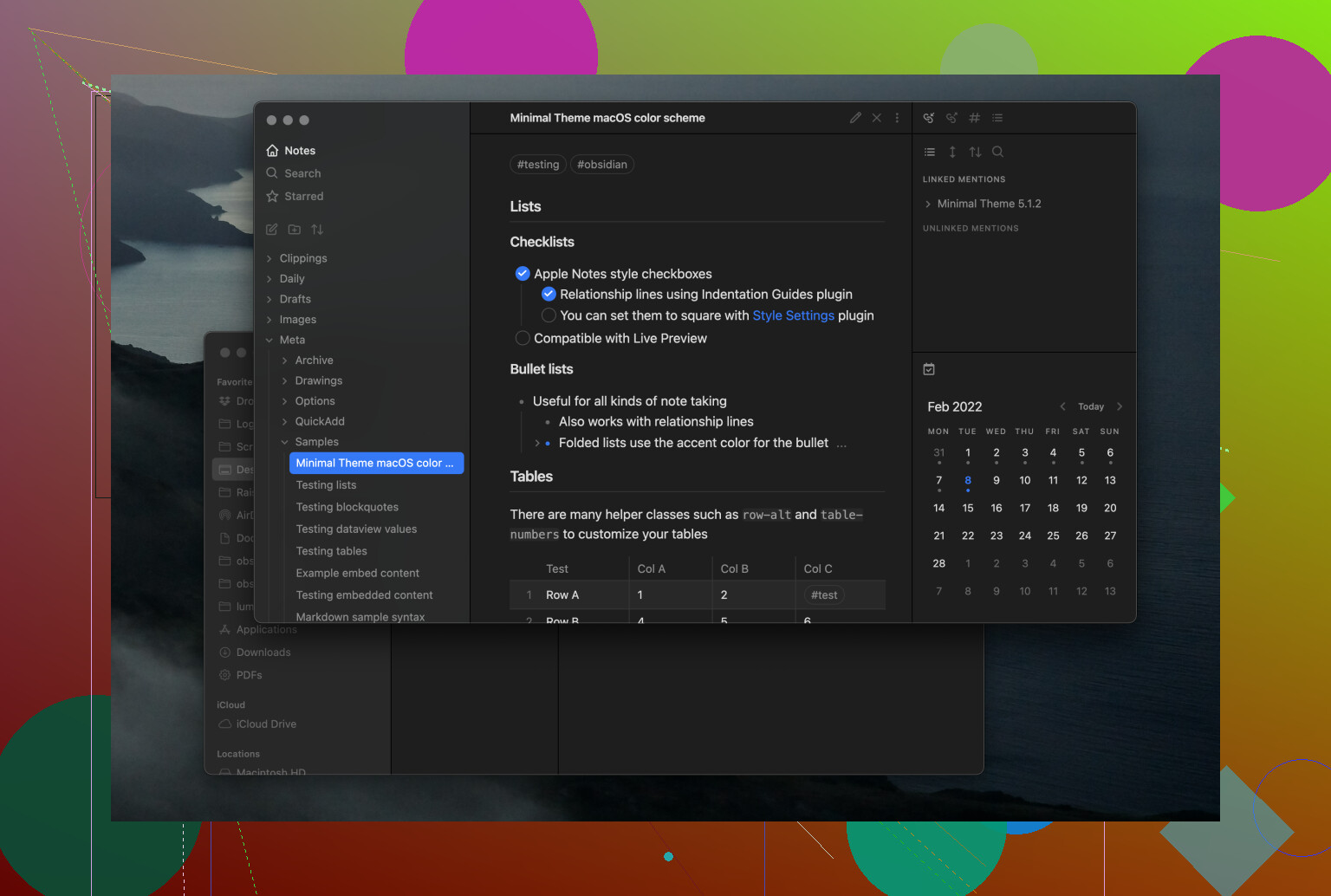
Obsidian / Notion
I bounce between both, depending on what I’m doing.
-
Obsidian
Great if you want fast notes that live locally as plain text files. You can:- Link notes to each other like a personal wiki
- Keep everything in Markdown files you actually own
- Build a “second brain” without depending too much on a server somewhere
It feels like a nerdy notebook that grows with you.
-
Notion
Better if you’re working with other people and need structure:- Databases, tables, task boards
- Shared wikis for teams
- Project hubs with docs, tasks, and notes all in one
If I’m writing personal notes, ideas, and research, I use Obsidian. If I’m planning projects with other humans who need to see the same thing, I use Notion.
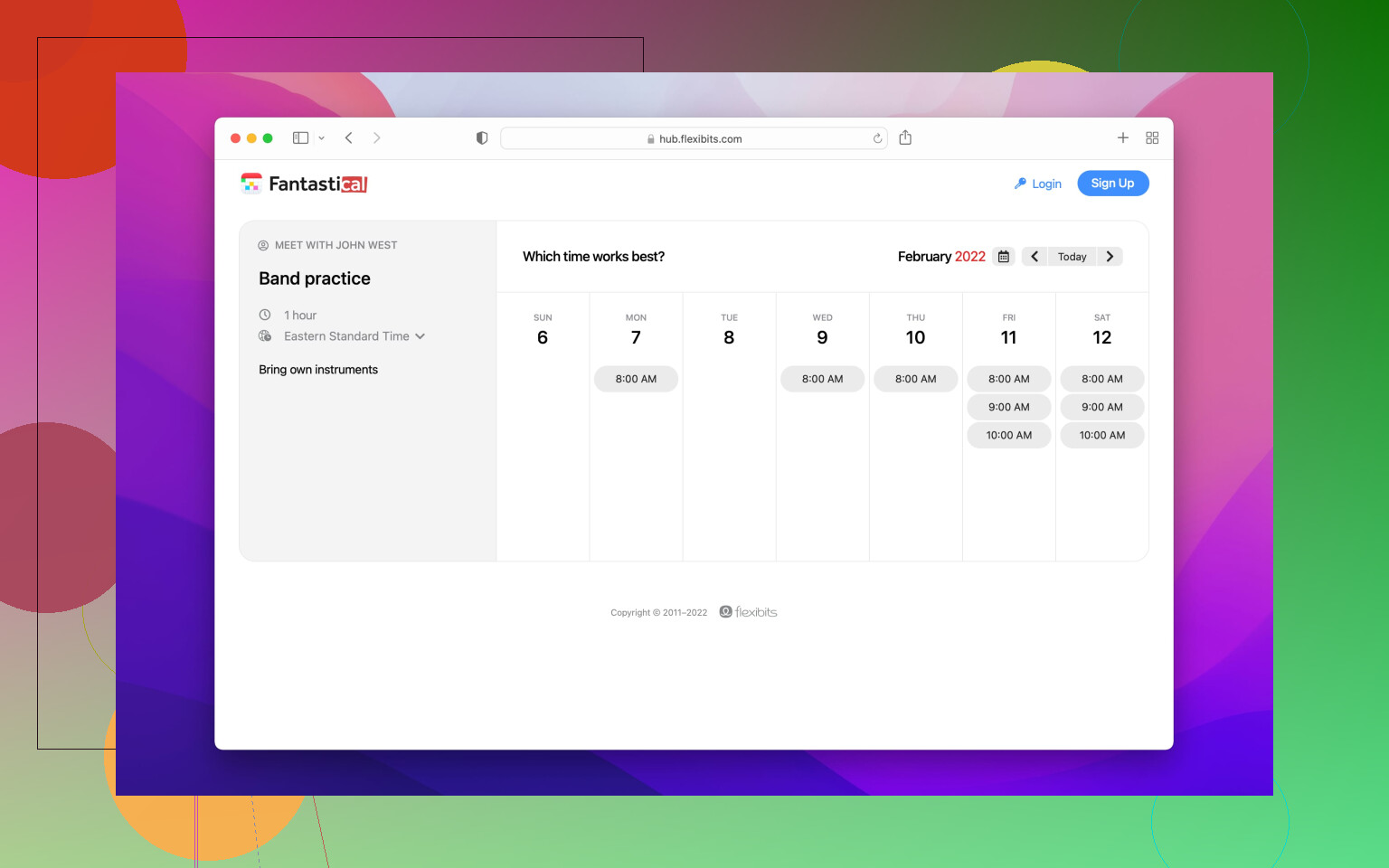
Fantastical
Apple’s Calendar app is fine until you start typing things like:
“Lunch with Sarah next Thursday at 1 pm near the office”
Fantastical reads that and just… makes the event.
Why I stick with it:
- Natural language input that actually understands what you mean
- Clean overview of multiple calendars (work, personal, shared, etc.)
- Quick rescheduling and editing without six extra clicks
I don’t think about “using a calendar app” anymore. I just type what I’m planning and it turns into something structured.
If you stripped my Mac back to factory settings and told me I could only reinstall a handful of apps, it would basically be this list. Everything else is negotiable; these are the ones that quietly erase friction from my day.
24 Likes
Since @mikeappsreviewer already covered a lot of the “OS-level superpowers,” I’ll skip Raycast / Alfred / Magnet etc. and focus on apps that actually change how you work: notes, projects, writing, and communication.
1. Note-taking & “second brain”
1) Apple Notes + Folder Discipline
Unpopular take: you might not need Obsidian or Notion right away. Apple Notes is stupidly fast, syncs well, and supports tags now.
Minimal setup:
- Folders:
Inbox,Work,Personal,Reference - Use
#tagin notes for projects or topics - Pin your most-used notes
You can always migrate to Obsidian later if you outgrow it.
2) Obsidian (when you’re ready to go deeper)
I’ll slightly disagree with the “bounce between Obsidian and Notion” idea. That context switching is a tax. I’d suggest picking one for at least a few months.
Obsidian shines if:
- You mostly work solo
- You like Markdown and local files
- You want backlinks and a wiki-style knowledge base
Install only a few plugins to start: Daily notes, Templates, Tasks. Do not fall into plugin hoarding, it kills productivity.
2. Project management & tasks
3) Things 3
If you’re on macOS and not locked into a team tool, Things 3 is about as frictionless as it gets.
Why it works:
- Quick entry with natural language like “Tomorrow 4pm”
- Separate “Areas” (Work, Personal) and “Projects”
- Today / Upcoming views that don’t feel overwhelming
This is where I disagree a bit with the Notion-for-tasks crowd. Notion is amazing for documentation and structured info, but as a daily task manager it’s slower and more fiddly than a native app like Things 3 or Todoist.
4) Todoist
If you need cross-platform and/or light collaboration:
- Keyboard shortcuts are solid
- Works on literally everything
- Shared projects, comments, etc.
Use either Things or Todoist, not both. Mixing them is how you end up dropping balls.
3. Writing & thinking
5) iA Writer or Ulysses
For focused writing that isn’t buried in a giant PKM system:
- Clean, distraction-free editor
- Markdown support
- Great for blog posts, docs, long emails, specs
Having a separate “writing space” helps when your note app becomes cluttered.
4. File & cloud sanity
6) CloudMounter
Since you mentioned working mostly on your Mac now, this is where CloudMounter is stupidly helpful and actually productivity-boosting:
- Mount Google Drive, Dropbox, OneDrive, S3, SFTP as if they were normal disks in Finder
- No need to sync everything locally
- Drag files between services like they’re just folders
If you deal with client files, multiple cloud accounts, or remote servers, CloudMounter basically turns your Mac into a unified file hub instead of a mess of separate apps and web tabs. It’s one of those “quiet” tools that removes a lot of friction.
7) Default Folder X
Old-school app, still one of the biggest quality of life upgrades:
- Adds recent folders and favorites right in open/save dialogs
- Lets you quickly jump to common folders
- Per-app default folders
If you find yourself constantly hunting for where to save or open files, this removes that repeated annoyance.
5. Focus & time
8) Focused Work or Session
Pomodoro-style timers with stats. I like:
- Define “sessions” like “Deep work,” “Email,” “Coding”
- Block distracting sites during a focus block
- See how many focused hours you actually did
Way more effective than just “trying to concentrate harder.”
9) Timing
Automatic time tracking:
- Tracks which app / document you used when
- You assign time to projects afterward
- No “start/stop timer” discipline needed
If you bill hours or just want to know where your day actually went, this is gold.
6. Communication & meetings
10) Spark Mail or Mimestream
Apple Mail is… fine. Until you deal with a lot of email.
- Spark: Smart inbox, snooze, send later, great for inbox-zero types
- Mimestream: If you’re all-in on Gmail/Workspace, this feels like “Gmail as a native Mac app” without the browser distractions
11) Meeter or MeetingBar
Tiny menu bar apps that:
- Show your next meetings
- One click (or keyboard shortcut) to join Zoom/Meet/Teams
This sounds minor, but not having to dig through calendar tabs right before a call adds up.
If I were in your shoes, just switched to Mac and feeling slow, I’d start with this minimal stack:
- Notes: Apple Notes
- Tasks: Things 3 or Todoist
- Projects / docs: Notion (for structured stuff, especially with others)
- Files: CloudMounter + maybe Hazel if you’re messy
- Focus: One timer app (Focused Work / Session)
Live with that for a month before you add anything else. The trap isn’t “not enough Mac apps,” it’s turning your workflow into an app zoo where you spend more time reorganizing tools than getting work done.
Since @mikeappsreviewer and @jeff already covered the “power tools” angle, I’ll zig a bit and focus on a lean setup that fixes actual pain instead of turning your Mac into an app museum. Some overlap, but different priorities.
1. Notes & thinking
-
Apple Notes
Honestly, start here. It’s fast, syncs well, and now has tags and folders.
Workflow that doesn’t suck:Inboxfolder for quick brain dumpsWork,Personal,Referencefor everything else- Use
#project-nametags instead of overbuilding a structure
If this starts feeling cramped, then look at Obsidian / Notion, not before.
-
Obsidian (only if you actually need it)
Great if you’re doing research, code notes, or long-term “second brain” stuff.
Hot take: 80% of people trying Obsidian just need better habits in Apple Notes. Don’t spend 3 days tuning plugins to avoid doing the work.
2. Tasks & project management
-
Things 3
For solo work, it’s still the smoothest task manager on macOS.- Quick entry from anywhere with a shortcut
- “Today” view that doesn’t turn your brain into confetti
- Projects + Areas to keep work / life separate
I’d pick this over Notion for daily tasks; Notion is powerful but slow and a bit click-happy.
-
Notion
I’d only use it for:- Project hubs
- Wikis / documentation
- Shared planning with other people
Trying to run your entire life in Notion is how you end up “productivity planning” all day instead of, you know, doing work.
3. File handling & cloud stuff
-
CloudMounter
If you’re living on your Mac now and juggling cloud services, this is the quiet MVP. It lets you mount Google Drive, Dropbox, OneDrive, S3, SFTP etc. as if they’re real drives in Finder.- No massive sync folders eating your SSD
- Drag files between services like normal folders
- Great if you have client data spread all over different clouds
This is one place I 100% agree with the others: it actually speeds things up instead of adding more “places to check.”
-
Hazel
I’d only bother if your Downloads and Desktop are constant dumpster fires.- Auto-file invoices, receipts, screenshots
- Archive old downloads so you’re not sorting junk every week
Just don’t over-automate on day one or you’ll spend more time debugging rules than saving time.
4. Focus & time
-
Session or Focused Work
Pomodoro-style focus timers with blocking for distracting sites.
The trick that helped me: name sessions by outcome, not activity.- “Write draft of X” instead of “Writing”
- “Review tickets” instead of “Jira”
Makes it obvious when you’re just pretending to work.
-
Timing
Automatic time tracking. No start/stop button.
Nice if you bill hours or want to see how much time you actually spend in Chrome “researching.”
5. Writing
- iA Writer
When notes get too messy for real writing, this keeps you focused.
I disagree slightly with the idea that everything can live in one app; having a dedicated writing space stops you from bouncing between 50 notes while trying to finish one doc.
6. Communication
- Mimestream (if you’re on Gmail / Workspace)
Clean, fast, no Gmail-in-a-browser clutter. - Spark if you want snooze / send later / “inbox zero” tricks.
If I were you, just switched to Mac and feeling slow, I’d start with this minimal stack:
- Notes: Apple Notes
- Tasks: Things 3
- Projects / shared docs: Notion
- Cloud & files: CloudMounter
- Focus: Session or Focused Work
- Email: Mimestream or Spark
Use that for a few weeks before adding anything else. If an app doesn’t directly remove friction from something you do daily, it’s probably just productivity cosplay.
Leaning into what @jeff, @cacadordeestrelas and @mikeappsreviewer already covered, I’ll take a slightly different angle: “glue” apps that connect everything so you stop context‑switching every 30 seconds.
1. Unified storage brain: CloudMounter
Everyone mentioned it, but none of them really treated it as the central hub. I’d actually start here if your work lives across multiple clouds.
Why it helps productivity
Instead of juggling Drive tabs, Dropbox apps, and random SFTP clients, CloudMounter just turns them into volumes in Finder. That means:
- Save directly from apps into any cloud like it is a local folder
- Move files between services with drag and drop
- Keep your internal SSD relatively clean instead of syncing everything
So your “file thinking” reduces to: open Finder, find folder, done.
Pros
- No need to sync terabytes locally
- Works with multiple accounts of the same service
- Plays nicely with existing Finder habits
Cons
- Heavy daily cloud usage can feel slower than fully synced files
- Offline work is limited unless you manually cache files
- Power users might still want dedicated clients for specific advanced features
If you ever work with client data spread across services, this plus simple Hazel rules is a bigger upgrade than yet another notes app.
2. Windowing for actual multitasking
Where I slightly disagree with the others: Rectangle / Magnet are great, but for people who live in complex workspaces all day, I’d look at:
- Amethyst or Yabai for tiling-style management if you live in terminals, IDEs and dashboards
- Set up 2 or 3 layouts only, instead of 15 obscure shortcuts, so your muscle memory is solid
The power is not in fancy grids, it is in never having to rearrange the same 3 windows every morning.
3. Note taking that respects friction
Everyone jumped to Obsidian / Notion. I like them, but I think a lot of slowdown comes from overbuilding.
My rule of thumb:
- Daily work notes & quick capture: Apple Notes with a few pinned notes
- Long term knowledge: Obsidian vault that you open only when you are actually doing deep work
That avoids the “I opened Notion to tweak templates for 40 minutes” trap that @mikeappsreviewer basically warned about.
4. Project management that does not become another job
If you already have a team tool (Jira, ClickUp, Asana), I would not add a second “project manager” like Notion for tasks. Instead:
- Mirror only high level projects into Notion or Things
- Keep the actual execution details in the team tool
You reduce duplicate planning and stop spending energy reconciling two sources of truth, which none of the other replies really tackled.
5. Minimal focus layer
Instead of a full Pomodoro suite plus blockers plus tracking:
- Use a focus timer like Session or Focused Work
- Combine with a single macOS Focus mode that kills notifications from Slack, Mail and social
The trick is to link them: when you hit a 50 minute “Deep work” session, switch to the matching Focus mode. That gives you 80% of the benefit of fancy setups with almost no configuration.
6. When to actually install new apps
A simple filter so you do not end up with the app zoo that @jeff and @mikeappsreviewer basically admitted they have escaped from:
Only install something new if:
- It replaces at least one existing tool
- You can describe the friction it removes in a single sentence
- You will use it every workday
By that filter, CloudMounter, a launcher, a note app, a task app and a window manager are usually enough for a very fast Mac workflow. Everything else is optional frosting.