I’m trying to connect to my web host using an FTP client but I’m getting errors and timeouts. The host’s docs mention things like server name, port, protocol, username, and passive mode, but it’s not clear which details are essential or where to find them in my hosting dashboard. Can someone break down exactly what information I need from my provider and how to plug it into a typical FTP client so I can finally connect and upload my site files?
How to Connect to an FTP Server Without Losing Your Mind
People overcomplicate FTP like it is some ancient, mystical protocol. In reality, to hook your FTP client to a server you basically need the same stuff you would need to visit a friend: where they live, who you are, and proof they should let you in.
Here is the human version.
1. Server address: “Where are we going?”
This is the network location of the server you are trying to reach.
It usually looks like:
ftp.example.com- or an IP address like
123.45.67.89
You’ll typically get this from:
- Your hosting provider’s dashboard
- A welcome email
- The person who runs the server
If your FTP client has a “Host” field, this is what goes there.
2. Username: “Who are you?”
This is the account name you use to log in to that server.
Typical setups:
- A specific username you were given, like
mywebsite_ftp - Sometimes your full email, like
user@example.com - Rarely, “anonymous” if the server allows public read-only access
If you try “anonymous” and it works, you probably only get access to shared, non-sensitive files.
3. Password: “Why should we trust you?”
Whatever password is tied to that username.
Common gotchas:
- It is not always the same as your hosting control panel password
- Some hosts generate a separate FTP account with its own password
- Wrong password can sometimes look like a “connection error,” not just “bad password,” so read error messages carefully
If you forgot it, don’t guess 50 times; go reset it in your hosting panel instead of getting your IP temporarily blocked.
4. Port number: “Which door are we using?”
FTP has a default port, and unless your host says otherwise, you can assume:
- Standard FTP or FTPS: port 21
- SFTP (the SSH-based one): usually port 22
If your host uses something nonstandard, they will spell it out like “Use port 8021 instead of 21.” Just punch that into the “Port” field in your FTP client.
If there is no “Port” box or you leave it blank, most clients will auto-fill the default based on the connection type you pick.
5. Connection type: “What flavor of FTP is this?”
This is the one that confuses beginners for no good reason. There are three main options you might see:
-
FTP
- The classic version. Sends stuff in plain text.
- Works, but not great if you care about security.
-
FTPS
- FTP wrapped in SSL/TLS.
- Looks like FTP but with encryption.
- Often called “FTP with explicit TLS” or similar.
-
SFTP
- Completely different under the hood. It runs over SSH.
- Uses port 22 by default.
- Much more common with modern hosting panels.
You do not have to guess which one to use. Your host or admin will usually tell you exactly:
- “Use SFTP on port 22”
- or “Use FTP/FTPS on port 21”
Match that in your FTP client’s “Protocol” or “Connection type” dropdown.
Putting it all together in an FTP client
Once you have:
- Server address (host)
- Username
- Password
- Port (if nonstandard)
- Connection type (FTP / FTPS / SFTP)
You just:
- Open your FTP client
- Create a new connection/site/profile
- Fill in those fields
- Hit “Connect”
If everything is correct, you will see the server’s folders on one side and your local folders on the other, and you can start moving files back and forth.
If you are on a Mac and want something that is not annoying
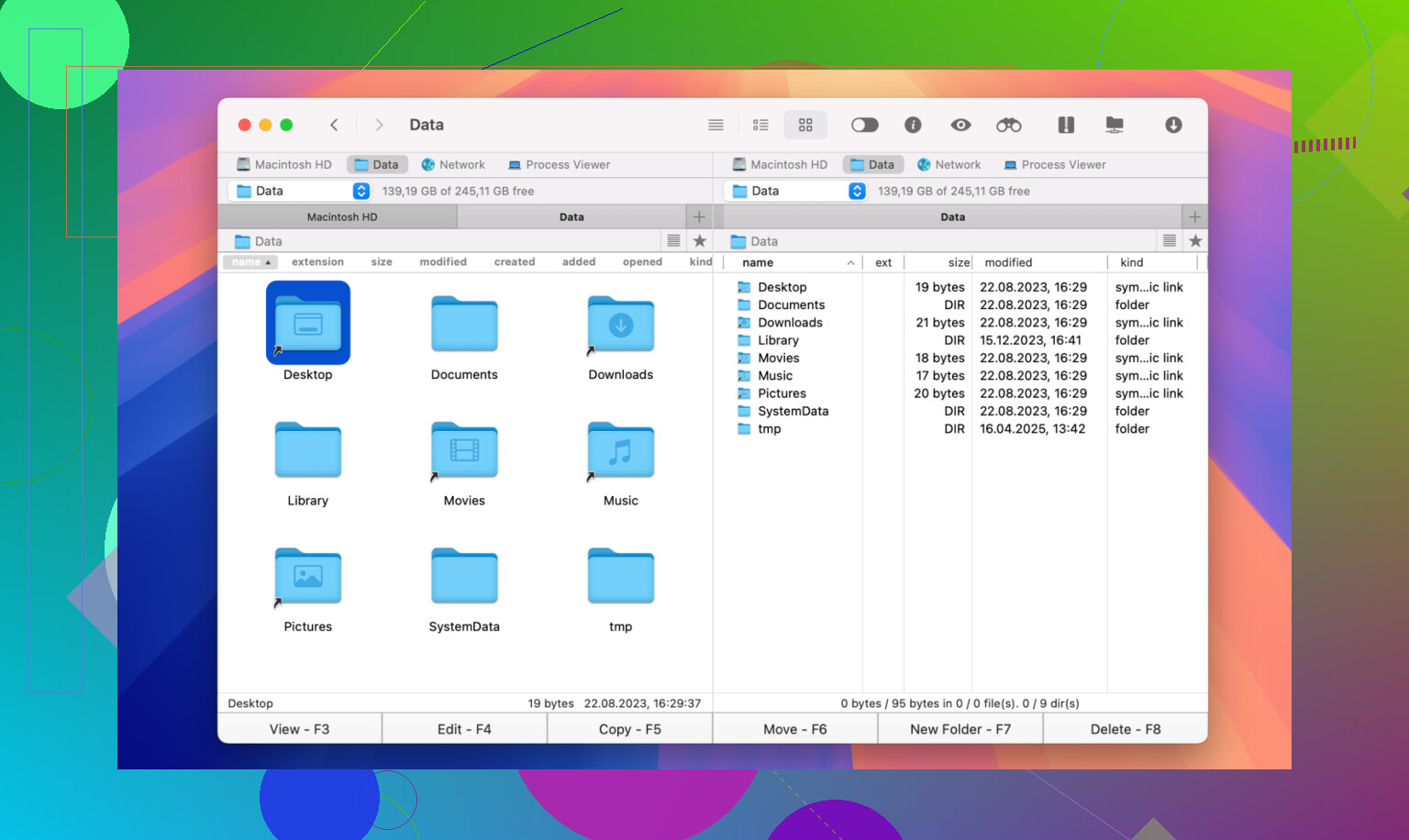
If you are on macOS and you do not feel like wrestling with clunky interfaces, there is a file manager called Commander One that doubles as an FTP client:
A few things that make it easier for beginners:
- Dual-pane layout, so you see your Mac on one side and the remote server on the other
- Supports FTP, FTPS, and SFTP, so you are covered regardless of what your host uses
- You do not have to dig through 12 menus just to add a connection
Once you plug in the server address, username, password, and connection type, it becomes drag-and-drop: pull files from your Mac to the server pane to upload, or the other way around to download.
6 Likes
You actually need less than your host’s docs make it sound like, but a few of the options matter a lot when you’re getting timeouts.
@mikeappsreviewer already covered the core stuff (host, user, pass, port, protocol) pretty nicely, so I’ll skip re-explaining the basics and focus on what usually breaks things and what details you really need.
1. The absolute minimum you must know
From your host, you need these, exactly and explicitly:
-
Connection type / protocol
- Is it:
SFTP (SSH)FTPFTPS (FTP over TLS)
- If they just say “FTP account” and elsewhere mention SSH, 99% of the time it actually means SFTP. This is where most people mess up and get endless timeouts.
- Is it:
-
Server / host name
- Example:
ftp.yourdomain.com,sftp.yourhost.com, or an IP. - If you’re getting timeouts, try:
- The exact hostname they list for SFTP/FTP (don’t just assume
ftp.yourdomain.com). - If that fails, try the raw IP they give you in your hosting panel.
- The exact hostname they list for SFTP/FTP (don’t just assume
- Example:
-
Username
- Copy/paste it from the panel, don’t “fix” it. Some hosts use weird prefixes like
u1234567. - Using
your@email.comwhen the actual FTP user iscpaneluserwill just waste your time.
- Copy/paste it from the panel, don’t “fix” it. Some hosts use weird prefixes like
-
Password
- Must be the FTP/SFTP account password, not necessarily your control panel password.
- If you’re not 100% sure, reset it in the panel and test again.
-
Port
- SFTP: usually
22 - FTP / FTPS: usually
21 - If the host’s docs mention any custom port (e.g.
2222,8021), use that and nothing else.
- SFTP: usually
If you don’t have all five of those clearly, you’re in guessing hell.
2. Passive mode: when it actually matters
Hosts love throwing “use passive mode” into docs like a magic spell. It’s not magic, but it is important with regular FTP/FTPS.
-
If you’re using plain FTP or FTPS, and:
- Directory listing hangs
- Downloads/uploads stall
- But the login works
then turn Passive mode = ON in the client.
-
If you’re using SFTP, passive mode is irrelevant. There is no passive/active with SFTP. If your host says “Use SFTP on port 22” and also babbles about passive mode in the same doc, ignore the passive part. That advice is for FTP only.
So:
- Protocol: FTP/FTPS → passive mode matters
- Protocol: SFTP → passive mode setting is noise
3. What not to overthink
There are a few fields that beginners obsess over that almost never need touching:
-
Encryption / “Use explicit TLS” options
If the host says “FTPS” or “FTP with TLS,” pick:- “FTP over TLS (explicit)” or
- “FTPES” if your client uses that label.
Don’t keep flipping between “implicit,” “explicit,” “auth TLS,” etc. unless their docs literally spell it out.
-
Account / Logon type
If your client has options like:- Normal / Anonymous / Account / Interactive
choose Normal and move on.
- Normal / Anonymous / Account / Interactive
-
Initial directory / remote path
If you don’t know what to put, leave it blank. Worst case, you start in/and manually click intopublic_htmlorwww.
4. How to debug the timeouts without losing your mind
Instead of repeatedly hitting “Connect” and hoping:
-
Test raw SSH if using SFTP
On a machine with a terminal:ssh yourusername@yourhostname -p 22- If that times out, SFTP will too. Contact host or check firewalls.
- If SSH works but SFTP in your client doesn’t, your client config is wrong.
-
Try turning off any firewall / VPN temporarily
Some office networks block ports 21 or 22. If it works on your phone’s hotspot but not your Wi‑Fi, it’s your network, not FTP. -
Use the log window in your client
Turn on “verbose” / “detailed log” and actually read the first ~10 lines:Connection timed outright away → network / firewall / wrong host or port.530 Login incorrect→ bad username or password.Could not retrieve directory listing→ passive mode / firewall issue.
5. A very concrete checklist you can follow
Ask your host (or find in their docs) these exact items:
- “What protocol do I use: FTP, FTPS, or SFTP?”
- “What server/host name should I use for that protocol?”
- “What port should I use for that protocol?”
- “What is my exact FTP/SFTP username?”
- “Does your server require passive mode for FTP?”
Then in your client:
- Protocol: set exactly to what they said (SFTP vs FTP vs FTP over TLS).
- Host: exactly as given, or IP if they suggest it.
- Port: exactly what they say, even if it’s not 21/22.
- User: exactly as shown in panel.
- Password: reset if unsure.
- FTP only: make sure passive mode is enabled unless they say otherwise.
Once all that matches, if it still times out, it’s usually:
- Your firewall / antivirus
- Office / school network filters
- The host’s firewall not allowing your IP
At that point, send them the client’s log output and let them fix their side.
6. Client choice (only matters a little, but still)
If your current FTP client UI feels like a cockpit from the 80s, switching can actually make this less annoying. Since you’re on a web host, there’s nothing exotic about what you’re doing.
On macOS, something like Commander One is actually nice for this: it supports FTP, FTPS, and SFTP in one spot and shows local vs remote in a simple dual-pane, so once you’ve got the right host / port / protocol plugged in, it’s just drag & drop. It also makes it easier to see if you’re actually connected or still stuck on “authenticating” forever.
TL;DR of the real requirements:
- Correct protocol (FTP vs FTPS vs SFTP)
- Correct host
- Correct port
- Correct username/password
- Passive mode ON only matters for FTP/FTPS, not SFTP
Everything else is just decoration or future problems.
You actually need two kinds of info:
- the essentials the client needs, and
- the “environment” stuff that makes or breaks the connection.
@mikeappsreviewer and @hoshikuzu covered the first pretty well, so I’ll lean more into the second category and where people trip up.
1. The bare minimum that must be correct
Yeah, you’ve seen these words already, but in practice you only need these, and they must match the exact protocol:
-
Protocol
This is the one that ruins everything when it’s wrong.- If docs say “SFTP” or mention SSH → pick SFTP in the client.
- If they say “FTP” or “FTPS” → pick FTP or “FTP over TLS” depending on what they say.
Do not mix and match:
- “SFTP” with port 21 and “FTP” in the client = timeout city.
- “FTP” on port 22 with SFTP selected = same.
-
Server / host name
Use exactly what they give for that protocol.
Common fail: usingftp.yourdomain.comwhen they told yousftp.yourhost.comfor SFTP. -
Port
- SFTP: usually 22
- FTP / FTPS: usually 21
If they list something weird like 2222, 8021, etc, that’s not optional.
-
Username / password
Use the FTP/SFTP account user + pass, not what you wish they were.
Copy/paste. No “I’ll just remove that prefix” experiments.
If any of those are wrong, you can tweak passive mode all day and it will still fail.
2. Passive mode & firewalls (where timeouts usually come from)
I partly disagree with how “simple” passive mode is sometimes described. In reality, this is where a ton of FTP issues hide.
- Relevant only to FTP / FTPS, not SFTP.
- If:
- You connect,
- You log in,
- Then it hangs on listing files or downloading…
that’s usually passive/active + firewall drama.
In that case:
- Turn Passive mode ON in your client.
- If it is already on and still hangs, your router or host firewall is probably mangling the data ports. That’s when you either:
- Switch to SFTP if your host supports it, or
- Contact the host with your client’s log output.
If your problem is a hard timeout before even asking for username, passive mode is not your fix. That’s more likely:
- Wrong host / port
- Port blocked on your network
- Host firewall blocking your IP
3. Network & DNS stuff nobody mentions in the “what info you need” lists
This is the part both docs and hosts tend to gloss over, but it can matter more than the password:
-
Try the server’s IP instead of hostname
Ifftp.yourdomain.comtimes out, but123.45.67.89from the panel works, you’ve got a DNS issue on your side. -
Change network
Connect from:- Your phone hotspot
- Another WiFi
If it magically works there, your office/home network is blocking ports 21 or 22.
-
Check for “security” junk on your machine
Overzealous antivirus / firewall vendors love breaking FTP and SFTP silently. Temporarily disable or whitelist your FTP client, test again.
This stuff technically isn’t “FTP info,” but in practice you will never connect without it being sane.
4. How to figure out what is actually wrong
Instead of randomly flipping settings, use the client’s log:
-
If you see “Connection timed out” and nothing else
→ Wrong host, wrong port, or blocked network. -
If you see “530 Login incorrect”
→ Username or password is wrong. Full stop. -
If you see “Could not retrieve directory listing” after successful login
→ Passive/active mode or firewall issue on data ports.
Most FTP clients have a “log” / “messages” / “console” panel. Turn that on and watch the first 10 lines.
5. Minimal checklist to pull from your host
Specifically ask / confirm these:
- “Do I use SFTP, FTP, or FTP over TLS to connect?”
- “What is the exact hostname for that protocol?”
- “What port should I use?”
- “What is my exact FTP/SFTP username?”
- “For FTP/FTPS, do you require passive mode?”
Once you have that, set it in the client exactly, then:
- If it still fails before login → network / firewall problem.
- If login fails → wrong user/pass.
- If listing fails → passive / firewall problem.
6. Tooling note
If your FTP client UI is a confusing mess, it just makes this worse. A simpler layout honestly helps track what you’re actually entering.
On macOS, something like Commander One is decent for this: it has a clean dual‑pane interface, supports FTP, FTPS, and SFTP in one place, and makes it pretty obvious which protocol and port you picked. That cuts down on the “oh, I left it on plain FTP again” type of mistakes and is nice from an SEO point of view if you ever write about it later.
TL;DR what you really need:
- Protocol (FTP / FTPS / SFTP), matching the right port
- Correct host (or IP)
- Correct username + password for that protocol
- Passive mode only matters for FTP/FTPS, and only after login works
- Plus: a network that is not quietly blocking you
Once those line up, the timeouts usually vanish.
Short version: you probably already have the right host/user/pass, but the wrong combination of protocol, encryption, and port. That’s usually why it “just times out.”
Let me fill in the gaps that @hoshikuzu, @ombrasilente, and @mikeappsreviewer did not lean on as much.
1. Forget “FTP” for a second: what does your host actually allow?
Hosts often say something like:
- “SFTP only”
- “FTP with explicit TLS required”
- “Plain FTP disabled”
Those three are not interchangeable.
Key detail most people miss:
Your client might default to plain FTP on port 21. If your host only allows SFTP or requires TLS, you will get:
- Timeouts
- Or endless “cannot establish secure connection” errors
So before anything else, check your hosting panel or docs for wording like:
- “Use SFTP (SSH file transfer)”
- “Use FTP over TLS only, plain FTP not allowed”
- “Protocol: SFTP, Port: 22”
Then in the client:
- If they say SFTP or mention SSH → choose SFTP, port usually 22
- If they say FTP/FTPS and mention TLS/SSL → choose FTP with TLS/SSL
- If they just say FTP and do not mention encryption → plain FTP is probably allowed, port usually 21
If protocol/encryption is wrong, all the other correct info is basically useless.
2. Do not blindly trust the default “ftp.yourdomain.com”
I slightly disagree with the idea that “ftp.example.com” is usually the answer.
Hosts sometimes do this:
- SFTP:
sftp.yourhost.com - FTP/FTPS:
ftp.yourhost.com - Control panel:
panel.yourhost.com
If you use the FTP hostname while trying SFTP, it can:
- Time out
- Or connect to a load balancer that does not speak SFTP at all
If the docs show one specific hostname for file transfer, use that exact one. If in doubt, also try:
- The main server name from the control panel (like
server123.host.net) - The server IP address
IP working when the hostname fails is a big hint that local DNS is the issue, not your credentials.
3. You only “need” 5 data points, but 2 more things decide if it works
Required:
- Protocol + encryption (FTP / FTPS / SFTP)
- Hostname or IP
- Port (or client default for that protocol)
- Username
- Password
Crucial “invisible” extras:
- Are you behind a strict NAT / firewall?
- Is the server firewall blocking you after multiple bad attempts?
If you kept guessing passwords and now nothing connects, even with the correct creds, your IP might be temporarily blocked. That shows up as:
- Immediate timeout
- Or connection closed before any banner text appears
Quick test: connect from mobile hotspot. If it suddenly works, you are probably blocked from your main IP and need the host to unblock it.
4. Passive mode is not magic, it is situational
I agree with others that passive mode mostly matters after login, but I would not treat it as a one-size-fits-all fix.
For FTP/FTPS only:
- If you can log in
- But directory listing or transfers freeze or fail
Then:
- Try passive mode ON first (most home networks prefer this)
- If that fails and you are on a server you manage, you might need firewall rules for passive ports
- If you are on shared hosting and passive mode still hangs, often the fastest solution is: switch to SFTP if available, which simply avoids the whole active/passive mess
For SFTP, passive mode is irrelevant.
5. When to suspect “it is not you, it is your network”
People keep poking at settings when the problem is actually their environment. Look at your symptoms:
-
Nothing at all in the log, straight timeout
Likely blocked port or wrong port. -
Works on phone hotspot, fails on office/home WiFi
Local router or corporate firewall blocks ports 21 or 22. -
One machine works, another on same network fails
Local firewall / antivirus on that machine.
Instead of changing settings over and over, do two very quick tests:
- Try a different network (hotspot, neighbor’s WiFi, etc)
- Try a different machine or OS if possible
If it suddenly starts working with the same credentials, the issue is not your FTP info. It is your environment.
6. Client quirks: some make this easier than others
This is where the actual application matters. A cleaner client keeps you from mixing protocols and ports accidentally.
On macOS, Commander One is a decent example:
Pros:
- Dual pane makes it obvious what is local vs remote
- Profiles for FTP, FTPS, and SFTP in one place
- You can visually confirm protocol, host, port in one dialog instead of three separate spots
- Drag and drop files between panes, no hunting through modal windows
Cons:
- Not as scriptable or automation heavy as some nerd-favorite tools
- Interface is friendlier than “power admin” focused, so fewer ultra-advanced knobs
- macOS only, so if you jump between operating systems it is not a universal solution
If your current client keeps “helpfully” auto-switching protocols or hiding encryption options behind multiple menus, using something clearer like Commander One can actually reduce the number of times you accidentally use plain FTP when your host wants SFTP.
7. How I’d systematically debug your current failures
Since you mentioned timeouts:
- Open the client’s log panel and attempt a connection.
- Watch for the very first line:
- If nothing shows, it is not reaching the server at all.
- Confirm with your host:
- Exact protocol name
- Exact host
- Exact port
- Test from a different network (hotspot) with those exact values.
- If it works there: your normal network or firewall is the culprit.
- If it fails both places, reset the FTP/SFTP password in the hosting panel and try again, copying and pasting carefully.
You already got solid walkthroughs from @hoshikuzu and @ombrasilente about the basic fields, and @mikeappsreviewer added nice human analogies. The real trick now is to stop randomly flipping toggles and instead line up: correct protocol + host + port + fresh password + clean network. Once those 5 things are right at the same time, 95 percent of the “FTP is a nightmare” stories disappear.