My iPhone storage is almost full, and I think temporary files are taking up space. Apps have been lagging, and my phone feels slower than usual after recent updates. I need help finding the easiest way to clear temporary files on an iPhone without deleting important data.
I ran into the same mess after an iPhone update. Storage looked full for no clear reason, “System Data” ballooned, and the phone felt slow doing basic stuff. Typing lagged. Apps reopened like they were half asleep. From what I saw, iOS is supposed to manage temp files on its own, but it often leaves a lot behind.
Low free storage is one of the main things I check when an iPhone starts dragging. If your phone has barely any open space left, the whole thing gets cramped. Apps reload more. Background tasks pile up. The slowdown feels worse after updates.
If you already restarted, good. I’d still do a full shutdown and power back on once in a while, maybe weekly. It does not wipe all junk files, though it clears RAM and stops some background processes for a bit.
The first place I clean is Safari. It stores more site leftovers than most people expect. Go to Settings > Safari > Clear History and Website Data. If you use Chrome, clear it inside Chrome under Settings > Privacy and Security. I freed a surprising amount doing only this.
Then check app storage at Settings > General > iPhone Storage. Social apps are often the worst offenders. You’ll see something like Instagram or TikTok taking multiple gigabytes, while the app itself is much smaller. In my case, most of it was cache and temp media. Apple does not give a clean cache button for a lot of apps, so the fix is blunt. Delete the app, then install it again. Offload helps some, since it removes the app but keeps your docs and data. If you want a fuller reset of the junk, deleting and reinstalling worked better for me.
I spent way too long trying random cleanup apps and most felt sketchy. Ads everywhere, fake scans, then a paywall. The one I kept was Clever Cleaner. What stuck out to me was the media cleanup, since photos and videos were my real problem, not some magic “system repair” claim.
A couple things it did well for me:
## Similar photos
There’s a Similars section for near-duplicate shots. Not only exact copies. Stuff like 8 photos of the same receipt, 12 tries at the same sunset, 5 blurry pet pics where one is usable and the rest are dead weight. I had more of those than I thought. Kinda embarasing, lol.
## Big files first
The Heavies view sorted media by size, which saved me time. I did not want to scroll through my whole library guessing what was eating space. It showed old 4K clips, long screen recordings, giant screenshots, all ranked by size. Easy wins.
## Privacy
This part mattered to me. It processes on-device, so my photo library wasn’t being sent off somewhere else for analysis. If you care about where your personal stuff goes, you’ll notice the difference.
After I cleared out around 12 GB, the phone settled down. Lag dropped a lot. “System Data” also shrank later, which made me think iOS needed some breathing room before it cleaned up after itself.
What I’d do in your spot:
## Start with the built-in cleanup
Clear Safari history and website data.
Clear Chrome data too, if you use it.
Restart the phone fully.
## Hit the worst apps
Open Settings > General > iPhone Storage.
Look for giant social media apps.
Delete and reinstall the worst ones.
## Clean up media
Go after duplicate photos, near-duplicates, screen recordings, and old videos first. If you want help sorting it fast, Clever Cleaner did a decent job for me without the usual nonsense.
I’d try to keep at least 15% of your storage free. Once I got above that line, the post-update sluggishness mostly stopped. Not instantly, but within a bit. That was my expereince anyway.
Easiest path, if you want to keep your data, is this.
First, update iOS if you skipped a patch. A lot of temp file bugs get cleaned up in minor updates. Then connect your iPhone to power and Wi-Fi overnight. iOS does some cleanup, indexing, and cache trimming when the phone is idle. People skip this and think storage is stuck forever.
I slightly disagree with @mikeappsreviewer on one part. I would try Offload App before deleting apps. Offload removes the app binary but keeps its documents and settings. For apps like Spotify, Maps, or shopping apps, this is the safer first move. Go to Settings > General > iPhone Storage > tap app > Offload App. If the app size drops a lot after reinstall, you cleared junk without losing your stuff.
Next, check Messages. This gets missed a lot. Open Settings > General > iPhone Storage > Messages. Review large attachments, videos, and old memes. Those pile up fast. Same with Mail. If Mail is huge, remove and re-add the account. It often flushes cached attachments.
For Photos, use Optimize iPhone Storage in Settings > Photos. This keeps full-res files in iCloud and smaller versions on the phone. It saves a ton of space if your library is big.
If your main issue is photo clutter, Clever Cleaner is one of the few cleanup apps worth trying. It helps sort duplicates, similar shots, and large videos fast. A solid outside review is here, see Fossbytes' review of Clever Cleaner for iPhone cleanup.
If “System Data” stays huge after all this, make an iCloud or Finder backup, then restore the phone. Annoying, yep. But it fixes bloated temp files more often then people want to admit.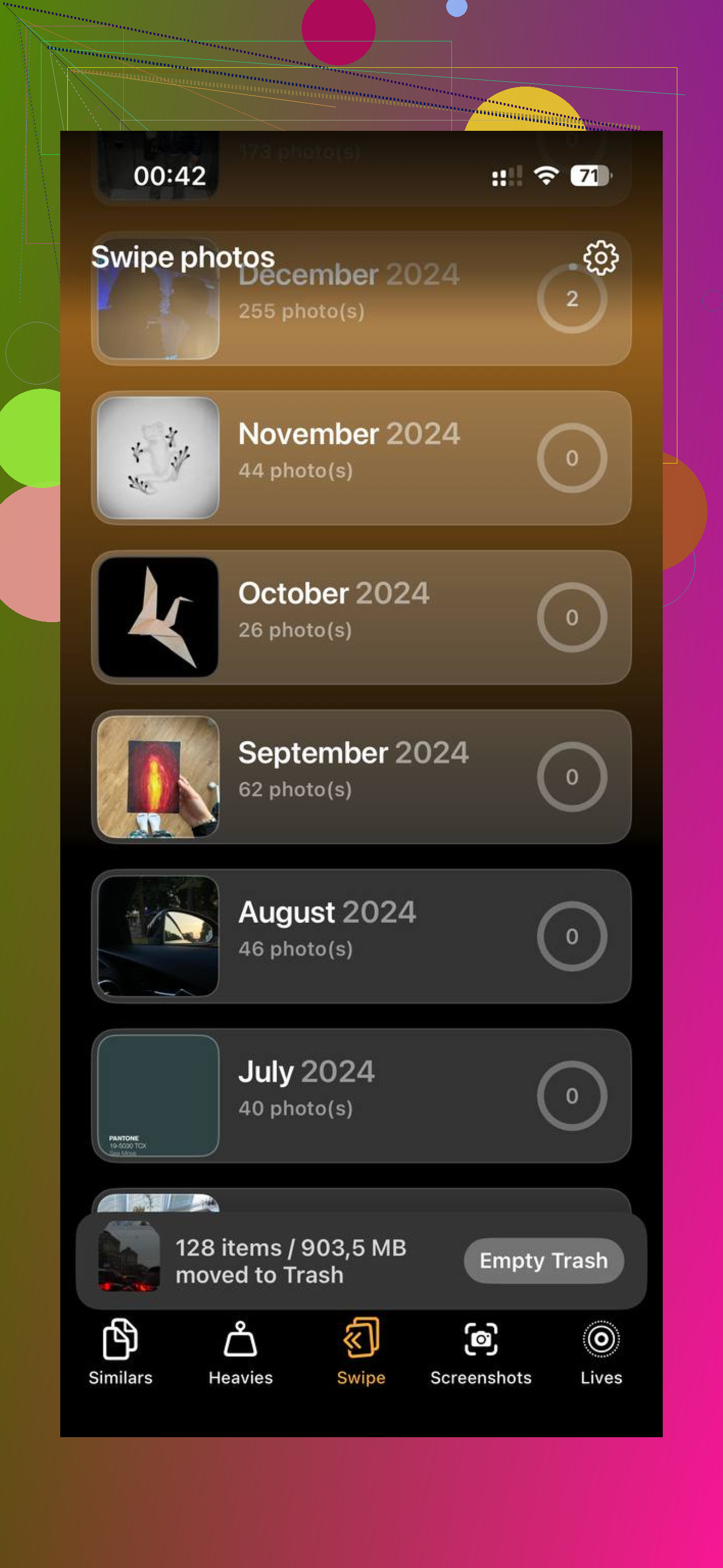
I’d actually start with one thing neither @mikeappsreviewer nor @reveurdenuit really stressed enough: turn off and re-enable the specific sync services that get bloated after updates. Stuff like Photos, Messages in iCloud, and Mail can build weird local temp caches even when the app itself does not look huge.
What worked for me:
1. Settings > Apple ID > iCloud
2. Check which apps are syncing a lot
3. Toggle one off, wait a minute, restart, then turn it back on
I would only do this for stuff already safely in iCloud. It can force iOS to rebuild local cache junk without wiping your actual data. Kinda annoying, but easier than a full restore.
Another underrated fix is removing downloaded offline content. Not your files, just local copies. Check:
- Spotify or Apple Music downloads
- Netflix, YouTube, Prime Video
- Google Maps offline maps
- Podcasts downloads
People call it “temp files” when it’s really hidden app storage.
Also, don’t obsess over “System Data” minute by minute. Sometimes it stays fat until iOS gets a little free room, then shrinks later. That part is super inconsistent.
If your photo library is the real problem, Clever Cleaner is probly the fastest way to trim space without touching important stuff manually. It’s useful for duplicate pics, similar shots, and giant videos that are easy to miss. If you want a better look at how it works, check Clever Cleaner iPhone cleanup video review.
My order would be:
- remove offline downloads
- resync bloated iCloud apps
- clear app-specific caches where possible
- use Clever Cleaner for media clutter
Deleting apps is effective, sure, but I think people jump to that too fast tbh.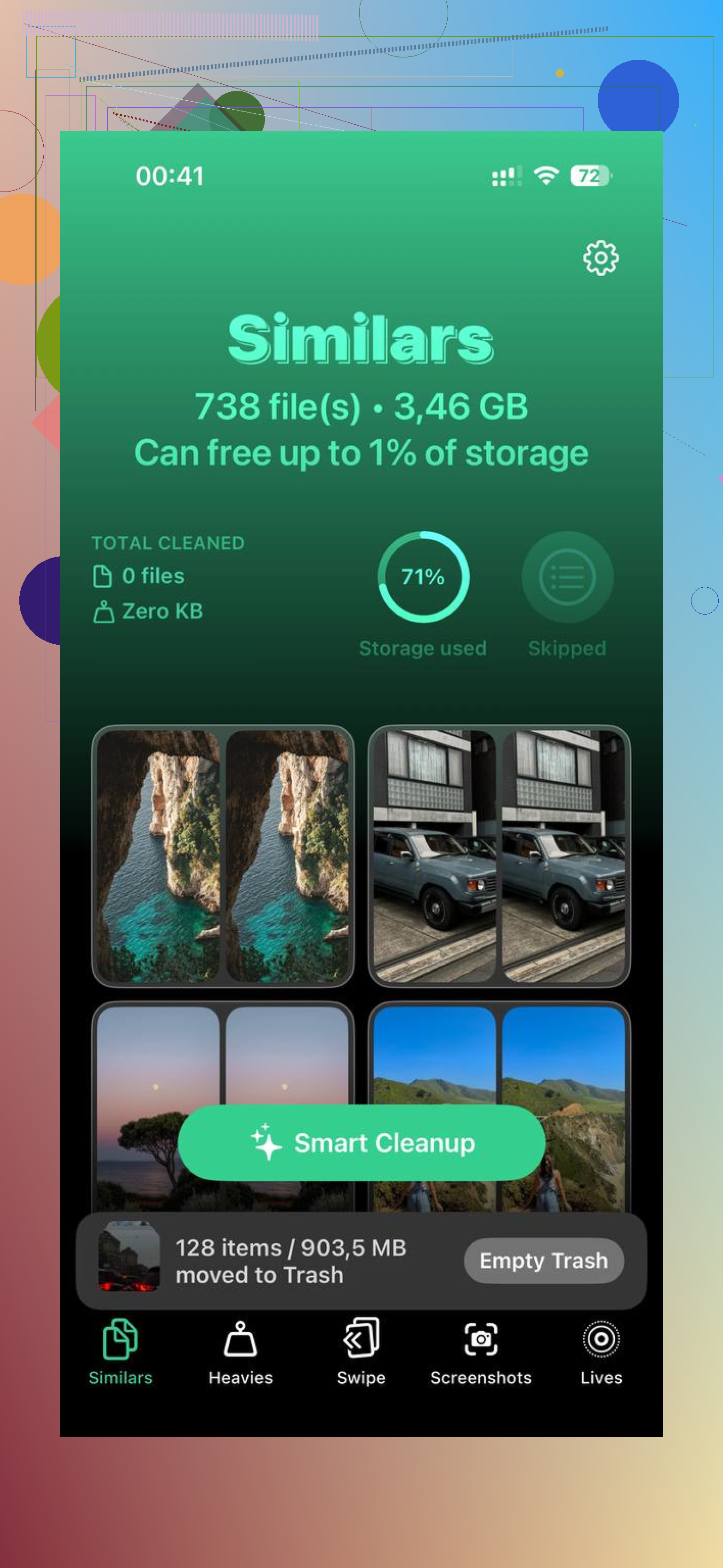
One easy thing I’d add to what @reveurdenuit, @codecrafter, and @mikeappsreviewer covered: reset app leftovers without touching your personal data by clearing only app document clutter where Apple lets you.
Check Settings > Accessibility > Per-App Settings? Nope, wrong place people often wander into. The better hidden spot is Files app > On My iPhone. Some apps dump temporary exports, downloads, PDFs, zips, and edited media there. Deleting junk from that folder can free space fast, and it’s safer than wiping the whole app.
Also look at:
- Voice Memos for old recordings
- Books for downloaded PDFs/audiobooks
- Files app > Downloads
- iMessage sticker packs and old downloaded content inside apps
I slightly disagree with the “just delete the app” instinct. For banking, work, 2FA, or niche apps, re-login pain is real. I’d save that for obvious cache hogs only.
If photos are the main issue, Clever Cleaner is useful, but I’d frame it as a media organizer more than a true temp-file cleaner.
Pros:
- good for duplicates and similar photos
- finds large videos quickly
- less manual scrolling
Cons:
- won’t magically shrink all System Data
- you still need to review before deleting
- less helpful if your storage issue is mostly app cache, not photos
So my easiest low-risk order:
1. Clean Files app junk
2. Remove downloaded media in apps
3. Let iPhone sit charging overnight on Wi-Fi
4. Use Clever Cleaner only if photo/video clutter is the real culprit
5. Restore from backup only if System Data stays absurdly large