I’m about to use LocalSend for the first time and want to avoid common setup or connection problems. I’m looking for beginner tips on compatibility, device discovery, permissions, and any security concerns so I can transfer files smoothly without wasting time troubleshooting.
I used LocalSend for a while because it was quick to set up and it worked on almost everything I had sitting around. The good part was obvious right away. Windows talked to Linux, my Android phone showed up, even iOS behaved better than I expected. When it works, it feels smooth. You open it, the other device appears, you send the file, done.
The part people keep running into is the network mess behind the scenes. I saw devices fail to detect each other on the same Wi-Fi, then show up later for no clear reason. Most of the time it came down to firewall rules, router settings, or a VPN running in the background. If your network blocks local discovery traffic, LocalSend starts feeling broken even when the app itself is fine.
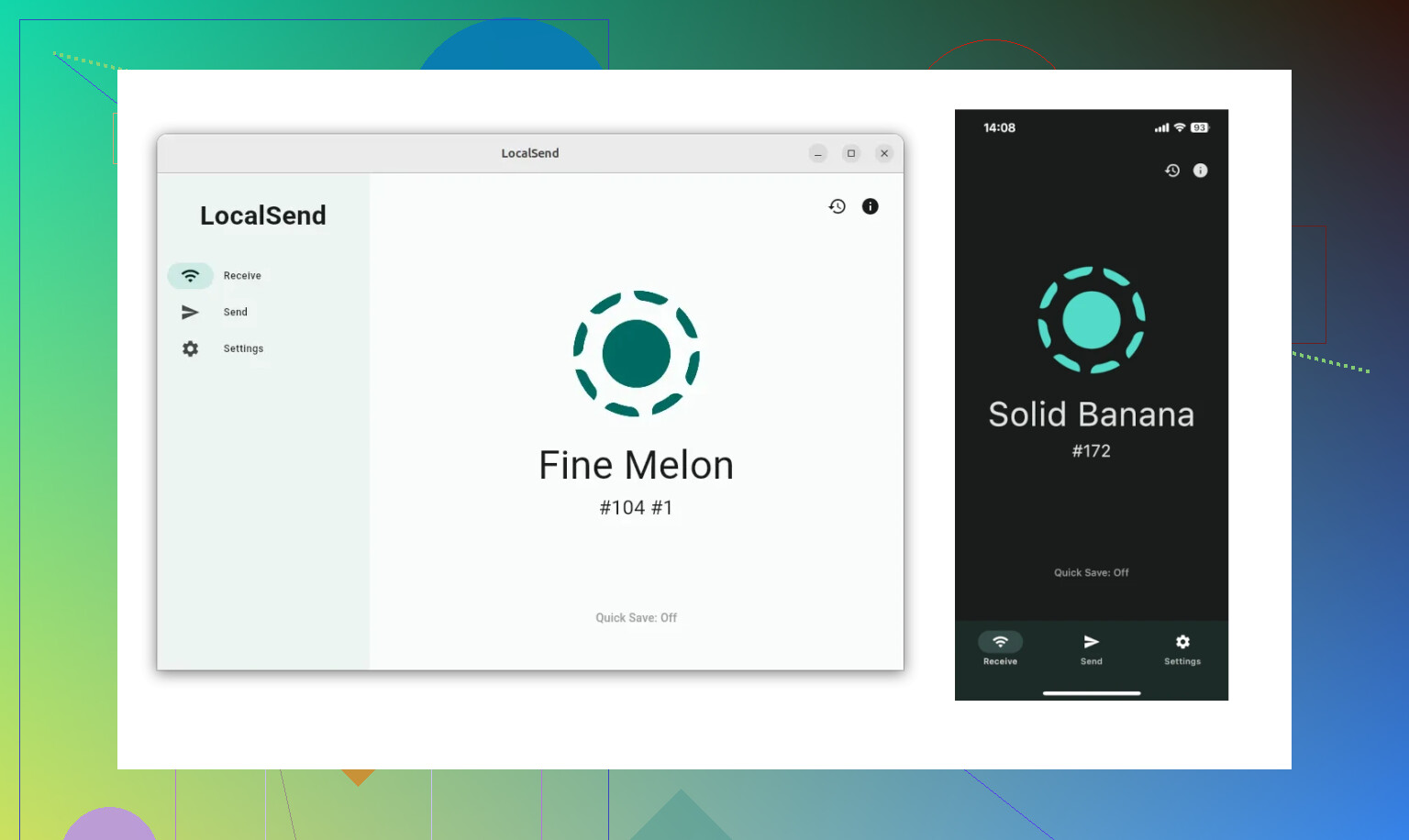
Works across different systems
This is still the main reason people stick with it. LocalSend runs across Windows, Linux, Android, and iOS without making you learn a different workflow on each one. I noticed the layout and behavior stayed close enough across platforms that I did not need to relearn anything when switching devices. For a tool crossing four ecosystems, that matters more than people admit.
Fast when your network is normal
Transfers stay on your local network, so files do not take a detour through remote servers. On a decent Wi-Fi connection or local LAN, speed is solid and setup is almost nothing. In the best case, you open the app and the target device appears in a few seconds. For one-off photos, PDFs, videos, and random downloads, it saves time.
Still, I would not pretend it is immune to bad Wi-Fi. If your router drops packets or your apartment network is overloaded, the experience changes fast. Small files usually get through. Bigger transfers are where the cracks show.
Folders are where it gets annoying
Single files tend to go through fine. Folder transfers are shakier. People have pointed out the same issue here: folder transfers can be hit or miss. On Windows, I ran into vague permission prompts with no useful detail. It did not tell me what folder, what rule, or what I needed to fix. You click around, retry, and still get nowhere. That part feels half-finished.
There is also the usual concern with anything moving data over a network. If you use the web version or leave sharing tools open on networks you do not control, you need to pay attention. Convenience is nice. Sloppy setup is not.
Wireless is fine until it isn't
Once I started moving large batches, browser-based and Wi-Fi-first tools got less appealing. A flaky signal turns a simple transfer into babysitting. I had one batch crawl for ages, then fail near the end. Another time a connection hiccup left me checking files one by one to see what made it over. If you move lots of data or stuff you cannot afford to re-sort, wired still wins.
A wired option for Mac and Android
If you are on macOS and want something less fragile, MacDroid takes the USB route. That skips the usual Wi-Fi weirdness and avoids pushing files through cloud storage first. I get why people go this way. No upload wait, no syncing lag, no wondering if half the folder vanished on the trip.
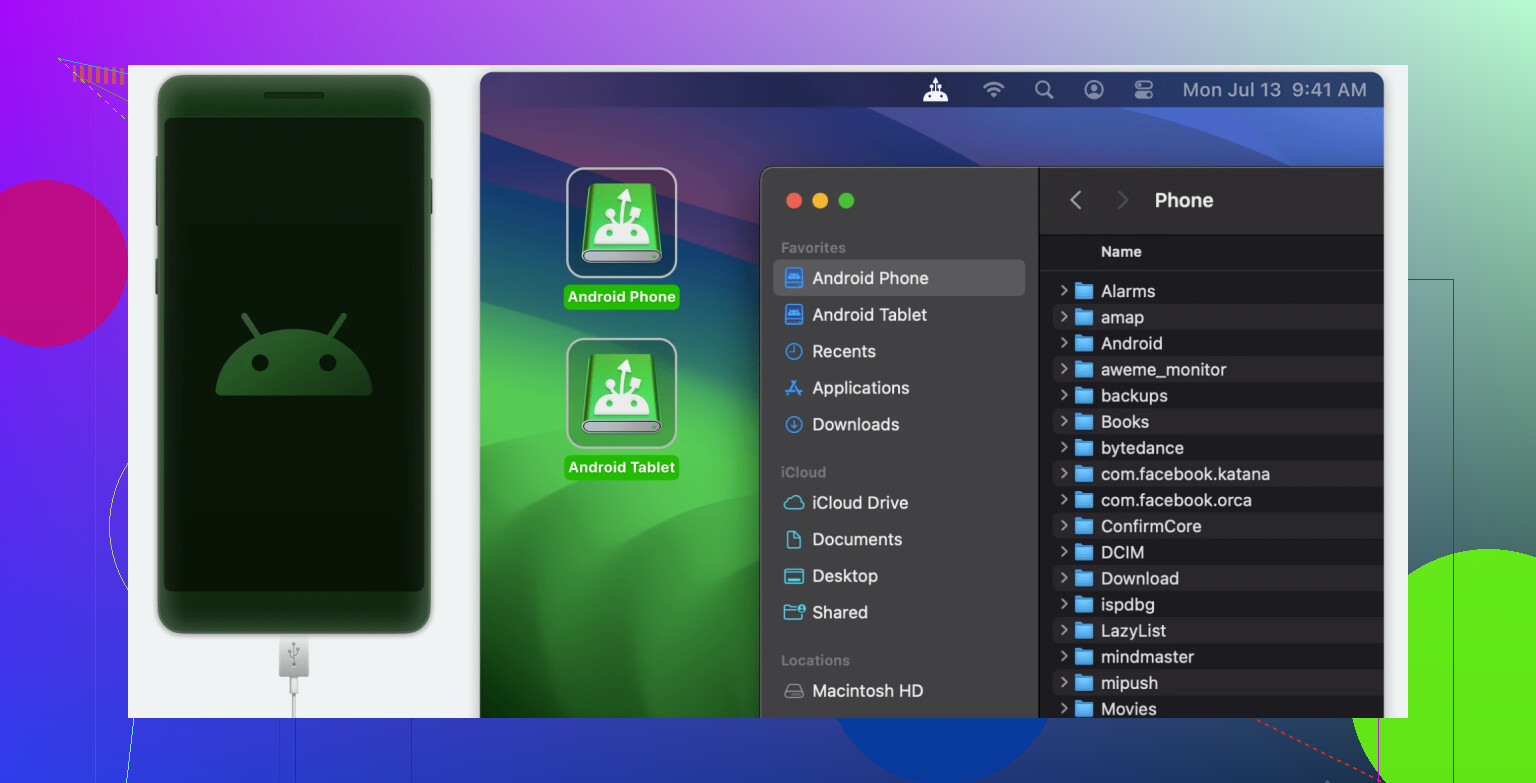
What stands out in MacDroid
- Access to phone storage: You can open your Android device in Finder and look through internal storage and the SD card without weird workarounds.
- Better folder handling: Full folders move over USB without the random permission errors people keep seeing in wireless tools.
- Edit files in place: You can open files stored on the phone with Mac apps and work on them without copying everything over first.
- MTP support: It relies on Media Transfer Protocol, so it lines up with most current Android devices.
If your transfers are small and your network behaves, LocalSend still makes sense. If your setup is touchy, or you keep moving big folders between Android and Mac, a cable starts looking less old-fashioned and more sane. I learned that one the annoying way, lol.
1 Like
Start with the boring stuff, because it saves time.
-
Put both devices on the same local network.
Same Wi-Fi name is usually enough, but guest Wi-Fi often blocks device-to-device traffic. Apartment, hotel, school, and office networks do this a lot. If one device is on mobile data or a VPN, discovery often fails. -
Give the app the perms it asks for.
On Android and iPhone, local network permission matters. On desktop, firewall prompts matter. If you clicked ‘deny’ once, LocalSend might look dead until you fix it in system settings. This is where a lot of first tries go wrong. -
Test with one small file first.
Do not start with a 20 GB folder. Send a photo or PDF. If that works, move up. It tells you fast whether discovery, permissions, and save location are all fine. -
Name your devices clearly.
If both show up as ‘Desktop’ or ‘Android’, it gets dumb fast. Rename them in LocalSend so you do not send files to the wrong place by mistake. -
Check the save folder before sending.
This part gets missed. On desktop, make sure the receive path points somewhere you have write access to. If your Downloads folder is synced, locked down, or full, you get wierd behavior. -
Security wise, I’m a bit less worried than @mikeappsreviewer, if you stick to your home network. LocalSend is fine for normal use. I still would not leave it sitting open on public Wi-Fi. Turn off visibility when done if that option is there on your platform.
-
If you use a Mac and move files with Android a lot, MacDroid is worth a look. Different use case, yes, but USB is often less flaky than local wireless transfers, esp for big folders.
Short version, same network, no guest Wi-Fi, no VPN, allow firewall and local network access, test small first. That avoids most pain.
One thing I’d add to what @mikeappsreviewer and @suenodelbosque said: LocalSend is easy when both devices can actually stay awake. A lot of first-time fails are just battery optimization killing the app in the background on Android, or the phone screen locking mid-transfer. If you’re moving a big video, keep the app open and disable battery saver for that session.
Also, discovery can be overrated. If devices refuse to appear, it does not always mean the app is broken. Sometimes manually entering the receiving device by IP works faster than wasting 20 minutes blaming Wi-Fi ghosts. Not everybody bothers trying that.
Compatibility-wise, it’s pretty broad, but don’t expect every platform to behave identically. iPhone and Android perms are stricter, desktop versions usually feel less fussy. That’s normal.
My security take is slightly different from @mikeappsreviewer: for home use, LocalSend is pretty low-drama. Still, verify the device name before accepting anything. On shared networks, I would not leave it open longer than needed. Basic common sense stuff.
One more practical tip: check free space on the receiving device first. Sounds dumb, but it causes a lot of “why did this fail?” moments.
If you’re doing repeated Android-to-Mac transfers and LocalSend starts being annoyng, MacDroid is worth a look since USB is often more stable for large folders.
A couple things I’d add beyond what @suenodelbosque, @espritlibre, and @mikeappsreviewer already covered:
LocalSend is usually easiest if you think of it as a temporary local service, not just a file app. Some security tools treat that differently. If you run antivirus suites with “network protection” or “private network isolation,” discovery can fail even when your basic firewall looks fine. That trips up a lot of first runs on Windows.
I’d also disagree slightly with the “same Wi-Fi name is usually enough” idea. On mesh systems, band steering and AP isolation can still interfere even when both devices look like they are on the same network. If discovery is flaky, try forcing both onto the same access point or use 2.4 GHz just for the test.
Other beginner tips:
- Watch the app version. If one device is on a much older build, weird behavior is more likely.
- Filenames matter more than people expect. Very long names or odd characters sometimes cause trouble across platforms.
- If you care about file integrity for important stuff, spot check after transfer. LocalSend is convenient, but convenience is not verification.
- On iPhone, receiving can feel successful but the file may land in a place you did not expect. Know whether it is saving into Files, Photos, or a share target.
- On Linux, sandboxed installs can add permission weirdness depending on how the package was installed.
For security, I’m not super alarmist about LocalSend on a trusted home network, but I would be careful with “accept all” habits. The real risk is usually sending to the wrong visible device, not some movie-style hacker scenario.
If your main use case is Android to Mac and especially full folders, MacDroid is worth keeping in mind. Pros: more stable for large transfers, USB avoids flaky discovery, easier folder handling. Cons: not as instant as wireless, needs a cable, more specialized than LocalSend. So I’d use LocalSend for quick ad hoc sharing, MacDroid when reliability matters more than convenience.