I’m trying to upload a bunch of files to my Google Drive but the web interface only seems to let me do one file at a time, or maybe I’m missing something. Is there an easy way to upload multiple files together without having to do them one by one? Any tips or step-by-step guides would be super helpful because I need to organize a big project quickly.
Drowning in Files? Here’s How I Tackled Bulk Uploads to Google Drive
So get this—last weekend, my laptop was louder than a jet engine with all the “ding-ding-ding” notifications. Why? Because I had about two dozen folders (a mix of PDFs, photos, and dusty ZIPs) ready for a one-way trip to Google Drive. If you’ve ever tried uploading big batches through the built-in interface, you’ll know there’s always that anxious moment: Will Google Drive throw a fit and make you start over at 87%? Yikes.
Step-By-Step: Swamping Google Drive with Your Stuff
-
Fling ‘Em In via Browser
- Open Google Drive. Hit “My Drive.”
- Drag those files/folders straight from your computer and drop ‘em in.
- Watch the little upload pop-up. Looks easy, but if you blink, it’ll pause on you. Big batches? Sometimes it gets grumpy and stuck, especially if your connection stutters.
-
Getting Fancy With the Desktop App
- Download Google Drive for Desktop (the former Backup & Sync).
- Let it live in your menu bar.
- Set up which folders you want auto-uploaded. The upside is, it’ll chug away in the background. Downside? It takes up some local storage if you’re not careful, and syncing conflicts are all too real (“oh, THAT version…”).
-
Taking a Shortcut With Third-Party Tools
- So, anyone else hate watching endless progress bars? I went on a hunt and discovered something that changed the way I do this: CloudMounter.
Here’s my experience: It acts like a magic bridge between your Mac and Google Drive. Drag-and-drop right in Finder—feels like local storage, but it’s actually uploading right to the cloud. No need for extra browser tabs or half-baked sync options.
- So, anyone else hate watching endless progress bars? I went on a hunt and discovered something that changed the way I do this: CloudMounter.
Real Talk: Screenshots or It Didn’t Happen
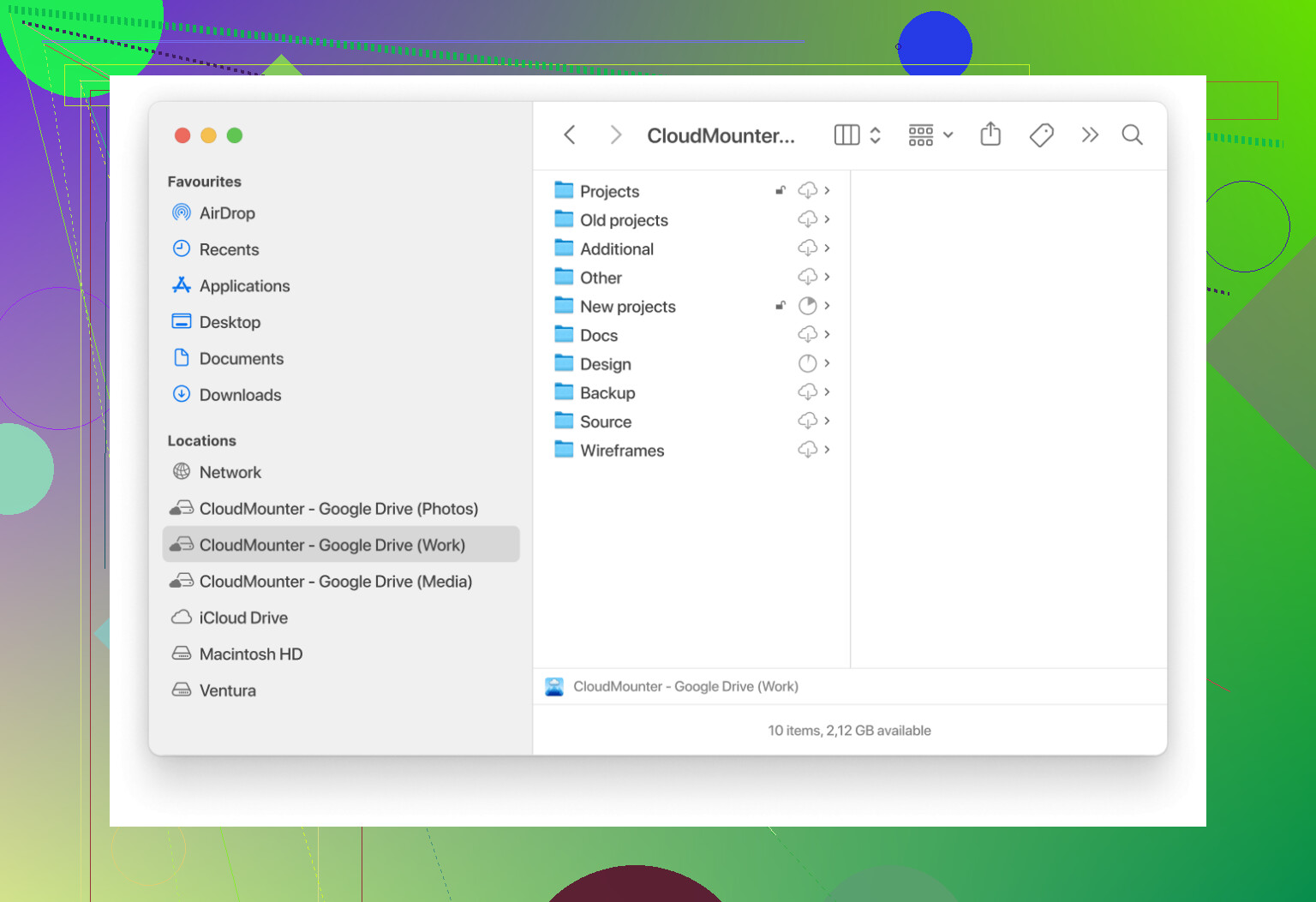
Here’s how my setup looked during the last mind-numbing file move. Finder on my left, my Drive mounted on the right, just doing its thing. Smooth and painless—which isn’t what I’d say for fighting with the browser when my WiFi hiccups.
TL;DR
- Standard Google Drive? Works, but gets finicky in big batches.
- The official desktop app helps, but can eat local space.
- CloudMounter makes your cloud storage behave like a USB stick—super convenient for moving tons of files at once, and it never grumbled at long uploads for me.
If you juggle loads of files regularly, do yourself a favor and check out CloudMounter—streamlined, reliable, and saves nerves.
16 Likes
Not gonna lie, @mikeappsreviewer nailed some classic options (browser drag-and-drop, Google Drive for Desktop, CloudMounter magic), but I still find all of those a little… meh for giant uploads. Browser works-ish for a handful, sure, but the minute I dump a full vacation folder (think 800 RAW photos) the whole thing just cries and sometimes refuses to tell me what it ACTUALLY finished uploading. If you get the “1 file at a time” vibe, try holding Ctrl or Shift when selecting in the upload dialog—sometimes browsers just hide the multitool capabilities behind bad UI.
Here’s what Google doesn’t advertise enough: zipped folders. Yup: slap those files into a .zip or .rar, upload a single chunky boi, then unzip inside Drive with a web app like ZIP Extractor. Less risk of stalled files mid-upload, and you only monitor one progress bar. Sure, you’ll need an extra step in the web interface, but it’s a life-saver if your connection drops.
Honestly, I’m not super into dedicated desktop drive sync tools since they can eat up disk space and trigger versioning nightmares. But if you want Drive to feel like a mounted folder, CloudMounter (like @mikeappsreviewer mentioned) is slick, and I haven’t had it corrupt big transfers like some others (side-eyes Backup & Sync). Third-party tools aside, don’t be afraid to experiment—sometimes the “jank” hack (zipping) cuts through the nonsense faster than Google’s own workflow.
Biggest tip: test with a small batch first. Murphy’s Law loves a big batch upload.
TL;DR: Try zipping, use Ctrl/Shift for multi-select in browser, and yeah, CloudMounter if you want no-fuss drag-and-drop. Avoid Google’s own sync for huge batches (imo), unless you live dangerously.
You’re asking the Drive million-dollar question, and honestly, despite all the fanfare about browser drag-and-drop and third-party tools, let’s not pretend this is ever totally frictionless. @mikeappsreviewer and @jeff have some solid takes—CloudMounter is worth a look for that finder-style integration if you’re in Mac-land (Windows options exist too but mileage varies), and zipping your batch into a single file saves a LOT of pain points with failed transfers or weird browser behavior (seriously, the number of times Google Drive “finishes” an upload but leaves half the files in limbo—oh the joy).
But here’s a slightly different angle: if you’re in it for the “one and done, never look back” upload spree, don’t sleep on old-school FTP-to-Drive bridges. Some cloud file managers like MultCloud or Rclone can connect FTP servers or even your machine DIRECTLY to Google Drive with parallel uploads—no browser tab-staring required, and you get logs of what actually finished, unlike the Drive status bar, which is about as trustworthy as a fake progress bar from a 90s video game.
Still, keep in mind that with any big transfer, uploads can get throttled HARD depending on bandwidth and Google’s mysterious resource quirks. The official desktop sync eats space and, in my experience, just loves spawning duplicate files if you sneeze the wrong way (so yeah, I side-eye that too). Zipping is classic but if you care about individual file timestamps, it can get messy upon extracting in Drive. And with CloudMounter, you really get the smoothest experience, and it’s hands-down more reliable than Google’s apps for huge folder dumps, especially for folks who shuffle between projects or share their devices.
One random hack I rarely see mentioned: If you’re regularly dumping new stuff, create a “To Upload” staging folder and automate the transfer via command line tools (if you’re semi-techy). Automator on Mac or even scheduled scripts on Windows + CloudMounter = near hands-off upload process.
TL;DR for the skimmers: Browser = meh for huge jobs, desktop sync = risky with storage, CloudMounter = sweet spot for seamless big uploads, zip when you must but double-check on extraction, and consider automation if this is a recurring torture session. If Google Drive still acts up, it’s not you—it just wants to keep your uploads interesting.
Put all files into one folder on your computer. In Google Drive, click New, then Folder upload. Select the folder once. Drive uploads every file and keeps the same folder structure.
This avoids selecting hundreds of seperate files, creating archives, or installing extra software. For example, one folder with 800 photos needs one selection. Keep the browser tab open until the upload panel shows completion, then compare the file count with your local folder. Simple, quick, and easy to verify.
Folder upload of 800 photos usually goes fine, but 800 mixed files with flaky WiFi is where @0xbeacon8’s method quietly drops a few and Drive still shows ‘complete.’ That’s the real catch nobody mentions: match the file count after, because the progress panel lies. CloudMounter helps if you’re on a Mac and hate babysitting the browser, but honestly the folder-upload plus count-check covers most people without installing anything.