Drowning in Files? Here’s How I Tackled Bulk Uploads to Google Drive
So get this—last weekend, my laptop was louder than a jet engine with all the “ding-ding-ding” notifications. Why? Because I had about two dozen folders (a mix of PDFs, photos, and dusty ZIPs) ready for a one-way trip to Google Drive. If you’ve ever tried uploading big batches through the built-in interface, you’ll know there’s always that anxious moment: Will Google Drive throw a fit and make you start over at 87%? Yikes.
Step-By-Step: Swamping Google Drive with Your Stuff
-
Fling ‘Em In via Browser
- Open Google Drive. Hit “My Drive.”
- Drag those files/folders straight from your computer and drop ‘em in.
- Watch the little upload pop-up. Looks easy, but if you blink, it’ll pause on you. Big batches? Sometimes it gets grumpy and stuck, especially if your connection stutters.
-
Getting Fancy With the Desktop App
- Download Google Drive for Desktop (the former Backup & Sync).
- Let it live in your menu bar.
- Set up which folders you want auto-uploaded. The upside is, it’ll chug away in the background. Downside? It takes up some local storage if you’re not careful, and syncing conflicts are all too real (“oh, THAT version…”).
-
Taking a Shortcut With Third-Party Tools
- So, anyone else hate watching endless progress bars? I went on a hunt and discovered something that changed the way I do this: CloudMounter.
Here’s my experience: It acts like a magic bridge between your Mac and Google Drive. Drag-and-drop right in Finder—feels like local storage, but it’s actually uploading right to the cloud. No need for extra browser tabs or half-baked sync options.
- So, anyone else hate watching endless progress bars? I went on a hunt and discovered something that changed the way I do this: CloudMounter.
Real Talk: Screenshots or It Didn’t Happen
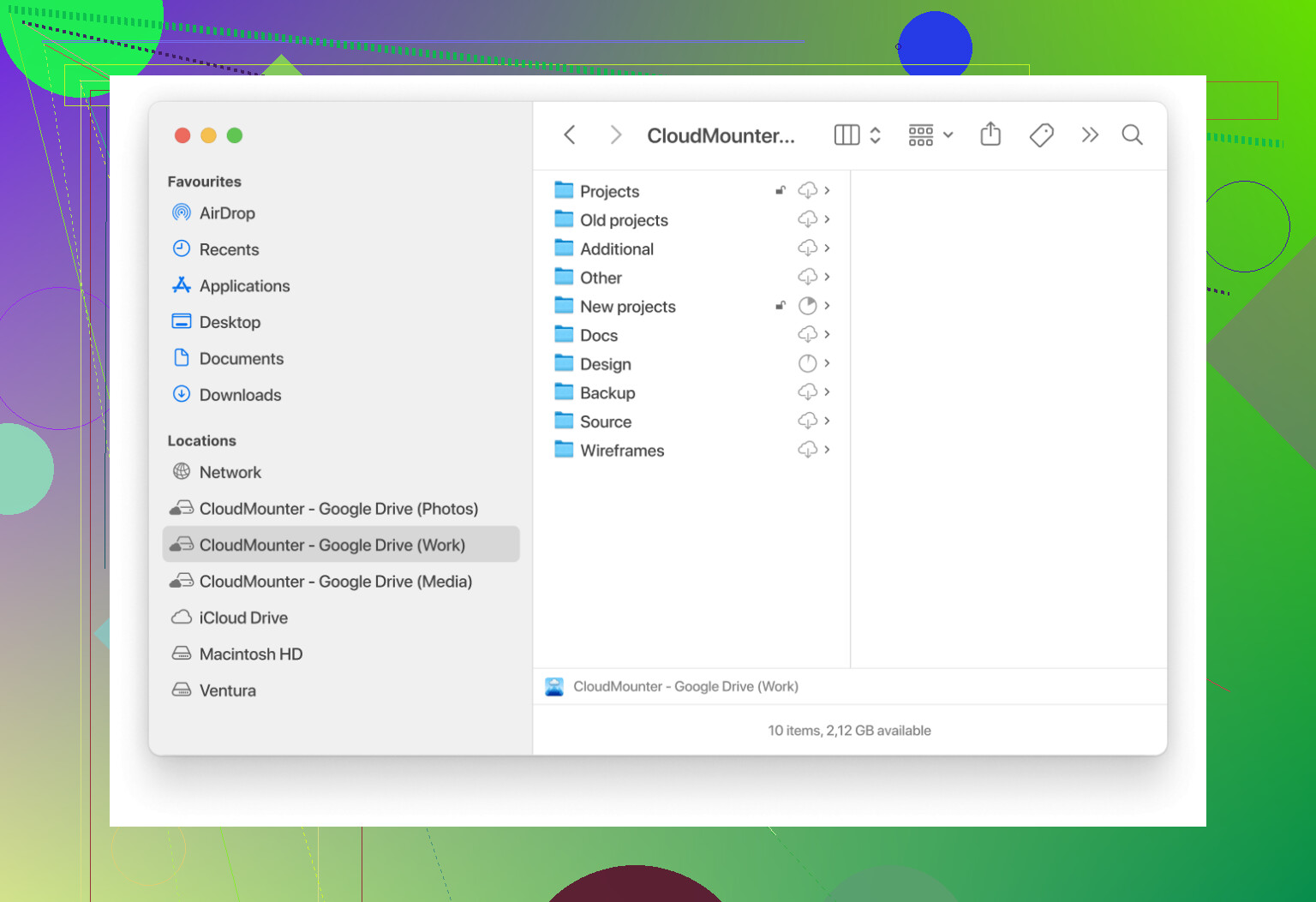
Here’s how my setup looked during the last mind-numbing file move. Finder on my left, my Drive mounted on the right, just doing its thing. Smooth and painless—which isn’t what I’d say for fighting with the browser when my WiFi hiccups.
TL;DR
- Standard Google Drive? Works, but gets finicky in big batches.
- The official desktop app helps, but can eat local space.
- CloudMounter makes your cloud storage behave like a USB stick—super convenient for moving tons of files at once, and it never grumbled at long uploads for me.
If you juggle loads of files regularly, do yourself a favor and check out CloudMounter—streamlined, reliable, and saves nerves.