I accidentally deleted photos from my Nikon camera before backing them up, including important family pictures I really need to get back. I’m looking for the easiest and safest way to recover deleted Nikon camera photos from the memory card without causing more data loss.
I’d avoid writing the card off yet. I’ve seen Nikon shots come back after an accidental delete, and even after a quick format. What mattered in my case was not how the files vanished. It was whether new data had landed on top of them.
First thing, stop using the SD card now. No more photos. No video clips. Don’t format it again. Every file you save puts your old NEF, NRW, or JPEG files at more risk.
Quick format is often recoverable. Full format or secure erase is a rougher situation. I’ve had worse results there.
If you don’t have a backup, I’d go straight to recovery software. I used Disk Drill and it handled Nikon RAW files fine, including NEF and NRW, plus normal JPEGs. Setup was simple, no weird steps.
What I did:
- Pulled the SD card from the camera.
- Connected it with a card reader to my computer.
- Installed Disk Drill on the computer, not on the card.
- Picked the SD card and started Search for lost data.
- Ran Universal Scan. For deleted files and quick-formatted cards, this worked well for me.
- Waited for the scan to finish, then checked previews.
- Recovered the good files to my computer, never back to the same SD card.
Small thing, but it matters. If your RAW files preview cleanly during the scan, your odds are usually better.
If you’re missing videos too, I’d run Advanced Camera Recovery after the first pass. I missed this the first time I tried. Standard scans found the photos, but some camera video files were fragmented and didn’t show up until I used the camera-focused scan.
One part people trip over is filenames. Recovered RAW files often come back with generic names and no original folder layout. I’ve had this happen more than once. It doesn’t mean the images are broken. The software is often rebuilding files from file signatures, not restoring the old directory tree.
Also, if a recovered NEF file refuses to open in the default Windows Photos app, I wouldn’t panic yet. Windows is spotty with Nikon RAW support. Open it in software with proper NEF support first, then judge the file.
Before you scan, check for forgotten copies. I once spent half an hour recovering stuff I already had on another device. Look at your computer, any old import folders, SnapBridge transfers, and cloud photo sync if you had it on before the trip.
I’d stop and change course if the card is not detected, keeps disconnecting, or looks physically damaged. I’ve pushed a failing card before. Bad idea. If it’s unstable, a recovery shop is the safer move.
So yes, deleted Nikon photos often come back. Same for cards hit with a quick format. Timing matters. Stop using the card, scan it from a computer, and save anything recovered to a different drive.

7 Likes
Stop shooting with the Nikon. That matters more than anything else.
I agree with @mikeappsreviewer on one part, deleted photos often come back if the card has not been reused. I disagree a bit on one thing though. I would not spend much time testing lots of apps. If your family photos matter, pick one solid tool first, scan once, recover to your computer, done. Less messing around, less risk of user error.
Disk Drill is the easy route for most people. It supports Nikon photo formats like NEF, NRW, and JPG, and it keeps the process simple. If the card still mounts on your computer, your odds are decent after a delete or quick format.
A few extra things people miss:
- Check the camera’s playback menu first. Some Nikon bodies hide images by date or folder.
- Look for auto backups. Nikon SnapBridge, old imports, OneDrive, iCloud Photos, Google Photos.
- Use a separate card reader. Direct camera-to-PC sometimes gets flaky.
- If the SD card asks to be repaired, hit no. Scan it first.
- Recover files to your desktop or external drive, not back onto the Nikon card. Big mistake.
If the card is corrupted, slow, or disconnects, stop. Don’t keep rescanning it for hours. That is where a lab makes more sense.
For a simple photo recovery walkthrough, this easy SD card photo recovery guide covers the basics in plain english.
Short version, remove the card, connect it to a computer, scan with Disk Drill, preview the Nikon files, restore the good ones somewhere safe. Do it soon. Every new pic you take makes recovery worse.

One thing I’d add to what @mikeappsreviewer and @chasseurdetoiles said: before you jump straight into recovery, test the simplest possibility first. Nikon sometimes only removes the index entry, and the card itself is fine, but the camera or Windows just stops showing the files correctly. So check the SD card on a different device and in a proper photo app, not just File Explorer.
Also, slight disagreement with the “scan once and done” idea. If the first recovery mode only finds broken JPGs or misses NEF files, a second pass with different scan logic can help. You just don’t want to keep using the card in the camera. That’s the real danger.
Easiest/safest route for most people:
- lock the SD card if it has a write switch
- use a card reader, not the Nikon USB cable if possible
- if your computer can read the card, make a byte-for-byte image of it first if the photos are super important
- then run recovery from the image, not the original card
That last part is what people skip. It’s a tiny bit more work, but way safer if the card starts acting weird.
If you want something simple, Disk Drill is probly the easiest Nikon photo recovery option for regular users. It usually detects NEF, NRW, JPEG, and sometimes video better than the built-in tools people try first. Recover to your computer or an external drive, never back to the same SD card.
If the card clicks, disconnects, shows 0 bytes, or asks to format every time, stop messsing with it. That’s when DIY can make things worse.
Also useful if you want more opinions on tools: best SD card recovery software recommendations from forum users
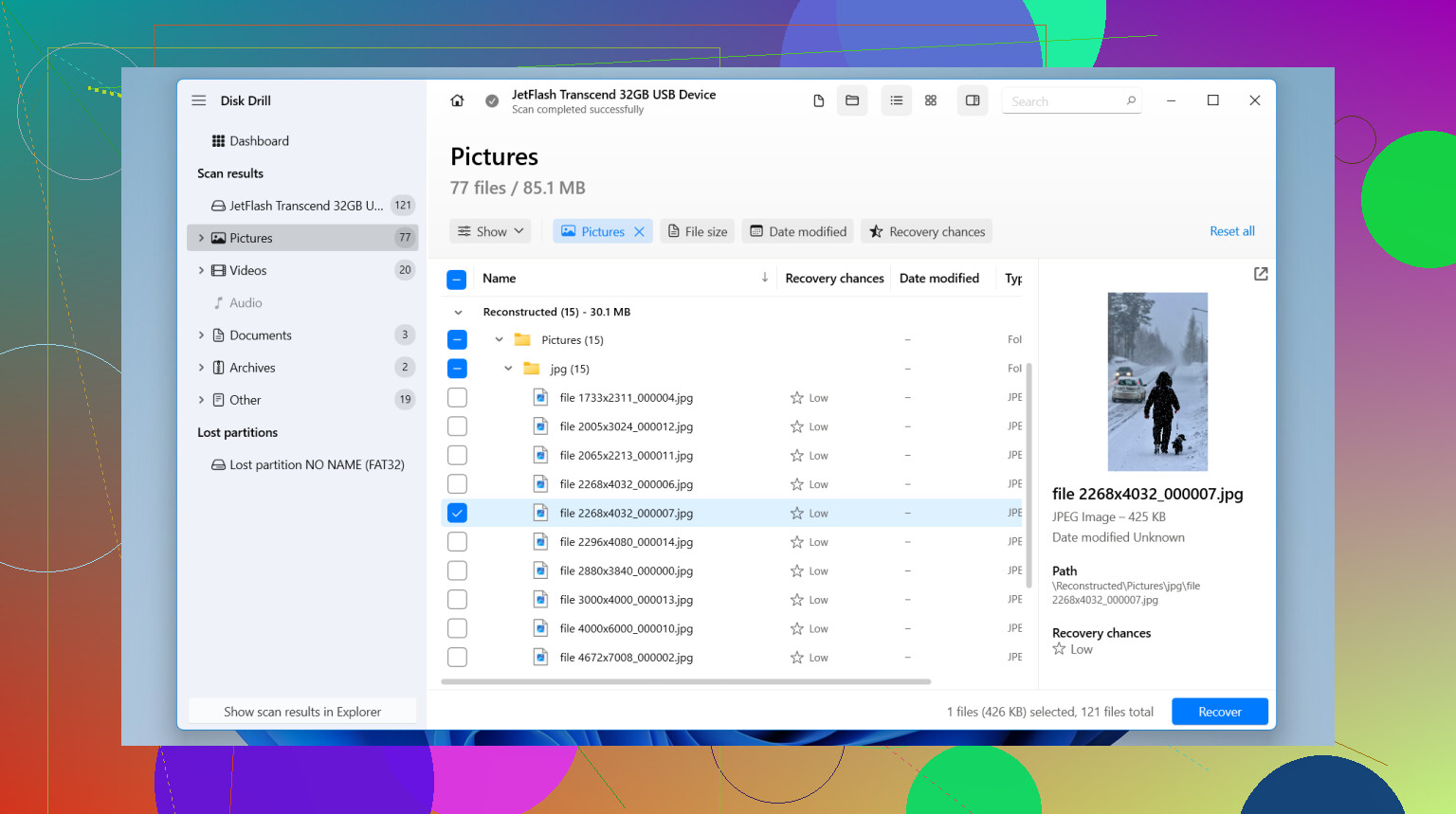
I’m with @chasseurdetoiles on one key point: don’t keep experimenting if the card is acting strange. But I disagree a little with the “one scan only” mindset. If the card is healthy, one normal scan plus one deep scan is still reasonable and doesn’t increase risk the way putting the card back in the Nikon does.
My version of the easiest route:
- Put the SD card aside immediately
- If it has a lock switch, slide it to locked
- Copy the whole card to an image file first if these photos are truly irreplaceable
- Run recovery on that copy, not the live card, if possible
That’s the part people skip, and it’s the safest habit.
As for software, Disk Drill is probably the most beginner-friendly option for Nikon photo recovery.
Pros:
- simple interface
- supports NEF, NRW, JPG
- preview helps filter junk before recovery
- decent for accidental delete and quick format cases
Cons:
- deep scans can return lots of renamed files
- full recovery is paid
- not magic if data was overwritten
- sometimes finds more clutter than you actually need
Also, brief reality check: if the card shows up fine in a computer, DIY makes sense. If it disconnects, asks to format constantly, or reads 0 bytes, stop there. That’s closer to lab territory.
@nachtdromer and @mikeappsreviewer are right about using a card reader and restoring to another drive. I’d just add: if your Nikon saved to two cards at once, check the second slot card before doing anything else. That has saved people a lot of stress.