I’m having trouble getting VLC’s subtitle delay feature to actually sync my subtitles with the video. No matter how much I adjust the delay, the subtitles still show up out of sync or jump around. I’ve tried different files and reset settings, but the problem keeps happening. Is there a known fix, setting, or workaround I’m missing to make VLC’s subtitle sync delay function work properly?
Most of the time when subtitles drift in VLC, it ends up not being VLC. I bumped into this a lot before I figured out what was going on.
Here is what usually wrecks the timing and what I did to deal with it.
Why your subtitles go out of sync
-
FPS mismatch between video and subs
I had a movie ripped at 24 fps and grabbed a random subtitle file that was synced to a 25 fps release. At the start it looked almost fine, maybe off by a fraction of a second. Then by the halfway point it was visibly late, and by the end it was completely useless.
If your video is 24 fps and the subtitle file is made for 25 fps, the offset grows over time. Same thing the other way around. -
Different cut of the same movie
Another time I had a “Director’s Cut” video and subtitles synced to the theatrical release. The DC had an extra scene early on. Looked short, something like 90 seconds, but it pushed everything after it out of position.
You get this a lot with extended editions, TV cuts, Blu-ray vs WEB-DL, etc. Any extra or missing scene near the start shifts every subsequent line. -
Slow computer, heavy file
On an older laptop I tried playing a high bitrate 4K file. The video choked and stuttered, audio jumped a bit too, but the subtitles advanced on time. That ends up looking like the subtitles are wrong, but the real problem is the system not decoding fast enough.
If your CPU or GPU is at 90–100 percent during playback of a heavy file, that is a red flag.
Quick way to fix timing in VLC
If the subtitles are consistently early or late, you do not need menus for a quick fix. VLC has hotkeys for shifting subtitle timing in 50 ms steps. I use these every time I test a new file.
On Windows / Linux
I do this:
- Press G to move the subtitles earlier in time. Use this if the text appears after the voice.
- Press H to move the subtitles later. Use this if the text shows before the voice.
On macOS
On my Mac, VLC uses different keys:
- Press H to move the subtitles earlier.
- Press J to move the subtitles later.
VLC shows the current subtitle delay in the top-right corner when you press the keys. I usually nudge a few times, watch one full line of dialog, then fine tune. Most files end up somewhere between minus 2.0 and plus 2.0 seconds.
If the delay keeps changing over the movie, not staying constant, then you are probably dealing with a wrong fps or wrong cut, not a simple offset.
Alternative options
I still use VLC a lot, but I reached a point where I wanted players that handle subtitles in a more “sticky” way. Two options helped me.
Elmedia Player on macOS
Elmedia remembers subtitle delay per file. I had one movie where I needed subtitles at minus 1.8 seconds. I set it once. Next day I opened the same file, and the delay was still at minus 1.8. No re-adjusting every session.
If the subtitles I downloaded were off or poorly formatted, I used Elmedia’s OpenSubtitles integration. You pick a better synced version directly from inside the player instead of going back to a browser and hunting files. For old shows with a bunch of different releases, this saved me time.
It feels like a more polished version of the usual free players, without getting in the way.
SMPlayer on Windows
I had a video where the right subtitle delay was minus 2.5 seconds. I closed SMPlayer, rebooted, opened the same movie the next day, and the delay was still at minus 2.5. It logs per-file stuff quite aggressively, which is nice if you rewatch or pause long movies.
Some anime releases with weird embedded subtitles played with fewer glitches. If a file had odd timing tags or mild corruption, SMPlayer was more forgiving. VLC played almost everything, but once in a while I got odd desyncs or flickers that I did not see in SMPlayer.
56 Likes
What @mikeappsreviewer said about fps and wrong cuts is spot on, but there are a few VLC‑specific quirks that explain why the subtitle delay slider and hotkeys feel “broken” or jumpy.
Here are VLC issues to check that do not repeat the same steps they already gave:
- Subtitle track vs external file
Sometimes VLC loads both:
- an internal subtitle track from the video
- and your external .srt / .ass
You adjust delay, but VLC keeps switching active track on seek or on audio track change. Then the timing looks random.
What to do:
- Subtitles menu → Subtitle track → pick only the one you want.
- Turn “Track 1” or “Track 2” off if you see duplicates.
Test again after that.
- Broken or variable timestamps inside the subtitle file
If the subs “jump” or go in and out of sync when you skip around, the file itself might have:
- overlapping cues
- gaps
- hardcoded weird timestamps
VLC follows those timestamps. The delay control only adds a constant offset. It does nothing if the file has internal jumps.
Quick check:
- Open the .srt in a text editor.
- Look for timecodes that suddenly jump far forward or backward compared to the previous line.
- Use a subtitle editor like Subtitle Edit or Aegisub and run “Check for errors” or “Fix timecodes”.
If the error report shows overlaps and gaps all over, get a different subtitle file that matches your release instead of fighting VLC.
- VLC’s timing settings fighting each other
If you played with sync settings in more than one place, VLC can stack them.
Things to reset:
- Tools → Preferences → Show settings “All”.
Then:- Audio → check “Audio desynchronization compensation” is 0.
- Subtitles / OSD → “Subtitle text delay” should be 0.
- Save, then close VLC completely and reopen.
Now test delay again with only the subtitle delay feature.
- Hardware acceleration and stutter
I slightly disagree with the idea that it is only CPU load. On some GPUs, VLC’s hardware decoding creates small, irregular delays during seeking or playback. Video lags a bit, subs keep perfect internal timing, and it feels like subs are “floating”.
Try this:
- Tools → Preferences → Input / Codecs
- Set “Hardware-accelerated decoding” to “Disable”.
- Restart VLC and test the same scene.
If things get smoother and the delay becomes consistent, then your issue is decoding, not the subtitle delay control.
- Variable frame rate sources
If your video is VFR (common with screen recordings, some web rips), and your subtitles were created from a CFR source, timing drift can act weird when you jump around. VLC’s seek accuracy with VFR is not always tight.
You will see:
- Sync looks fine at start.
- You jump to the middle, subs are off by a different amount.
- You jump near the end, they are off again by some new value.
The only clean fix:
- Remux or reencode to a constant frame rate using something like HandBrake.
Set a fixed fps that matches the subs’ source. - Then load the same subs and use a single delay if needed.
- “Audio track sync” vs “Subtitle delay” confusion
VLC has:
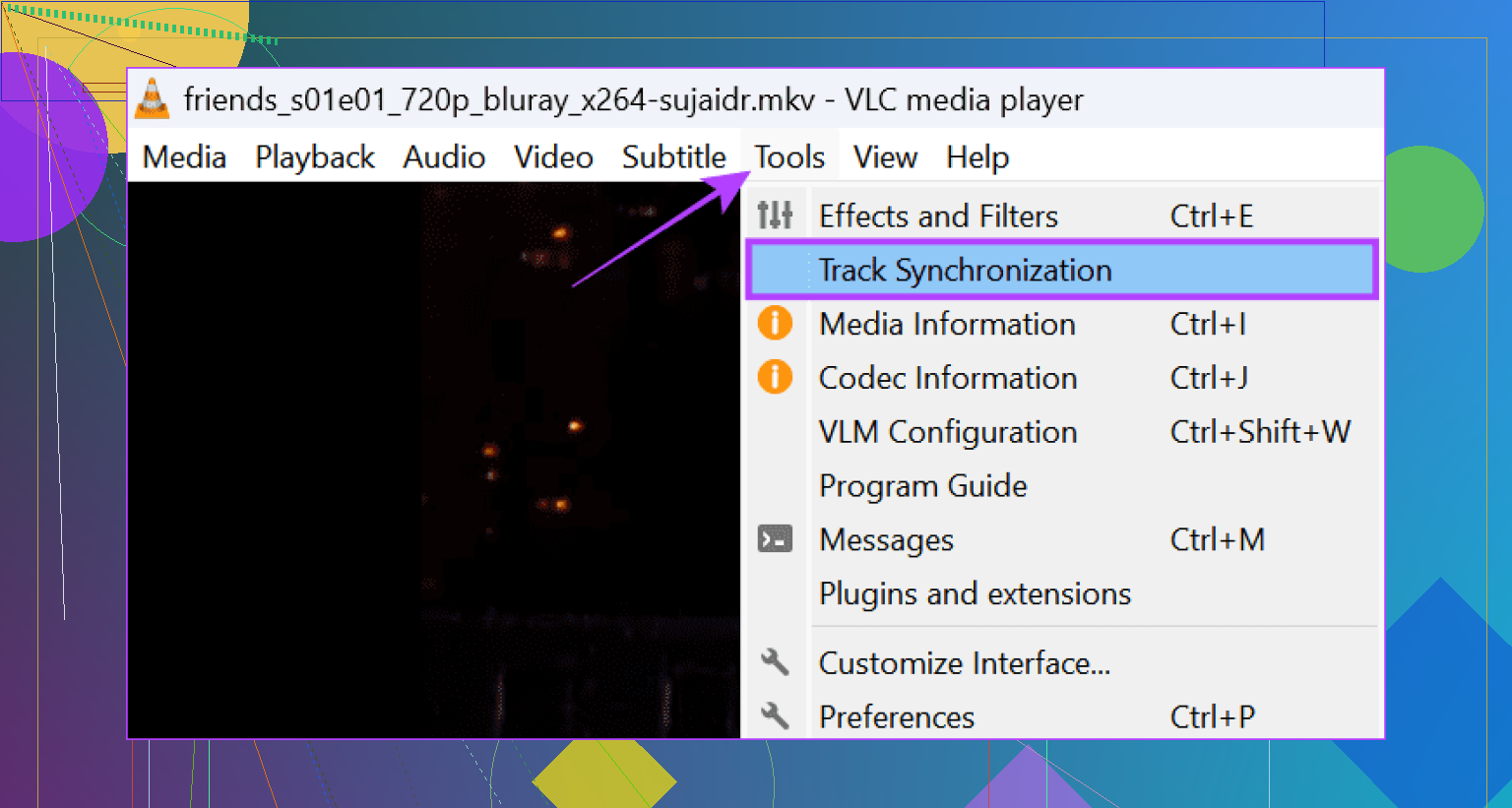
- Tools → Track Synchronization → Audio track synchronization
- And Subtitle synchronization
If you changed the audio sync instead of the subtitle sync at some point, then tried to fix the subs later, you end up chasing your tail.
Reset both:
- Set Audio track synchronization to 0.
- Set Subtitle track synchronization to 0.
- Then change only subtitle delay with the hotkeys.
- Weird container timing
Some MKV or MP4 files store timestamps in a slightly broken way. VLC tends to follow them strictly. Other players sometimes smooth it out.
If you notice:
- VLC is the only player where subs drift.
- Same .srt and video in another player stay stable.
Then try:
- Remux with MKVToolNix.
Open the video and subs, remux to a new file. - Open that new .mkv in VLC and see if the drift disappears.
- VLC not remembering your delay
If your subtitles look fine after you tweak delay, but the next time you open the file they are wrong again, VLC’s “per file” memory is limited.
You have two paths:
- Use a subtitle editor to shift the entire file permanently by the needed offset. Save as a new .srt that loads with the correct timing each time.
- Or switch to a player that stores per file subtitle delay.
This is where Elmedia Player is nice on macOS. It remembers subtitle delay per file and has built in OpenSubtitles search, so you grab a better synced subtitle version directly from the player. For this exact problem, it is more convenient than redoing VLC delay every time.
On Windows, SMPlayer does the per file memory too, like @mikeappsreviewer mentioned, but if you are on Mac, Elmedia Player is the closer match.
- Test with a “known good” combination
To figure out if VLC is the problem at all:
- Get a sample video and matching subs from the same release group, or a BluRay rip with included subs.
- Play them in VLC, do not touch sync.
If this combo stays synced from start to end, then VLC is fine and the issue is with your particular file and subtitle pair or with your system.
If even a known good pair drifts or jumps in VLC on your machine, then:
- Reset VLC preferences fully (Tools → Preferences → Reset settings).
- Update VLC to the latest version.
- Test again.
Once you clear conflicts, fix any bad subtitle file, and rule out VFR or performance issues, the subtitle delay in VLC behaves predictably. If it still wastes your time, switching to Elmedia Player on macOS is a lot less painful than fighting with broken subs every night.
The thing that trips a lot of ppl up here: VLC’s subtitle delay is only a dumb global offset in milliseconds. It does not “resync” a bad or mismatched subtitle file in any smart way. So if your subs are drifting or jumping, cranking delay back and forth will never really fix it.
Since @mikeappsreviewer and @mike34 already nailed fps, wrong cut, bad files, etc., here are a few other gotchas that specifically explain why the delay control feels broken:
-
You’re changing the wrong delay
VLC has three different places that mess with timing:- Audio track sync
- Subtitle delay
- Global audio desync in prefs
If you ever nudged the audio sync in Tools → Track Synchronization in the past, you might have the audio sitting at +300 ms and then you’re trying to “fix” subs with subtitle delay, so nothing ever lines up.
Quick test: set Audio track synchronization = 0 and Subtitle track synchronization = 0 first, then only touch the subtitle delay while testing.
-
“Jumping” when you seek is often a seek accuracy problem
VLC is notoriously imprecise with some files when you skip around, especially with MKV + variable frame rate or weird encodes. It may land between keyframes so the video shows slightly late but the subtitle renderer happily uses the real timestamps. To your eyes, that looks like the subs randomly jump early/late.
Try:- Advanced prefs → Input/Codecs → change “Skipping the loop filter for H.264 decoding” to “None” and see if seeking behaves more consistently.
- Or re-encode that trouble file to a constant frame rate in HandBrake and test again.
-
Some subtitle formats fight VLC harder than others
SRT is usually fine. SSA/ASS with lots of styling, karaoke effects, and offset tags can look like VLC is ignoring your delay or going nuts when you jump. Reality: the file itself is telling the renderer to show/hide at odd times relative to the line start.
If your problem file is ASS/SSA, convert it to plain SRT with Subtitle Edit and then try delay again. If it suddenly behaves, it wasn’t VLC “failing” so much as the advanced tags stomping on your expectations. -
You might have per-track offsets baked into the container
MKV/MP4 can store time offsets for each track. Sometimes the muxer added a +100 ms for subtitles or -80 ms for audio. VLC obeys those, then adds your delay on top. That can make your adjustments feel inconsistent between files.
Use something like MKVToolNix to inspect the file: if you see a “delay (in ms)” set on the subtitle track, set it to 0 and remux. After that, VLC’s delay slider behaves more predictably. -
Old VLC versions had legit subtitle quirks
Not saying “update fixes all,” but some older builds had bugs with:- External subs + embedded subs combined
- Incorrect handling of negative start times
If you’re not on a recent VLC, update and re-test the same video + sub combo. If the behavior changes, it really was VLC.
-
When it feels like VLC is cursed, stop forcing it
There’s a point where fighting subtitle sync in VLC is more annoying than it’s worth. Especially when you want the delay remembered per file and more “stickiness” than VLC offers. That’s where a different player actually fixes the workflow problem, not just the timing.
On macOS, Elmedia Player is honestly better at this:- It remembers the subtitle delay for each file. Set it once, reopen the file next week, it’s still correct.
- Built-in OpenSubtitles search lets you instantly swap to a version that actually matches your encode instead of juggling random downloads.
On Windows, like @mikeappsreviewer mentioned, SMPlayer does similar “per file memory” stuff.
So, if:
- The offset is constant: VLC’s subtitle delay works fine, use that or permanently shift the SRT with a subtitle editor.
- The offset drifts: wrong fps / wrong cut / VFR vs CFR, get a matching subtitle file or re-encode to CFR.
- The timing jumps when you seek: seek accuracy, container offsets, or a messy subtitle format. Fix the file or remux, VLC is doing exactly what its inputs tell it to do.
In other words, the delay feature is working, it’s just painfully dumb compared to what people expect. If you want smarter handling and persistent sync without all this fiddling, using something like Elmedia Player on Mac is way less headache than trying to bend VLC around broken subs all the time.
Short version: if VLC’s subtitle delay seems random or ineffective even after what @mike34, @stellacadente and @mikeappsreviewer suggested, you’re probably hitting one of these edge cases:
-
Hard-coded “garbage” in the subtitle file
Some SRT / ASS files are manually edited with extra blank entries, fake timestamps, or big gaps to try to line them up with a specific encode. Global delay in VLC cannot undo that.
Quick check: open the subtitle in Subtitle Edit or Aegisub, scroll through and see if:- Timestamps suddenly jump forward or backward a lot.
- There are long stretches with no lines where there should clearly be dialog.
If yes, that file is basically unsalvageable with just VLC delay. You want a clean, un-hacked subtitle that matches your release, not one “tuned” by some random uploader.
-
Variable frame rate video messing with perceived sync
Others already mentioned FPS mismatches, but VFR is its own headache. Many screen recordings, live captures, and some web rips use variable frame rate. VLC follows the timestamps, but visually it can feel like the subs “wander” during fast or slow motion scenes, especially if the encode is low quality or poorly muxed.
To test: run the file through MediaInfo and see if it says “Variable” for frame rate. If yes, try re-encoding to constant frame rate (for example with HandBrake) and re-check sync with the same subtitle file. If it suddenly becomes stable, that was your culprit. -
Hardware acceleration glitches
Occasionally, certain GPU / driver combos desync video vs clock very slightly while audio and subs stay on-time. Over 30–60 minutes, that can feel like the subtitles slowly slide.
Try this in VLC:- Disable hardware-accelerated decoding in preferences.
- Restart VLC and test again.
If the drifting improves or disappears, the problem is the decode pipeline, not the subtitle delay logic itself.
-
Multiple external subtitle files on the same folder
VLC sometimes auto-loads more than one external subtitle and you may be adjusting delay for track 1 while VLC is actually showing track 2 after a seek or playlist step.
Check:- Subtitles → Sub Track and confirm which one is active.
- Temporarily move other .srt / .ass files out of the folder and reload the video.
If things stop “jumping” after that, you were fighting the wrong track on and off.
-
Permanent fix instead of “live” delay
Everyone talked about using VLC hotkeys, which is fine, but if you repeatedly watch the same file, it is often less annoying to bake the correction into the subtitle file itself:- Use Subtitle Edit’s “Synchronize” feature to either shift everything by a fixed offset or stretch/compress over time if there is drift.
- Save a corrected version tied to that specific release.
This avoids re-tweaking in VLC and also works in any other player you might use later.
-
When switching players actually makes sense
I do not fully agree with the idea that “most of the time it’s not VLC” because older VLC builds and platform-specific bugs have definitely caused genuine subtitle weirdness in my setup. If you have verified:- Correct release-matched subtitles
- No FPS mismatch
- No weird mux offsets
and VLC still acts flaky, then yes, try a different player rather than losing an evening to debugging.
Here is where Elmedia Player can help:
Pros of Elmedia Player:
- Remembers subtitle delay per file, so you set it once and it sticks.
- Integrated subtitle search that makes swapping to a better synced file very fast.
- Generally smooth handling of assorted subtitle formats with less random flicker or missing lines than I have seen in some VLC builds on macOS.
Cons of Elmedia Player:
- You are adding yet another player to your system, which some people dislike.
- Advanced power-user subtitle tools are still stronger in dedicated editors, so for serious resync work you will still need external software.
- Behavior and features can differ a bit between free and paid variants, which is not everyone’s favorite model.
Compared with what @mike34, @stellacadente and @mikeappsreviewer described, I would say:
- Their focus on matching FPS and release is absolutely right and should always be step one.
- Where I diverge slightly is that I think VLC’s own quirks, especially on older versions or specific OS/GPU combos, are underestimated. If a known good file set behaves weirdly only in VLC, it really can be VLC’s implementation for that setup.
If you want a practical order of operations without repeating their steps:
- Confirm there is only one external subtitle loaded and it is the active track.
- Inspect the subtitle file for hacked timestamps or giant jumps.
- Check whether the video is VFR and, if so, try a CFR re-encode.
- Toggle hardware acceleration off in VLC and retest.
- If the delay is constant, bake it into the subtitle file so you never touch VLC delay again.
- If VLC alone keeps misbehaving with known good files, use something like Elmedia Player for regular watching and keep VLC around for its other strengths.
Strong breakdown. Here is a simpler fix not covered.
Auto resync subs to the audio with ffsubsync or SubSync. It matches speech to text and shifts every cue.
Steps. pip install ffsubsync. Run: ffsubsync video.mkv -i subs.srt -o subs_synced.srt. Load the new file in VLC.
Example. My 24 fps rip with 25 fps subs drifted to 5 seconds late by the end. ffsubsync pulled errors under 50 ms across the film. No hotkeys. No remux. Do this once, keep teh file forever.